For years, a "POS system" meant a computer at the counter, a scanner on a cable, a receipt printer, a cash drawer and a box of software with a yearly fee. For a small shop today, a phone app can do most of that work. This post explains what a POS really is, what a phone-based POS app can and can't replace, and how to choose one.
What is a POS?
POS stands for point of sale: the place where a sale happens, and the system that records it. A POS does three things:
- Makes the bill: items, prices, discounts and the total.
- Takes the payment: cash, card, wallet or credit, and records how it was paid.
- Updates everything else: stock, the day's takings and your reports.
The software does all three. The hardware (scanner, printer, cash drawer, card terminal) only makes some of it faster.
A traditional POS system
A classic setup for a shop counter includes:
- A computer or a dedicated POS terminal with a screen.
- A barcode scanner.
- A receipt printer.
- A cash drawer that opens when a sale is completed.
- A card terminal, usually from your bank or payment provider.
- POS software, often with a monthly or yearly fee.
It's fast for a busy supermarket lane. For a small shop it's a lot of money, cables and setup before you've sold anything.
A POS app on a phone
A POS app puts the counter in your pocket:
- The camera is the scanner. It reads product barcodes without extra hardware.
- Receipts go to the customer's phone, by WhatsApp or another app, instead of on paper.
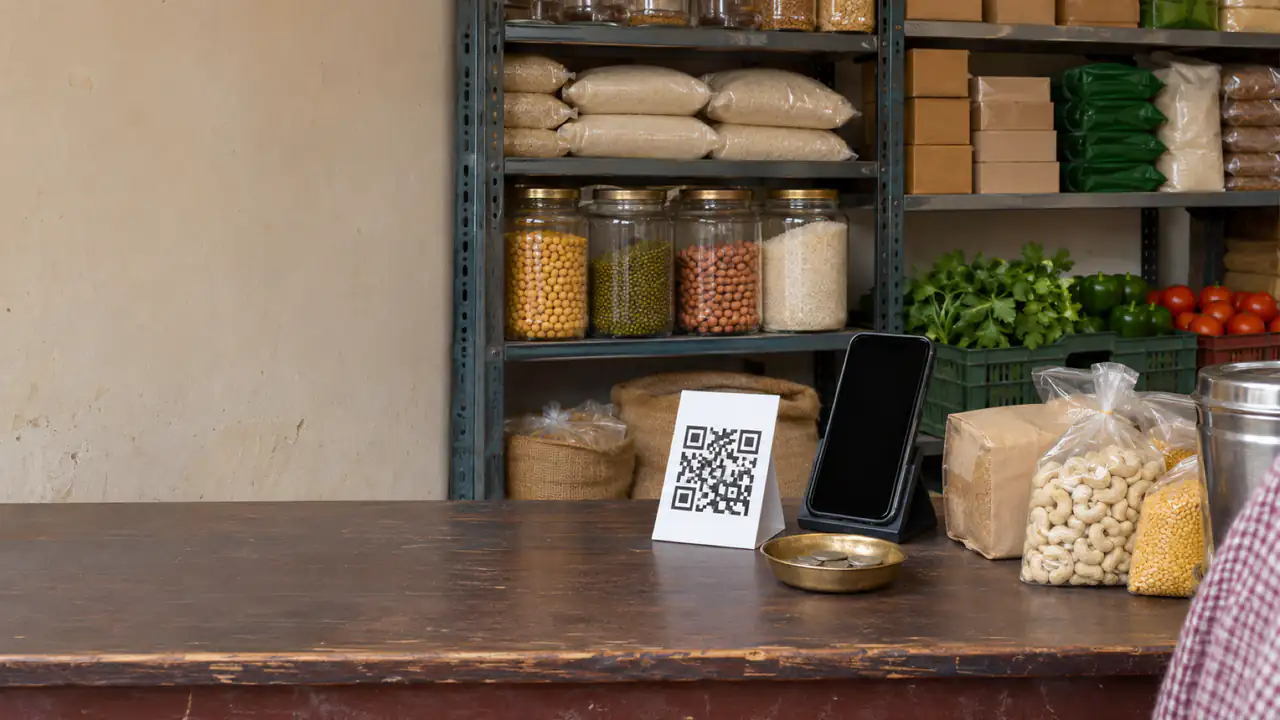
- QR and wallet payments need no hardware. A printed QR code from your bank or wallet provider (Fonepay, UPI and the like) sits on the counter; the app records which way each bill was paid.
- It runs on battery, through power cuts.
- Staff use their own phones, and every sale lands in the same shop.
A free POS app such as BSMM does all of this, for a single counter or for several shops run from one account.
What you give up without POS hardware
To be fair to the old way, a phone doesn't do everything:
- Printed receipts. Some customers want paper, and some businesses need it for their records. You'd need an app that supports a receipt printer.
- High-volume scanning. If you scan hundreds of items an hour, a hardware scanner is faster than a camera.
- A locked cash drawer that only opens on a sale.
- Card payments. Some POS apps can take contactless cards on the phone itself (Tap to Pay, in some countries); otherwise you need a card terminal from your bank or a payment provider. An app that only records payments, like BSMM, notes that a bill was paid by card but doesn't take the card.
If none of these matters at your counter today, start with the app. If you'll need a printer or scanner soon, choose an app that supports them now: moving apps later is work.
Why offline matters
A POS that needs the internet stops your counter when the signal drops, the router restarts or the power goes. Look for an offline POS: one that keeps billing without a connection and catches up when you're back online. In many places this matters more than any feature on the price list.
What a POS costs
The bill for a POS has three parts, and it's worth adding all three before you choose:
- Software: free, a monthly fee, or a fee per device or user.
- Hardware: a one-off cost for a terminal, scanner, printer and drawer, if you need them. A phone you already own costs nothing extra.
- Card fees: a percentage of each card sale, charged by the payment provider, not the POS. QR and wallet payments have their own fees, set by the provider.
A free phone POS with QR payments can cost nothing to run; a full counter with hardware and card processing costs money every month. Neither is wrong; it depends on how your customers pay.
In Nepal, a POS used to issue tax bills by a business above the e-billing threshold must be registered with the Inland Revenue Department; see billing software for a shop.
How to choose a POS for a small business
- Billing speed: five items, scanned or searched, in under a minute.
- Stock: every sale should take items out of stock automatically.
- Payments: cash, cards, wallets, split payments and customer credit.
- Offline use, tested with the phone's internet turned off.
- Staff: more than one phone, without sharing one login.
- Cost: the real price for a year, with the users and features you'll need.
- Receipts: shared digitally, printed, or both, whichever your customers expect.
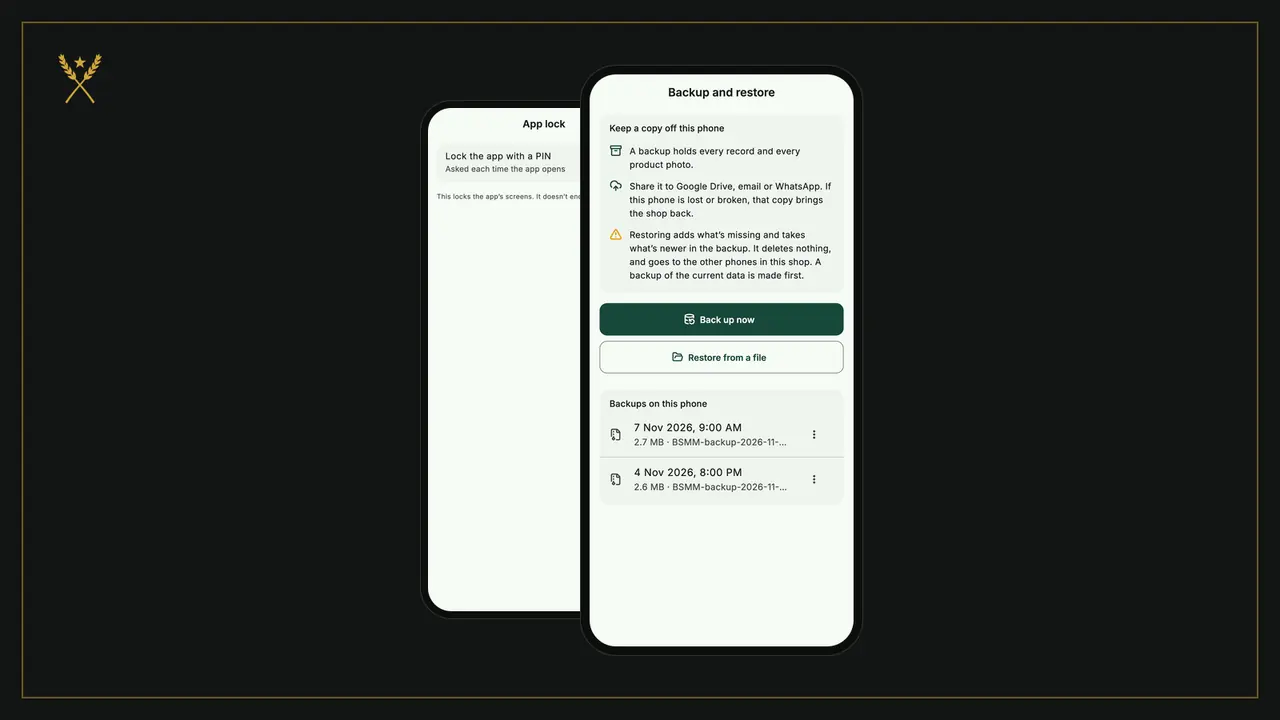
- Your data: backups, and a way to take it with you.
BSMM: a free POS app for small shops
BSMM is a free POS, inventory and credit app for Android and iPhone, built at a family grocery in Pokhara, Nepal:
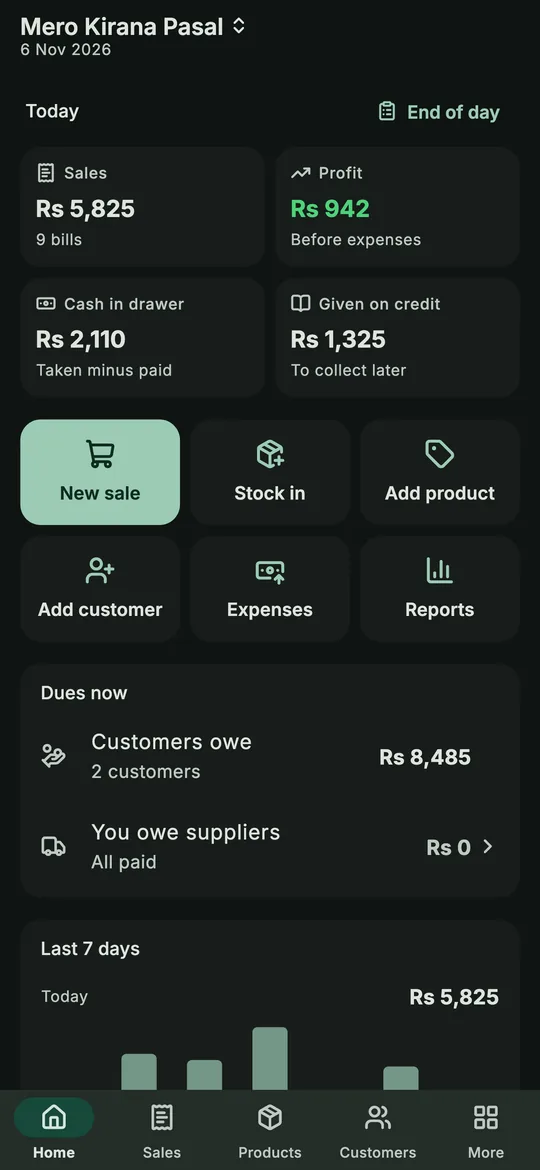 The counter on a phone, in light or dark.
- Scan barcodes with the camera or search, charge any price, discount a line or the whole bill.
- Record cash, eSewa, Khalti, Fonepay, bank or card, split a bill, or put it on a customer's credit.
- Share a clean receipt with your customer.
- Stock updates itself with every sale, purchase and return.
- A day-end summary of cash, wallets and credit, and profit reports.
- Works offline, and syncs across your staff's phones.
It's free, with no paid plan and no ads. It doesn't connect to receipt printers, cash drawers or card terminals: it's built for shops that want the counter on a phone. For what to look for in billing more broadly, see billing software for a shop.
Questions shopkeepers ask
Is there a free POS app for small business? Yes. Some are free with limits, ads or paid add-ons; BSMM is free with none of those.
Can a POS app work without the internet? Some can. An offline POS keeps billing with no connection and syncs later; check by turning off your phone's data before you commit to one.
Do I need a POS machine for card payments? Not always. In some countries, POS apps with Tap to Pay take contactless cards on the phone itself. Otherwise you need a card terminal from a bank or payment provider, and the POS app records that the bill was paid by card.
Is a POS app enough for a supermarket? For a large store with several busy lanes, dedicated hardware is usually worth it. For a corner shop, kirana or small grocery, a phone app is enough.