The last part of the series is about looking after your shop: the details on your receipts, a backup you keep off the phone, a PIN so nobody else can open the app, the notifications you want, and your own account. All of it is under More. This tutorial goes through each one.
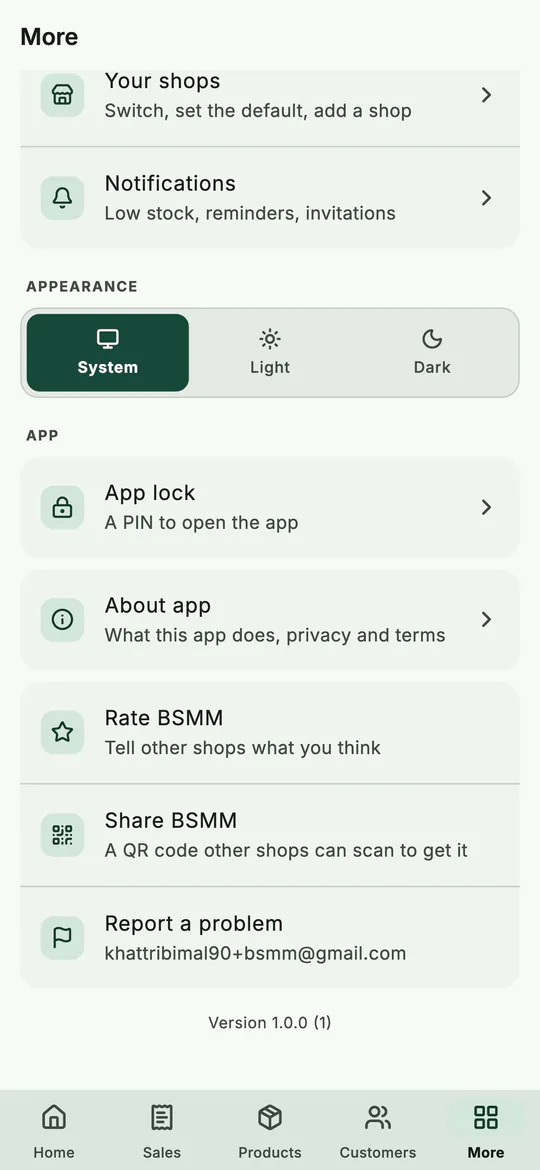 The bottom of More: account, appearance and the app's own settings.
1. Shop details: what goes on your receipts
Go to More › Shop details.
- Under On your receipts, check the Shop name, Address and Phone. These are the shop's own details, the same for everyone in it, so changing them needs the internet.
- Add your PAN / VAT number if you'd like it on your receipts.
- Write a Receipt footer, the last line of every receipt: a thank-you, your opening hours or your wallet number.
- Under Low-stock warning, set Warn when stock is at or below for products without a level of their own.
- Tap Save.
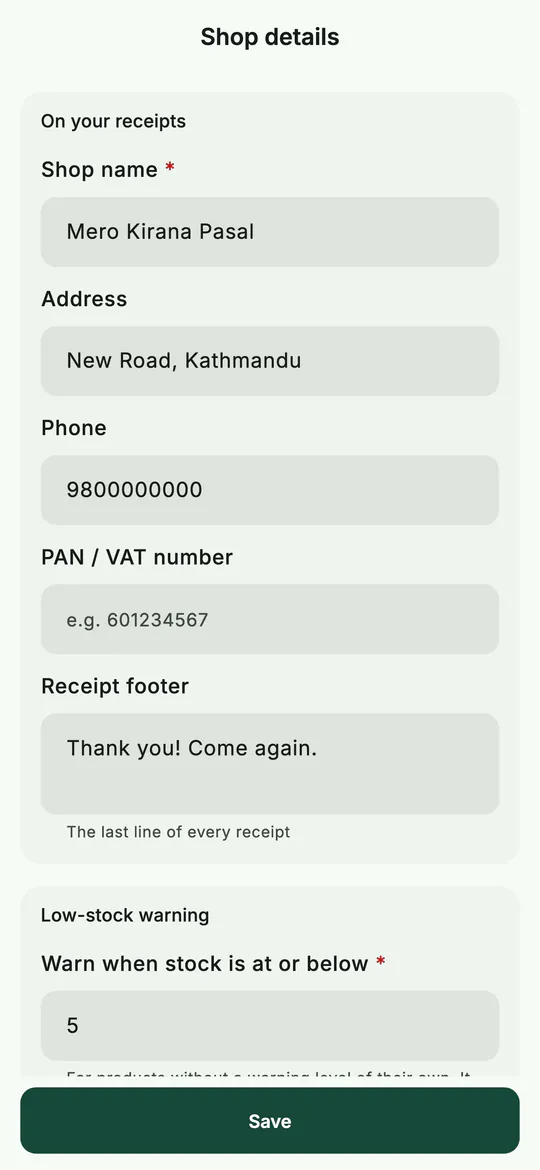 Shop details: the name, address, phone and footer on every receipt.
2. Back up your shop
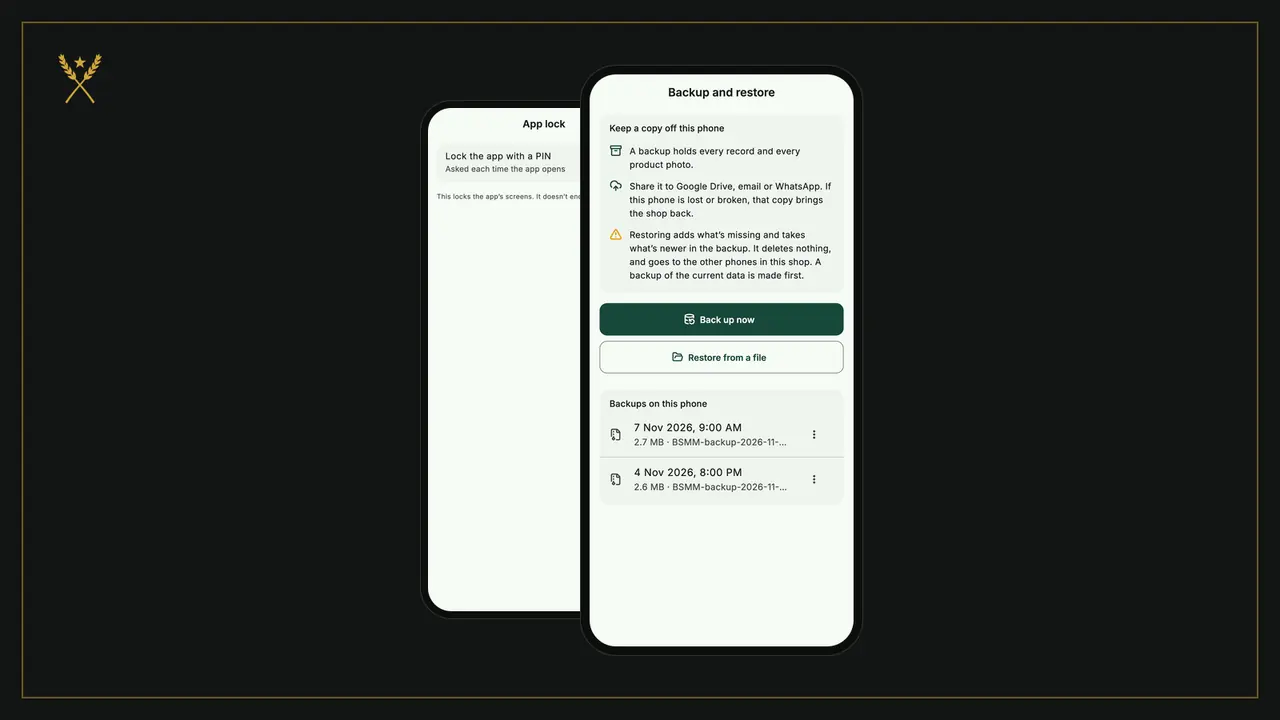
Your shop is already kept on the server and on every phone in it. A backup is one more copy that's yours: a single file with every record and every product photo, which you keep where you like.
- Go to More › Backup and restore.
- Tap Back up now. The backup is saved on the phone, and BSMM asks Share the backup?
- Tap Share. On the next sheet, turn on Protect with a password and type one. Anyone with the file could read your shop's records without it. The password needs at least 10 characters, and a lost password can't be recovered, so write it down somewhere safe.
- Tap Share and send it to Google Drive, your email or a WhatsApp chat with yourself.
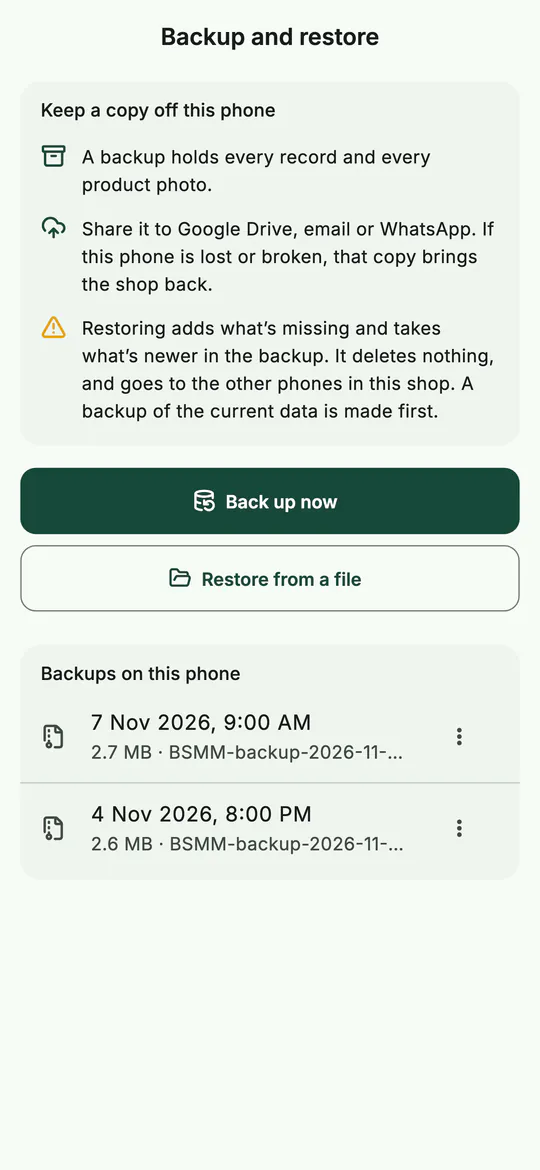 Back up now, then keep a copy off the phone.
The five newest backups stay on the phone under Backups on this phone. Use the menu beside each to Share, Restore or Delete it.
Restoring a backup
Tap Restore from a file and choose the backup, or use Restore on one listed on the phone. BSMM checks it's a backup of this shop and shows what's in it first. Restoring adds what's missing and takes what's newer in the backup. It deletes nothing, it reaches the other phones in the shop, and BSMM backs up the current data before it starts.
3. Lock the app with a PIN
A phone left on the counter shouldn't open your khata to anyone.
- Go to More › App lock and turn on Lock the app with a PIN.
- Choose a PIN of 4 to 6 digits, then enter it again.
- Under Lock after leaving the app, choose At once, 1 minute or 5 minutes.
- If your phone has one, turn on Fingerprint or face unlock. Try it once; if it doesn't work on your phone, the PIN always does.
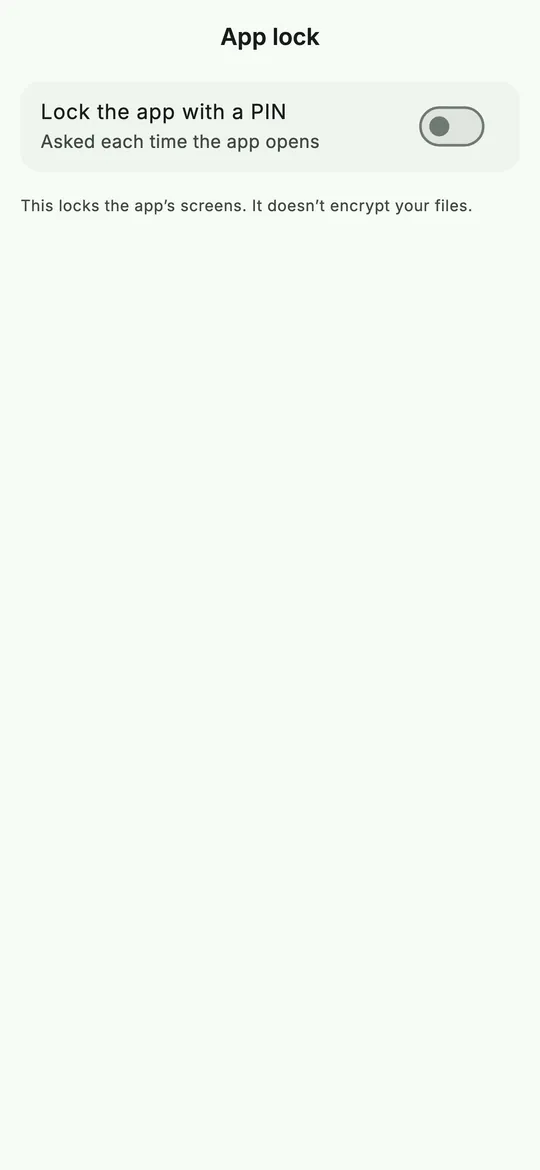 App lock: a PIN, and fingerprint or face on phones that have it.
Forgot the PIN? Tap Forgot PIN? on the lock screen and enter your account password; then choose a new PIN. Too many wrong tries make the app wait before the next one. The lock covers the app's screens; it doesn't encrypt the files on your phone.
4. Choose your notifications
Go to More › Notifications:
- Low stock, after a sale leaves a product low. On to start with.
- Daily summary, a reminder at your Closing time to look at the day.
- Due reminders, in the morning, when money or orders are due.
- Staff and invitations, when you're invited, someone joins, or you lose access to a shop.
- News from BSMM, new features and tips from the BSMM team. It stays off until you turn it on.
The last two come from BSMM's server, so they show only on phones that can receive push notifications.
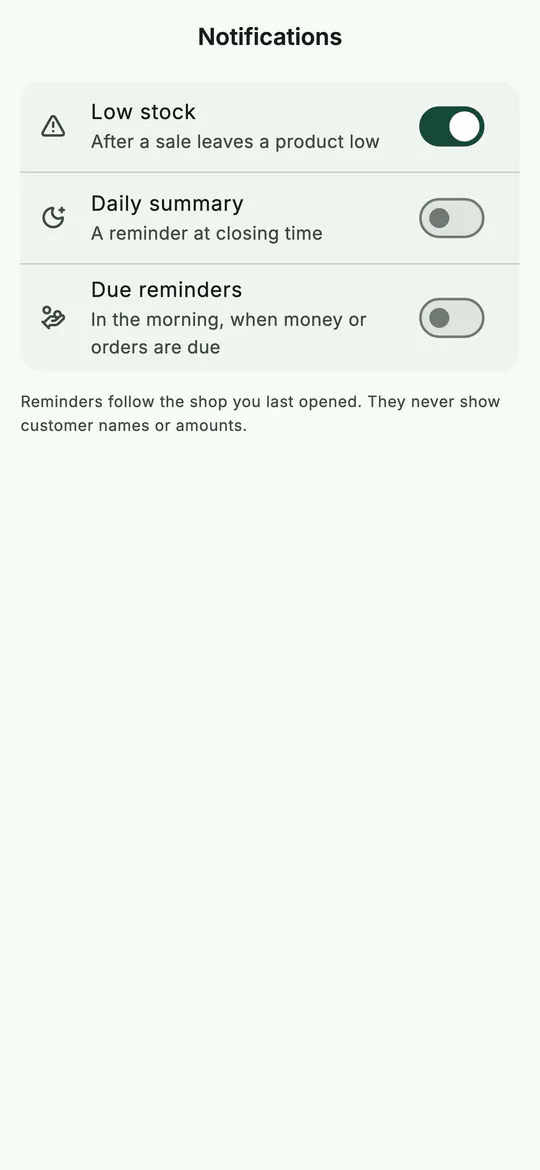 Choose what BSMM tells you, and when.
Reminders follow the shop you opened last. They never show customer names or amounts, since they can appear on a locked phone.
5. Your account
Go to More › My account:
- change Your name and Phone, and tap Save. Your email can't be changed here;
- Change password;
- Log out. Your shops stay saved on the phone, and logging in again opens them;
- Deactivate or delete account.
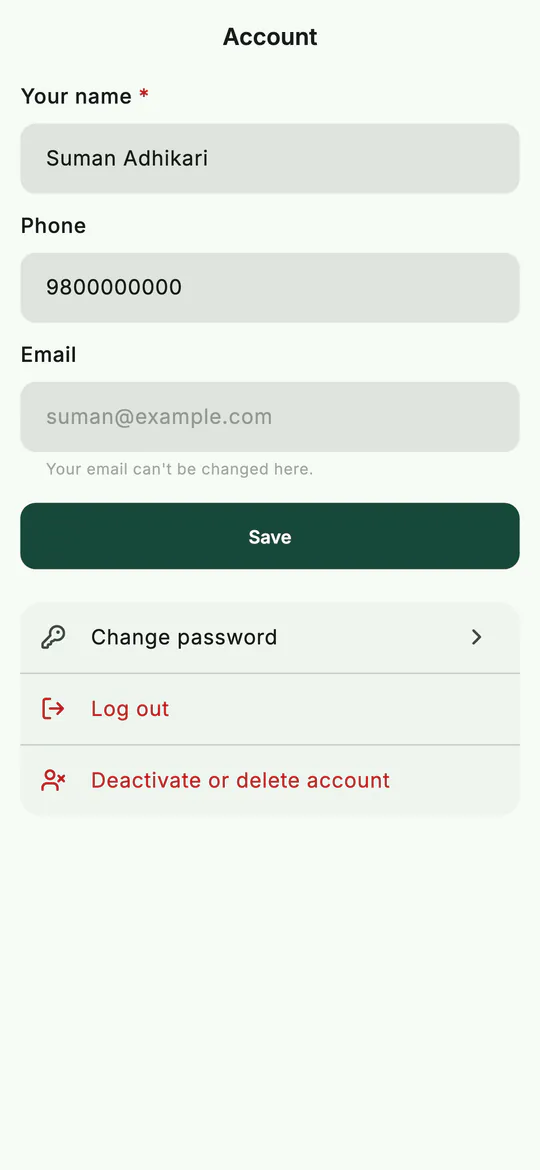 My account: your name, password, and logging out.
Deactivate is a break: it signs you out on every phone and stops notifications, while your shops keep working for everyone else. Logging in again brings your account back. Delete is for good. Before it, BSMM shows each shop that other people still use, so you can hand it over or close it; shops with only you in them close with the account.
6. Light, dark and the rest
- Appearance: System, Light or Dark. Dark is easier on the eyes in a dim shop at night.
- Rate BSMM and Share BSMM: the second shows a QR code another shopkeeper can scan to get the app.
- Report a problem: writes an email to the developer with your phone and app details filled in.
- About app: what BSMM does, the privacy policy and terms, and the version.
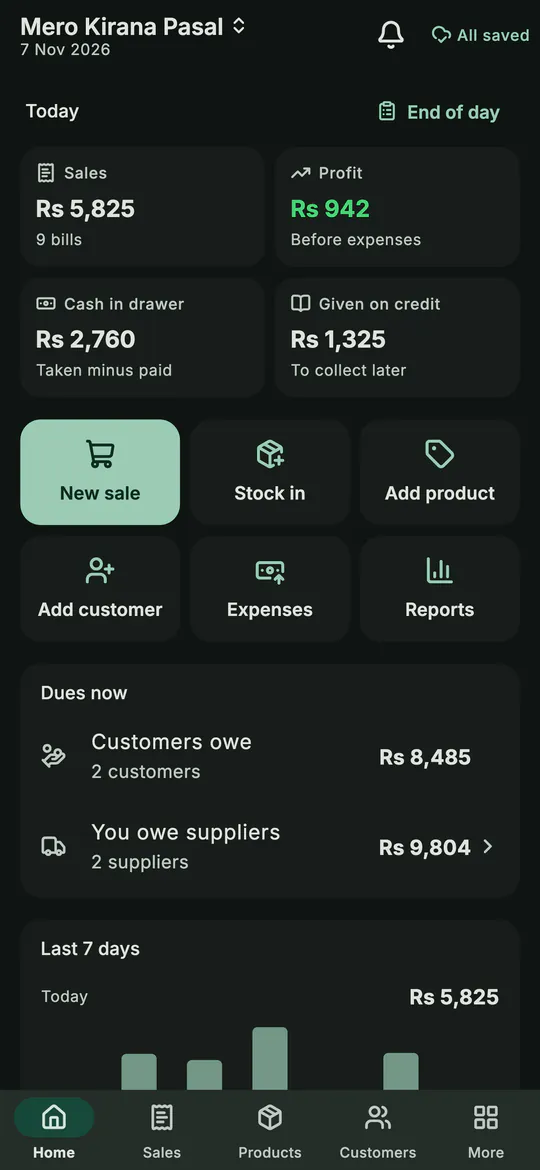 The same Home in the dark theme.
Tips
- Back up once a week and after a big day, and keep the copy off the phone.
- Use a password you'll remember for backups, and keep it somewhere other than the phone.
- Turn on the app lock if staff or family use your phone. The lock after 1 minute is a good balance at a busy counter.
- Put something useful in the receipt footer, such as your wallet number or opening hours.
Common mistakes
- Keeping the only backup on the same phone. If the phone goes, so does the backup. Share it somewhere else.
- Changing the shop's name while offline. The name, address and phone belong to the whole shop, so they need the internet to change.
- Deleting your account to take a break. Deactivate instead: nothing changes, and logging in brings you back.
What next
That's the whole of BSMM. Go back to the start with how to use BSMM, or read inventory management for a small shop for the habits that make the app pay off.
Questions
Where are my shop's records kept? On every phone in the shop, and on BSMM's server so the phones stay in step. A backup is your own extra copy, as a single file.
Can I restore a backup on a new phone? Usually you won't need to: log in on the new phone and the shop downloads from the server. A backup is for records that never reached it. To restore one, open the same shop and use Restore from a file. A backup from another shop is refused.
Does the app lock protect my data if the phone is stolen? It stops anyone opening BSMM's screens without your PIN. It doesn't encrypt the files on the phone, so keep the phone's own screen lock on too.