Every shop has papers it keeps looking for: the PAN certificate, the rent agreement, the logo for a poster, a supplier's price list, a photo of the opening hours sign. Shop files keeps them in BSMM, in folders, for everyone in your shop. Anyone on the team can open, share or add a file from their own phone, and nothing lives only on one person's gallery. This tutorial shows how to use it.
Before you start
- Shop files are kept online, so the screen needs the internet. Without it, BSMM says so.
- They belong to the shop. Everyone in it, owner and staff alike, can see, add, change and delete them.
- They aren't part of the phone's backup, because they're already kept online for the shop.
1. Open Shop files
Go to More, scroll to the Shop group, and tap Shop files.
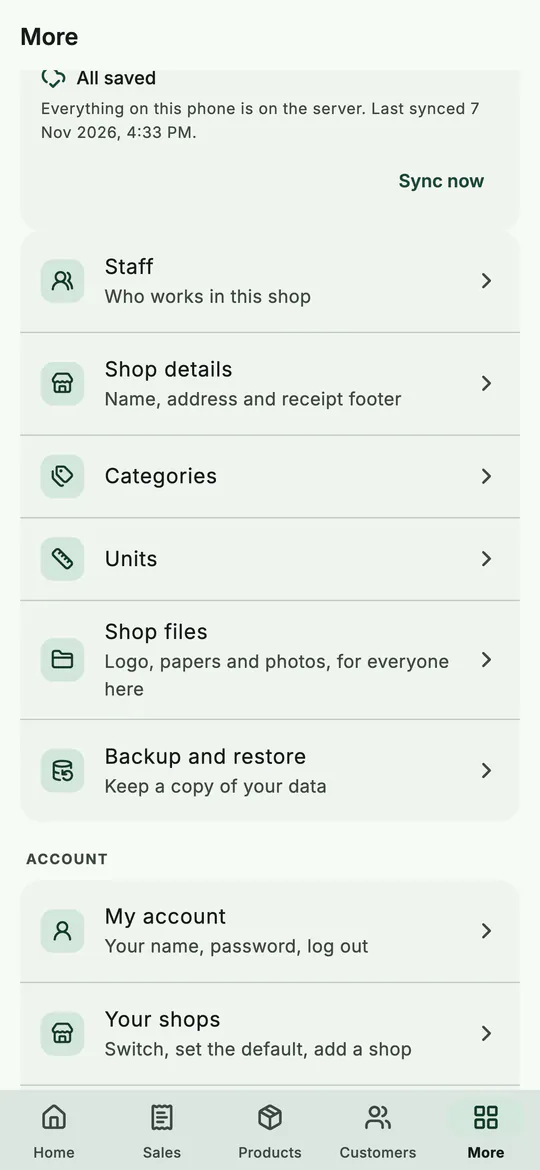 Shop files is in More, in the Shop group.
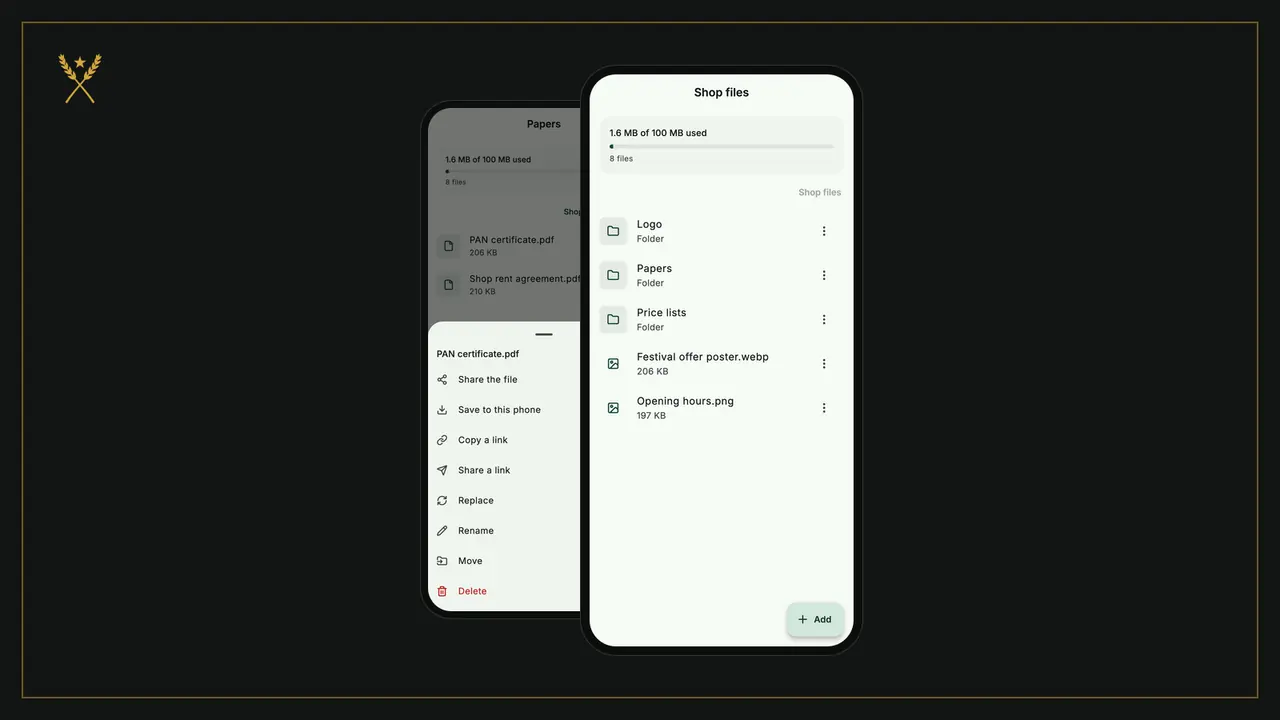
At the top, a bar shows how much of the shop's space is used, out of its limit, and how many files there are. Below it are your folders, then the files at this level.
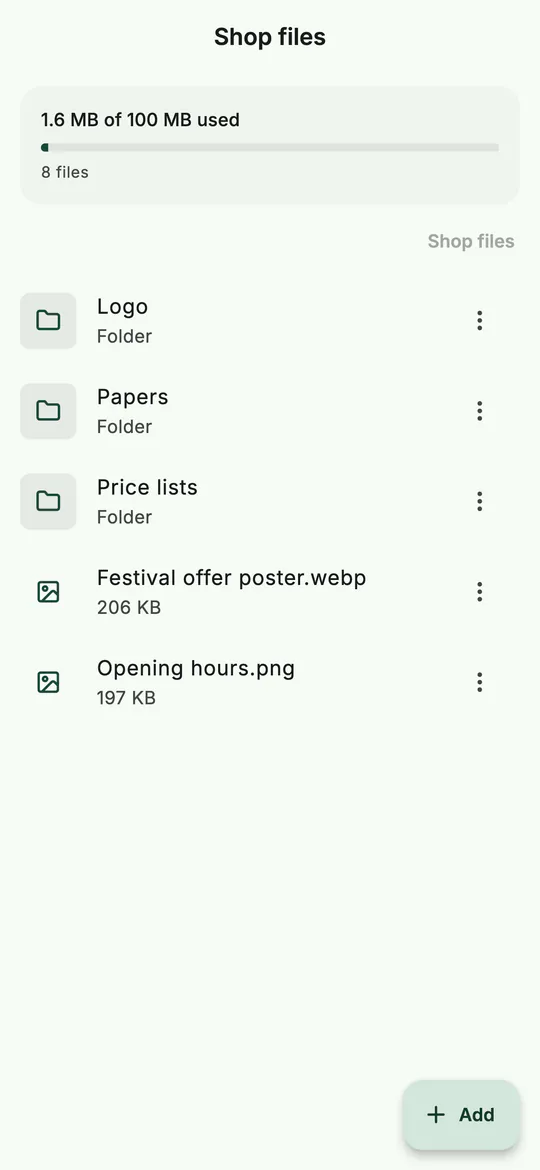 The top level: folders first, then files, with the space used above.
2. Add files and folders
- Open the folder you want, then tap Add.
- Choose one of:
- Take a photo, with the camera;
- Choose photos, from the phone's gallery;
- Choose files, any document, such as a PDF or a spreadsheet;
- New folder, to make a folder here.
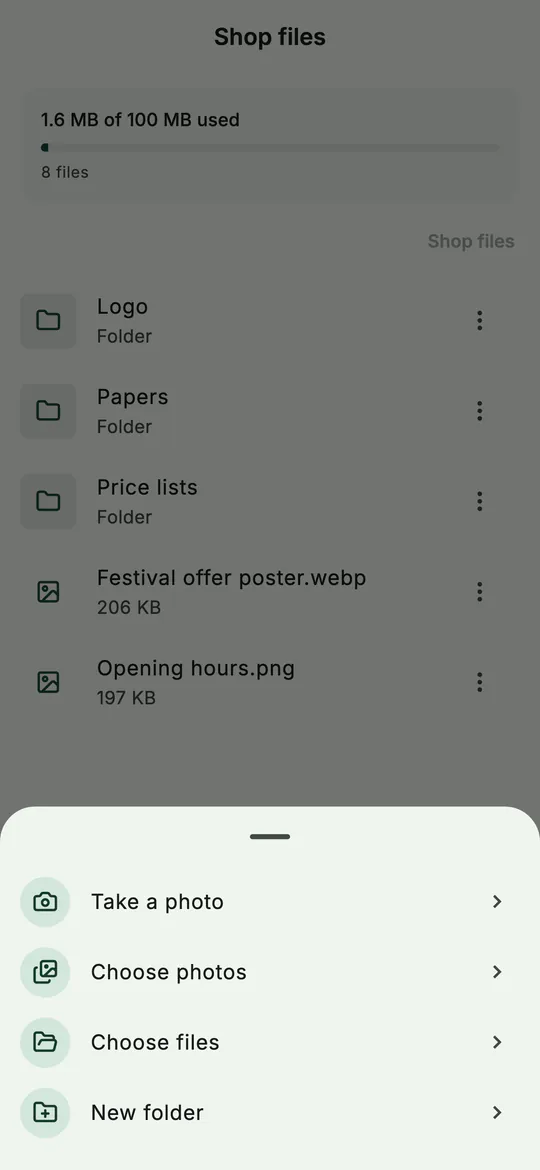 Add a photo, a file from the phone, or a new folder.
Each file can be up to 25 MB. Photos are made smaller before they go up, so they load quickly on everyone's phone. If a name is already used in that folder, BSMM adds a number, such as "logo (2)".
3. Find your way around
- Tap a folder to open it. The trail above the list, such as Shop files › Papers, takes you back up; so does the back button.
- Tap an image to see it full screen, and pinch to zoom.
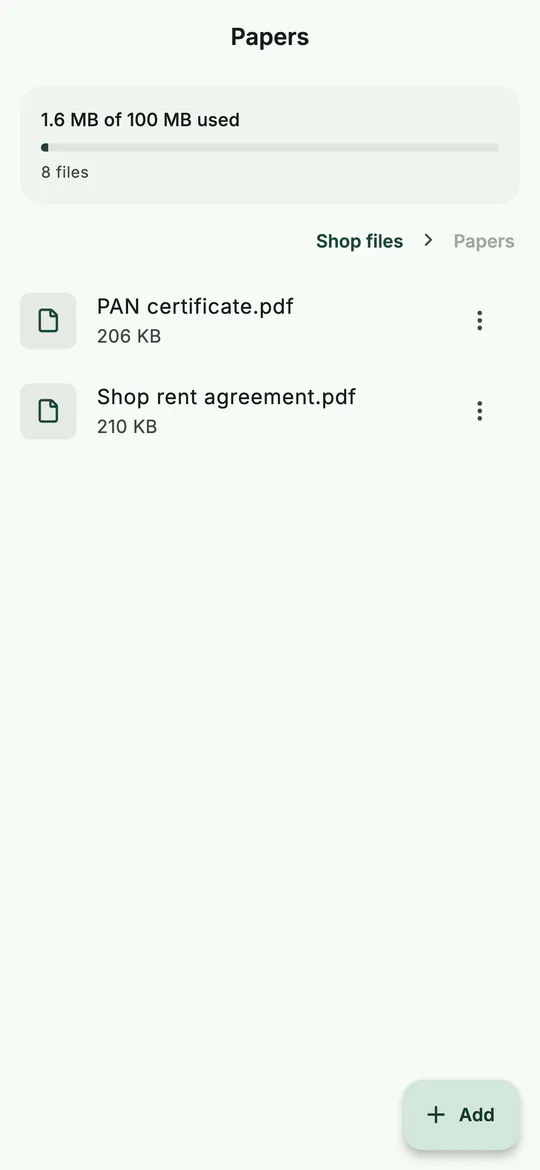 Inside a folder, with the trail back to the top.
4. Share, save or change a file
Tap the menu button beside a file to see everything you can do with it:
- Share the file: send the file itself through WhatsApp, email or any app.
- Save to this phone: the phone asks where to keep it, such as Files or Downloads.
- Copy a link or Share a link: a link that opens this one file for whoever has it, for 7 days. Handy for sending a price list to a supplier.
- Replace: keep the name, change the contents, such as a new price list.
- Rename and Move: a folder moves with everything in it.
- Delete: after a question. It goes for everyone in the shop, and a folder goes with everything in it.
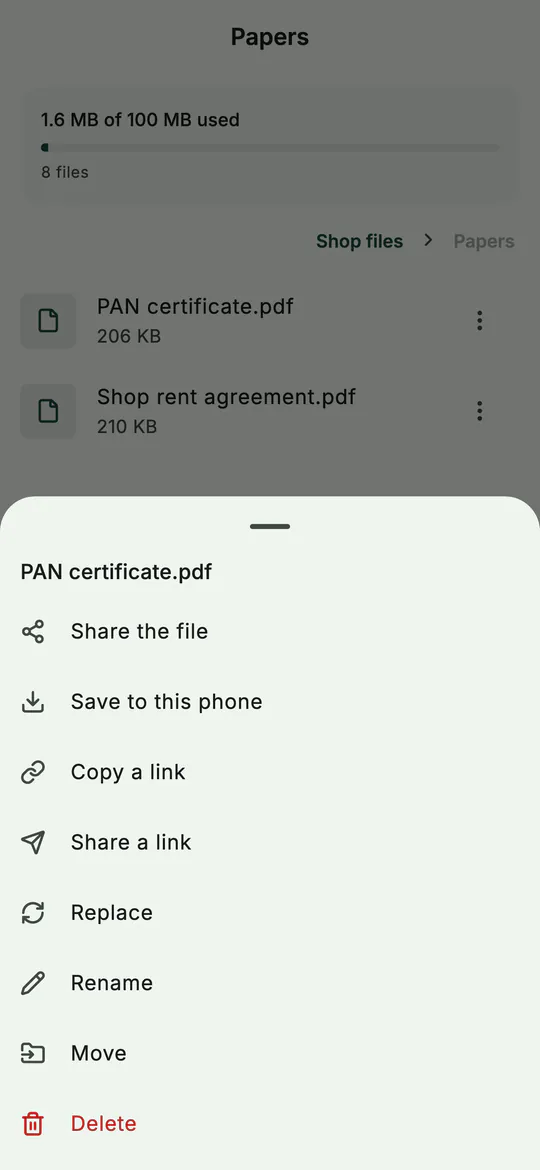 Everything you can do with one file.
Ideas for what to keep
- Papers: registration, PAN certificate, rent agreement, licences.
- Logo: the files for posters, banners and price tags.
- Price lists: each supplier's latest list, replaced when a new one comes.
- Notices: opening hours, festival offers, a photo of the board outside.
Tips
- Make folders first. Three or four folders (Papers, Logo, Price lists) keep the top level tidy.
- Use Replace for a new version. Everyone then has the latest, under the same name.
- Share a link instead of the file when it's big, or when you want it to stop working after a week.
Common mistakes
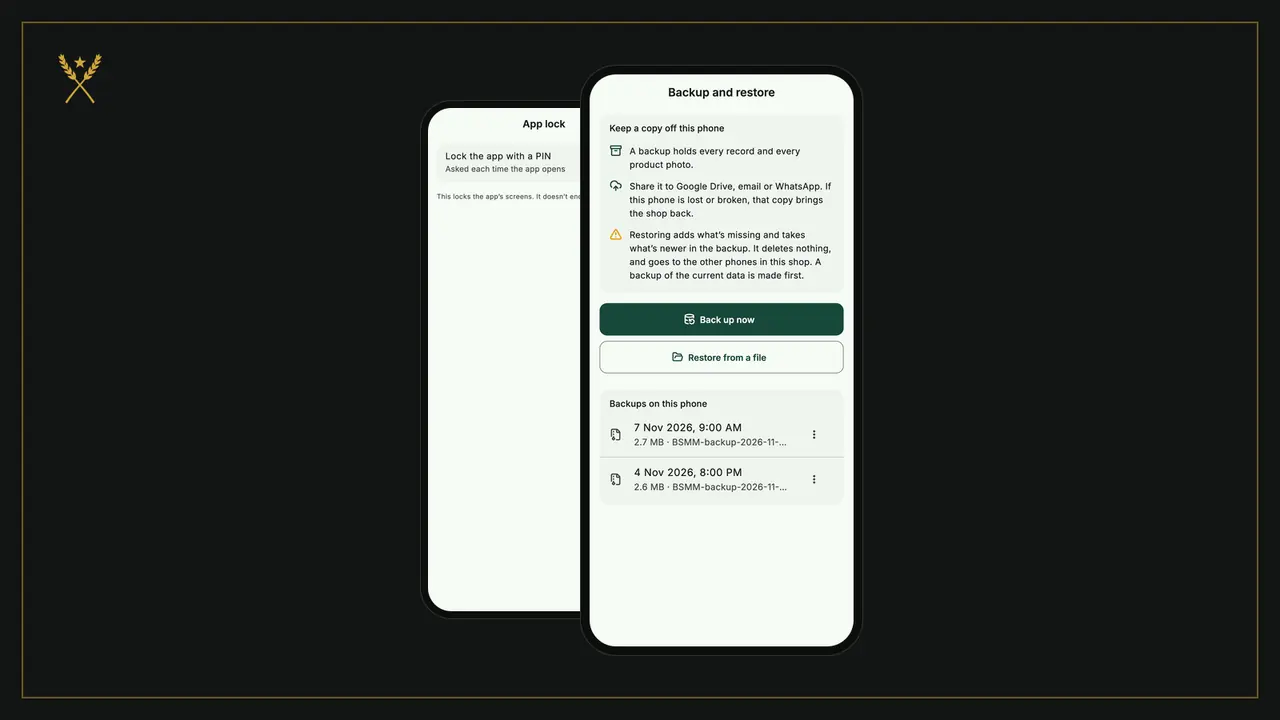
- Expecting Shop files in a backup. The backup holds your records, product photos and bill attachments. Shop files are kept online for the shop instead.
- Putting a customer's payment screenshot here. Attach it to the bill instead (Attach a photo or file after a sale, or Photos and files on the bill), so it stays with that sale.
- Deleting a folder to tidy up. Everything inside goes too, for everyone. Move what you need first.
What next
The last tutorial covers the settings that look after your data: shop details, backup, app lock and your account.
Questions
Can staff delete shop files? Yes. Everyone in the shop can do everything in Shop files, as in the rest of the shop. Deleting always asks first.
Who can open a link I share? Anyone who has the link can open that one file, for 7 days. After that the link stops working. Nobody outside your shop can see your other files.
Why did my file's name change? File names use English letters, numbers and a few signs. Other characters, such as Devanagari, become a dash. Rename the file if you'd like a different name.