A shop rarely runs on one pair of hands. With BSMM, everyone who works the counter uses their own phone and their own account, and all of them see the same shop: the same products, stock, bills and khata. The app works without the internet and syncs when it can. This tutorial covers how to add staff, how to join a shop as staff, running more than one shop, and how syncing and offline work.
1. How to add staff to your shop
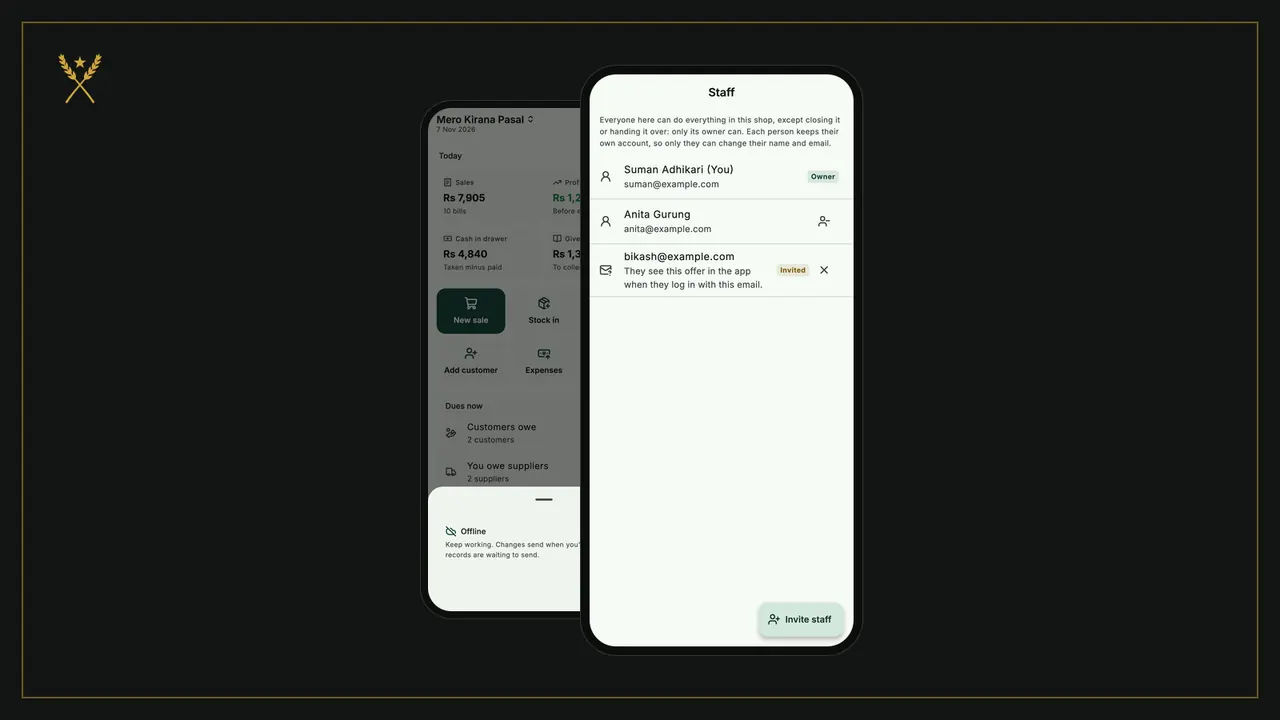
- Go to More › Staff. You'll see everyone in the shop, with the owner marked Owner.
- Tap Invite staff.
- Type the Email they use for BSMM, or will register with, and tap Invite.
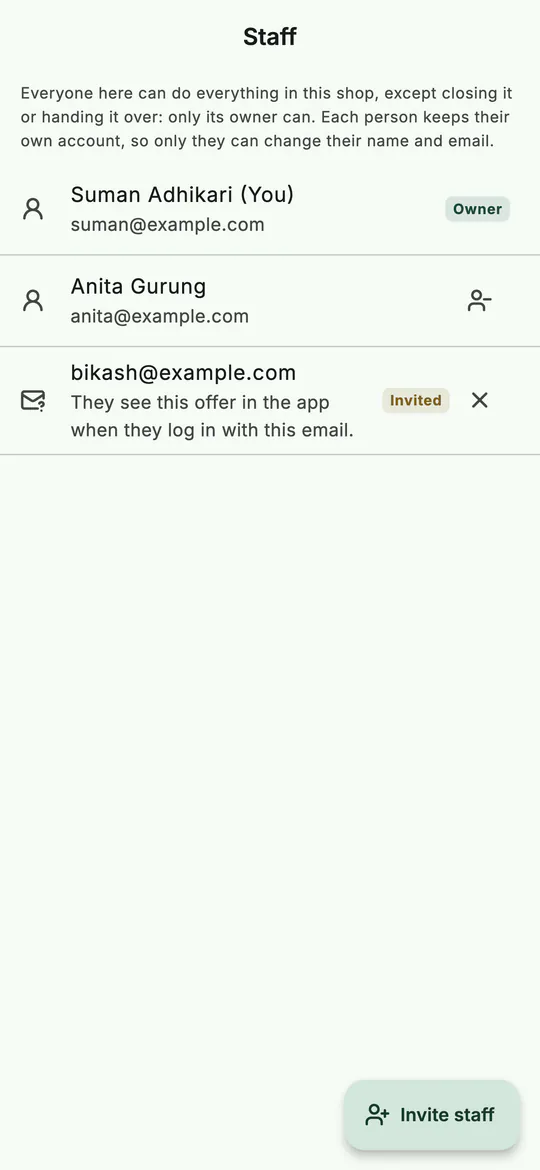 Everyone in the shop, and invitations still waiting.
BSMM doesn't email them. Tell them yourself: "Open BSMM and accept the invitation." Until they accept, they're listed as Invited, and you can take the invitation back with the cross beside it. An invitation lasts 14 days; after that, invite them again.
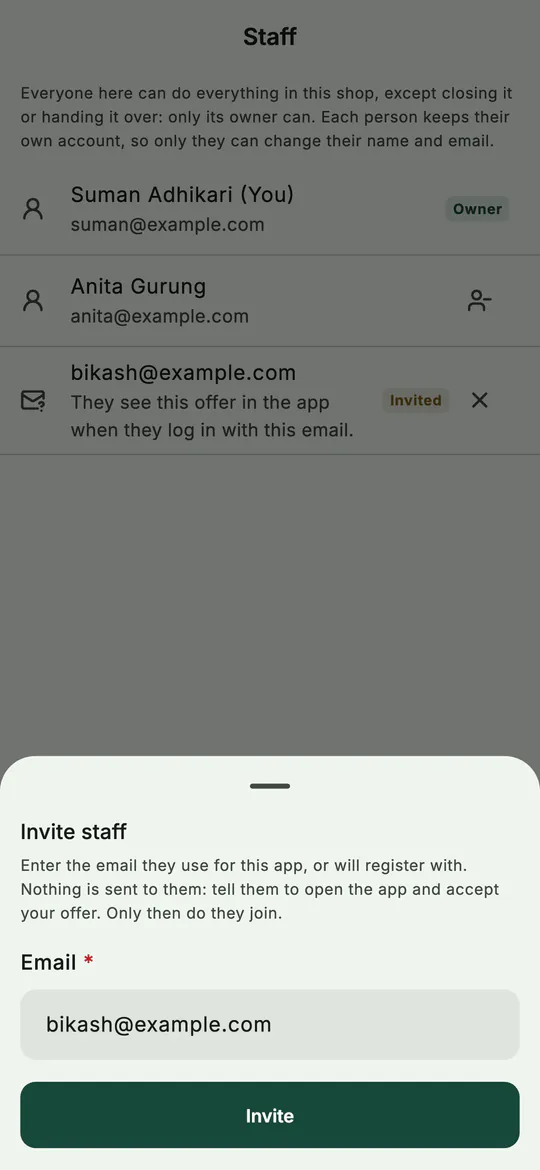 Invite by email, then tell them to open the app and accept.
2. Join a shop as staff
If you've been invited:
- Install BSMM and tap Register your shop. Fill in About you, tick I'm joining someone's shop as staff, agree to the terms and tap Register. (Signing in with Google or Apple works too.)
- Confirm your email with the code, as in getting started. Use the same email the shop invited.
- The app opens Join a shop or register one. Under Invitations, the shop shows with who invited you. If it isn't there yet, tap Check again.
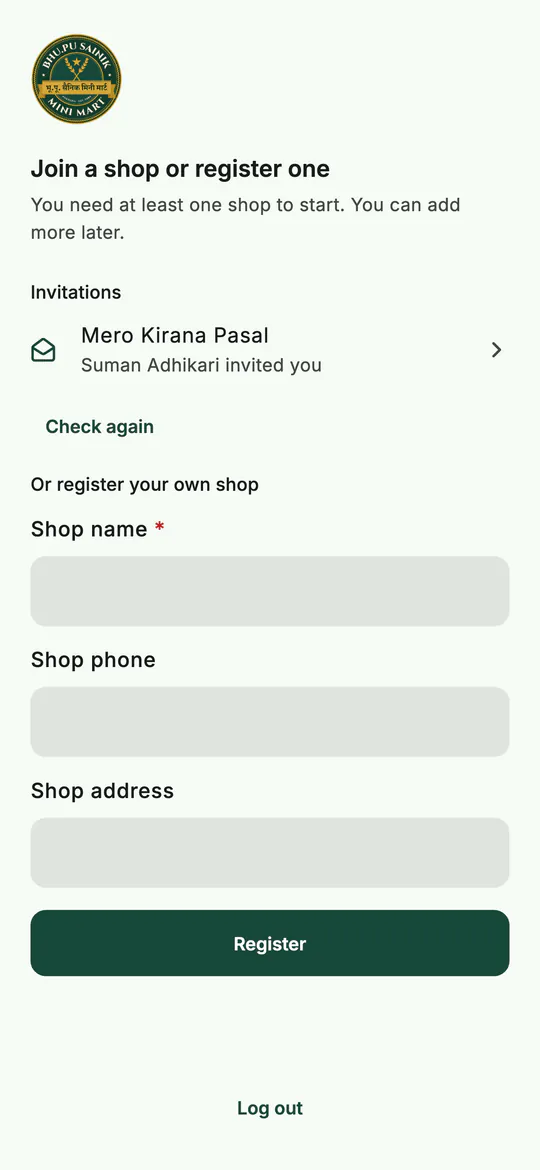 The invitation waits on this screen until you accept it.
- Tap the invitation. BSMM explains what joining shares: your name, email and phone become visible to the people in the shop, and you can see and change its records.
- Tap Join.
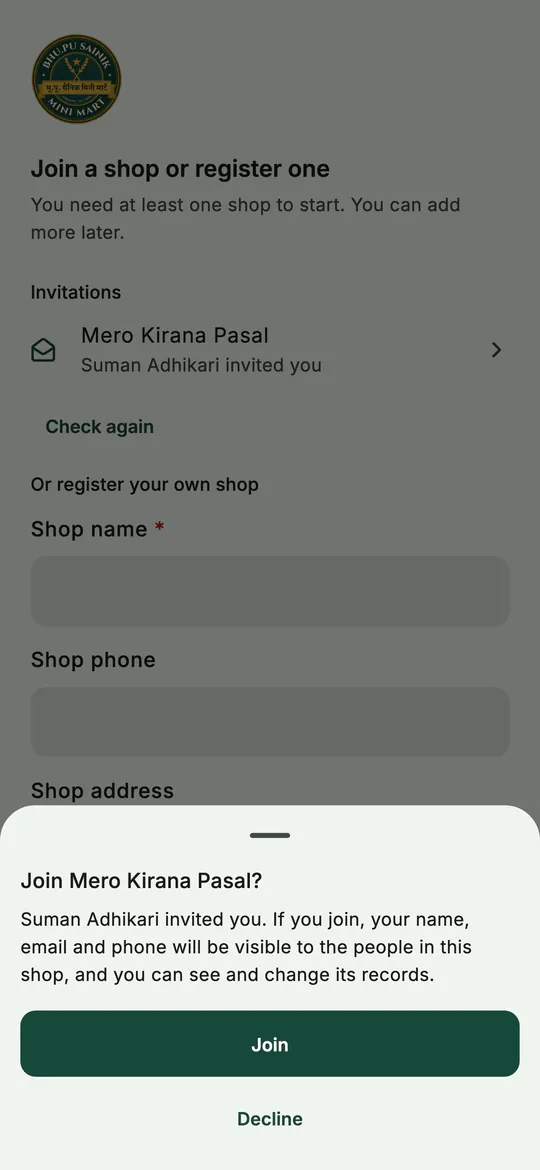 Join, and the shop downloads to your phone.
The shop downloads to your phone, and you're ready to sell. Someone who already has an account sees new invitations in More › Your shops too.
3. What staff can do
Everyone in a shop can do everything in it: sell, add stock, collect payments, see reports, and even invite or remove other staff, though nobody can remove the owner. Only two things are the owner's: closing the shop and handing it over to someone else.
Each person keeps their own account, so only they can change their own name and email. To remove someone, tap the button beside their name on Staff. They can't open the shop any more, but everything they recorded stays, and they show under No longer here with Invite again.
4. Run more than one shop
One account can be in any number of shops, as owner of some and staff in others.
- Switch: tap the shop's name at the top of Home and choose another.
- Your shops: More › Your shops lists them all, with Owner or Staff under each. The app opens in your Default shop.
- Register a shop: on Your shops. It starts empty, with its own products, bills and customers.
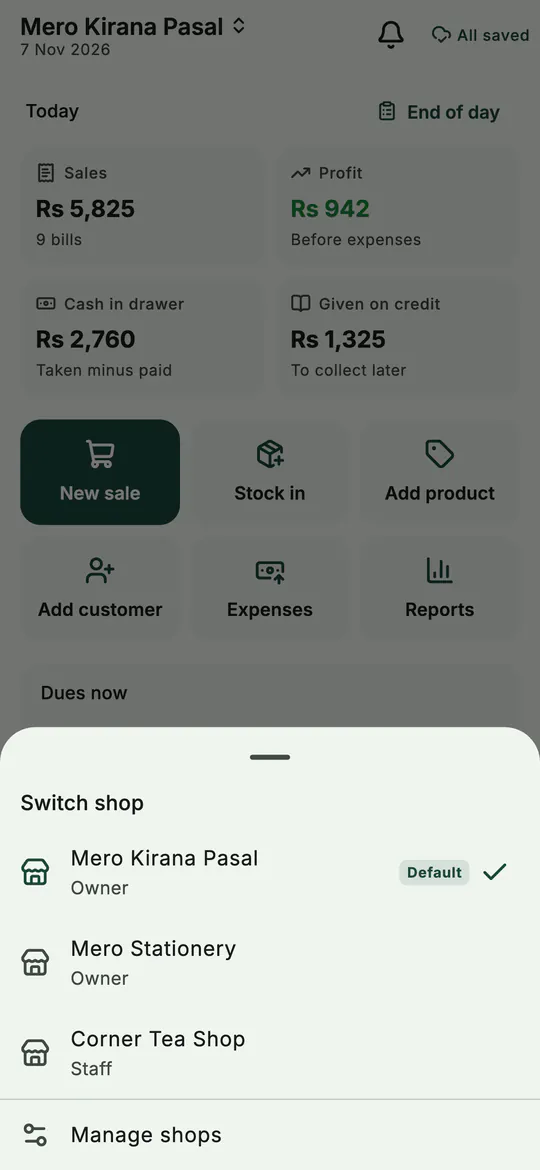 Tap the shop's name on Home to switch.
The menu beside each shop on Your shops has Open this shop by default, and Leave this shop for staff. An owner sees Hand it over and Close this shop instead.
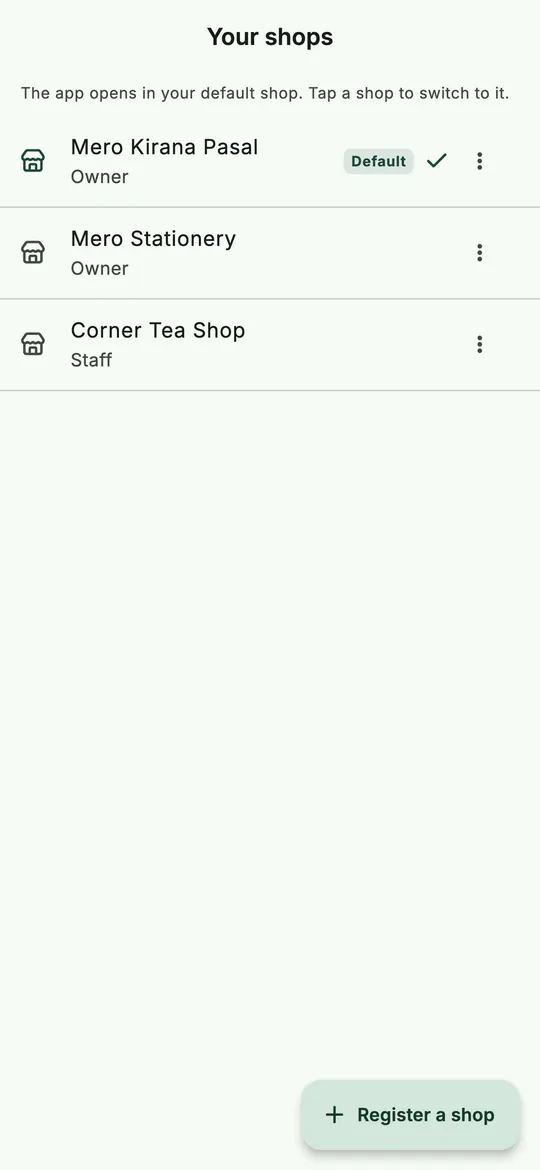 All your shops in one place: switch, set the default, or add one.
5. How syncing works
Every phone keeps the whole shop on the phone itself. When it has a connection, it sends its changes and fetches everyone else's: when the app opens, a few seconds after you change something, when the connection comes back, and every few minutes while the app is open.
The small status at the top of Home shows where it stands. Tap it to see more:
- All saved: everything on this phone is on the server, with the time of the last sync.
- Syncing: changes are going up and coming down.
- Offline: keep working; changes send when you're back online.
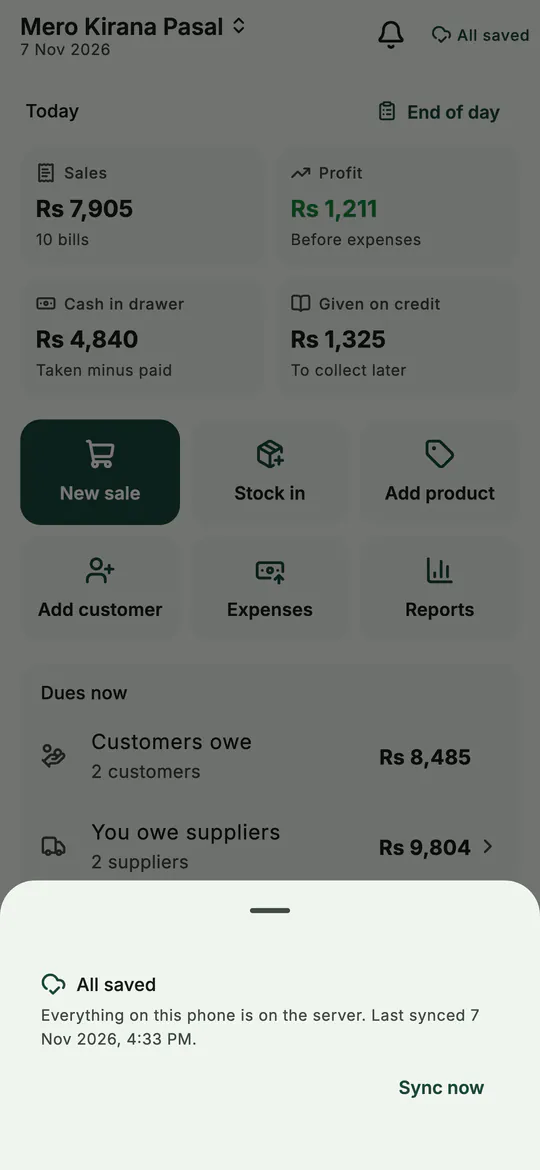 All saved: this phone and the server agree.
Sync now sends and fetches straight away. The same status is on More.
6. Working offline
Lose the connection and nothing changes at the counter. Bills, stock in, payments and expenses are saved on the phone, and the status shows Offline with how many records are waiting to send. When the connection comes back, they go up by themselves.
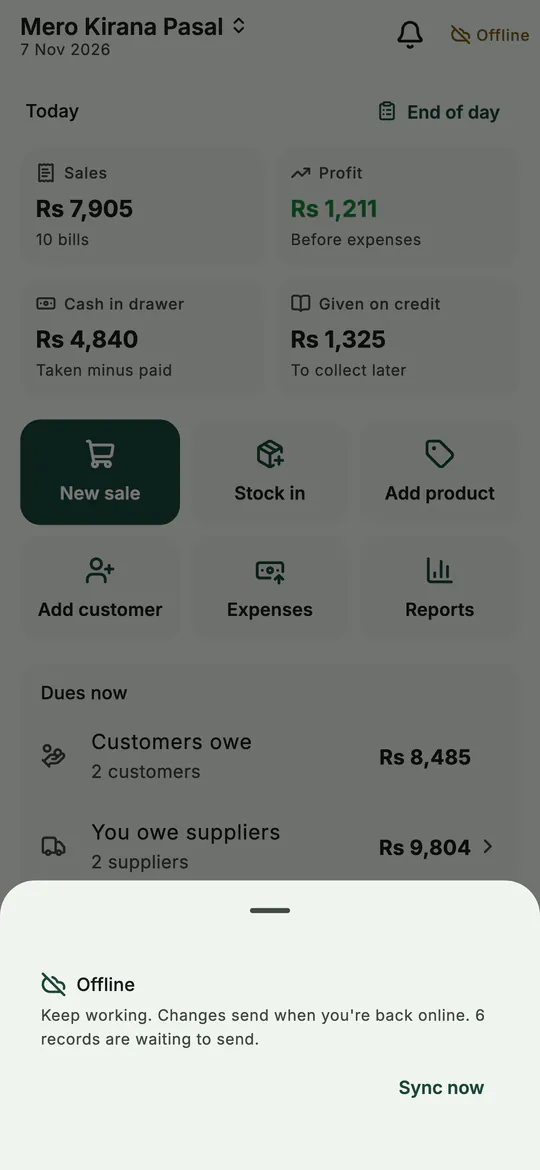 Offline: keep selling; the records send when you're back online.
Two phones can both sell offline. Bills from different phones never clash: each phone numbers its own, so a bill from a second phone looks like S-2-000042. Why a counter app should work offline is covered in billing software for a shop.
Tips
- One account each. Sharing a login hides who did what. Each person's own account takes a minute to make.
- Open BSMM for a minute once you're back online. It syncs while the app is open, so a phone left closed sends its records the next time it's opened.
- Check the status before logging out. If records haven't been sent, BSMM warns you. They stay on the phone and send the next time someone from the shop logs in there.
- Keep Staff and invitations on in More › Notifications to hear when someone joins or you're invited.
Common mistakes
- Inviting an email they don't use. The invitation only shows to the person signed in with that exact email.
- Registering a new shop instead of joining. If you're staff, tick I'm joining someone's shop as staff, then accept the invitation.
- Waiting for an email from BSMM. There's no invitation email: the offer shows inside the app.
What next
When a customer asks for something you don't stock, take an order with an advance. See customer orders.
How BSMM works as a team is summed up on the features page.
Questions
Do staff see my profit? Yes. Everyone in a shop sees and can do everything in it, reports included; there are no separate staff permissions. Only closing the shop and handing it over are the owner's.
What happens to a phone that's lost? The shop is on the server and on everyone else's phones. Log in on a new phone and it downloads. Records the lost phone never sent can't be recovered, so let it sync when you can, and keep a backup (settings and your data).
Is there a limit on phones? A shop can be open on a set number of phones. If you reach it, the new phone says so and keeps your work on that phone; write to BSMM's support email to raise the limit.