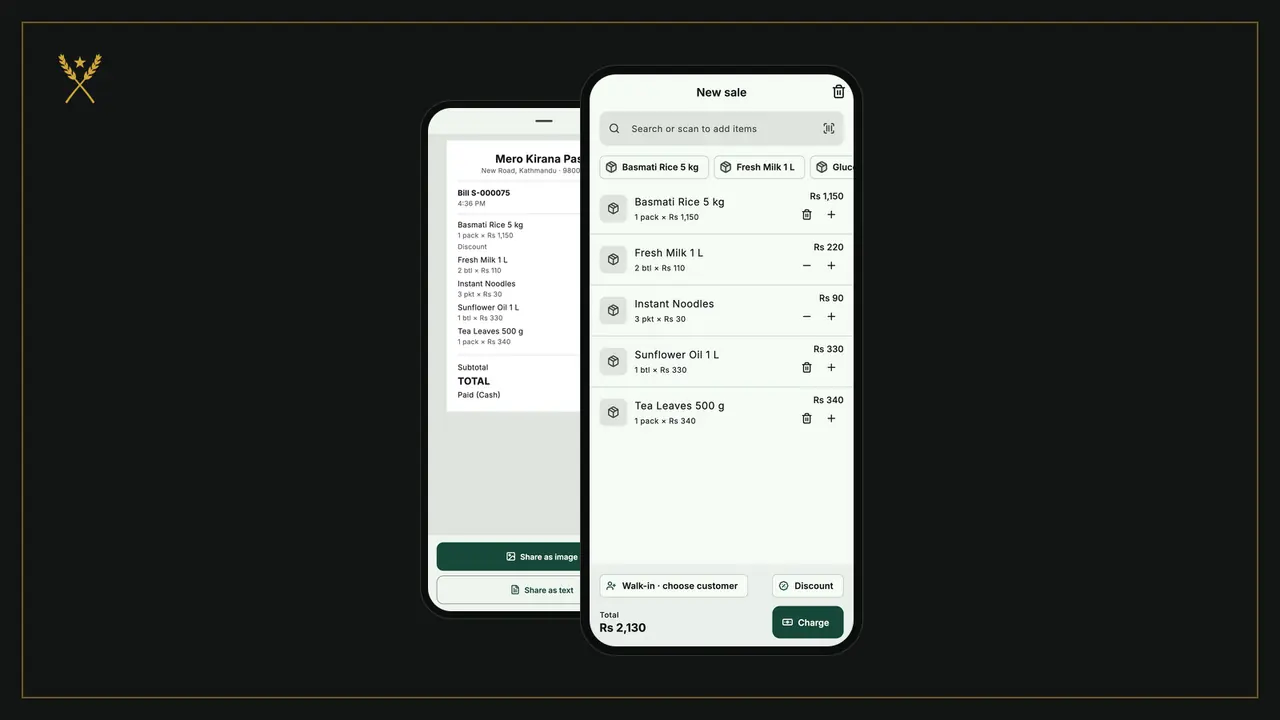
The counter is where you'll use BSMM most: a bill in a few taps, any way of paying, and a receipt the customer can keep on their phone. Every bill also takes the items out of stock and adds to today's sales and profit, so there's nothing to write up later. This billing app tutorial walks through a whole sale, from the first item to the shared receipt, and then shows how to find, return or cancel a bill afterwards.
You'll need a few products in the app first. If you haven't added any, start with adding your products.
1. Open a new bill
Tap New sale on Home. The Sales tab has a New sale button too.
The bill opens with a search box at the top, a row of your pinned products under it, and the total and Charge at the bottom.
2. Add the items
There are three ways to put an item on the bill:
- Tap a pinned product in the row under the search box. Tap it again to add one more.
- Search: type a few letters of the name, a brand, an SKU or a barcode into Search or scan to add items, then tap the item.
- Scan: tap the scan button in the search box and point the camera at the barcode.
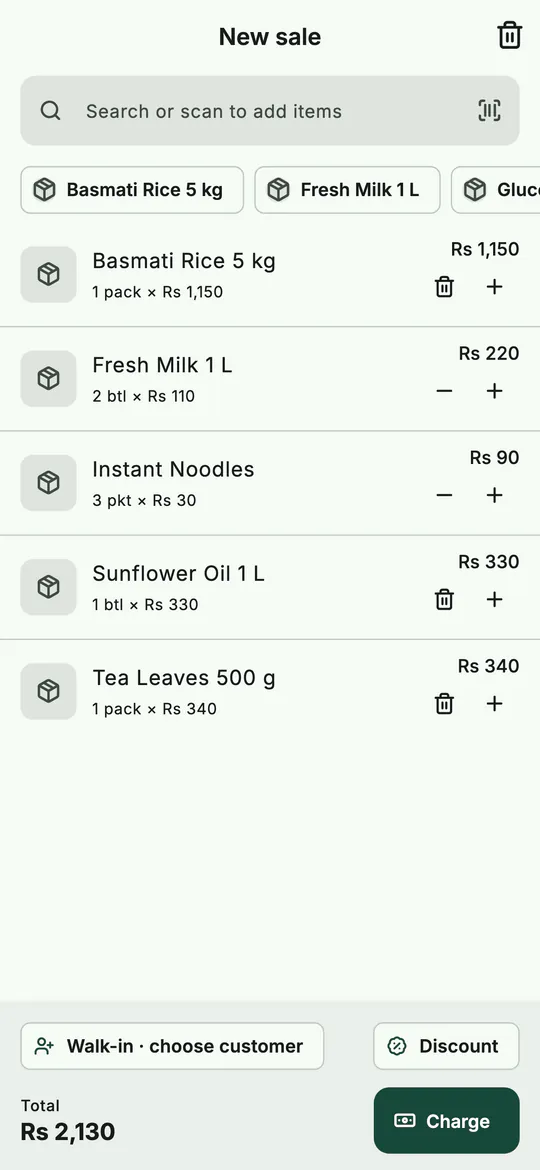 A bill being made: tap, search or scan to add items.
Each line shows the quantity and price. Use + and − to change the quantity, or the bin to take it off. If an item is running out, the line says so ("Only 1 btl left"), but BSMM still sells it: the counter never stops because a stock count was wrong.
3. Change a price, give a discount, or give it free
Tap a line to open it. You can:
- change the Quantity;
- change the Price for one. The usual price is shown under it, and BSMM keeps both, so the profit on that line stays right;
- turn on Give it free: the customer pays nothing, and its cost still counts in your reports;
- set a Discount on this item: Rs off or % off.
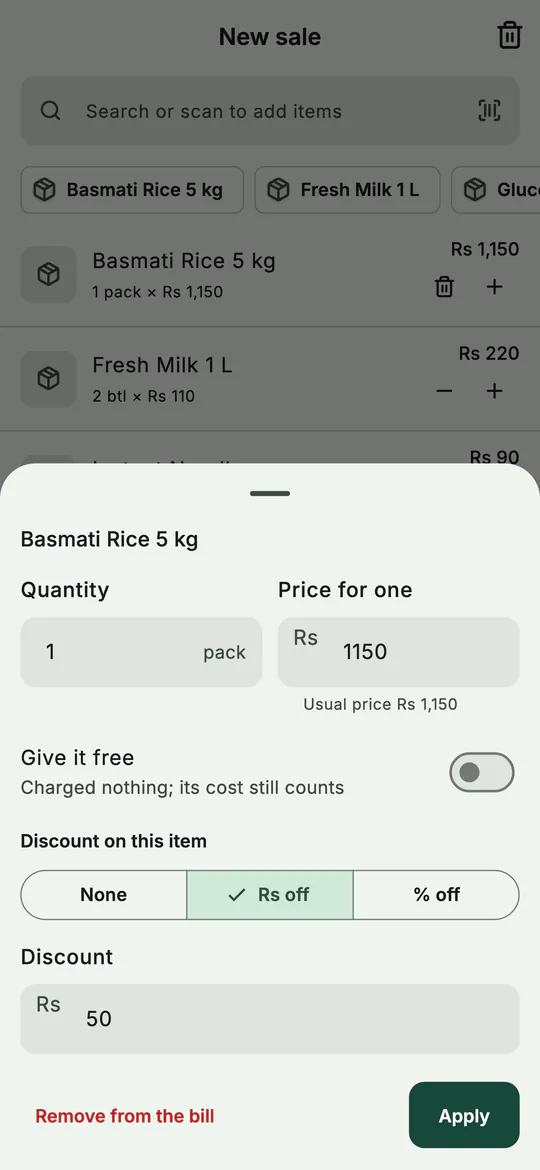 Tap a line to change its price, discount it or give it free.
Tap Apply. The line now shows the discount, and the bar at the bottom shows the subtotal and the discount.
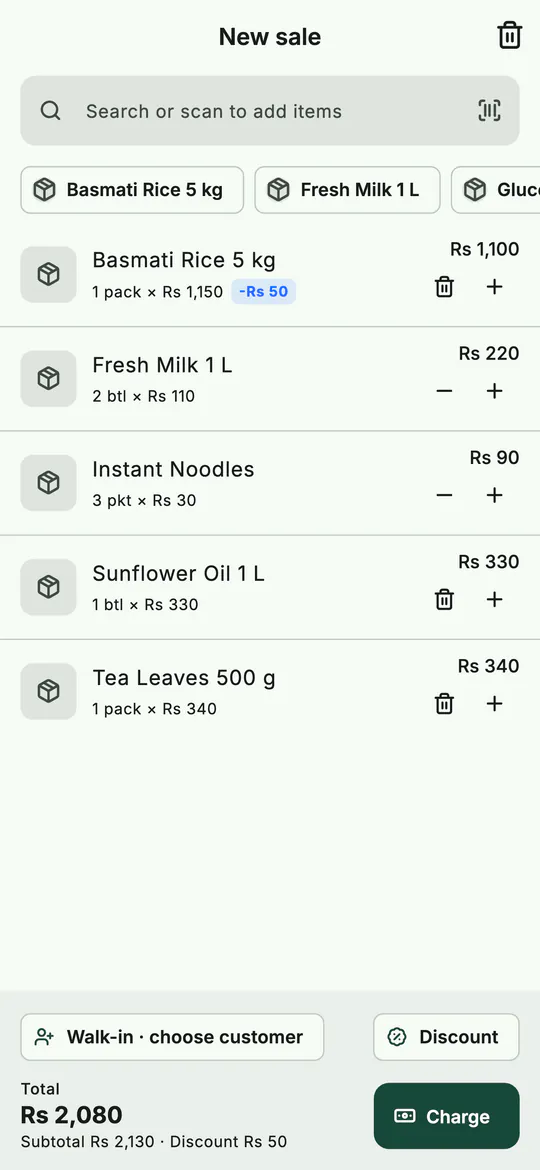 The discount shows on the line and under the total.
To take something off the whole bill instead, tap Discount next to the customer button and enter the Discount on the bill, in rupees or as a percent.
4. Choose the customer, if there is one
A walk-in customer needs nothing: the bill says Walk-in · choose customer and that's fine. Choose a customer when you want the bill on their record, or when some of it goes on credit. Tap Walk-in · choose customer, then pick them or tap Add a new customer. Credit is covered step by step in the khata tutorial.
5. Take the payment
- Tap Charge. The payment sheet opens with the amount to pay at the top.
- The first payment is Cash for the full amount. If the customer hands you a note, tap it in the row of amounts (Exact amount, then the next round notes up), or type what they gave.
- BSMM shows Paid and, for cash, the Change to give back.
- Add a Note if you want one, then tap Complete sale.
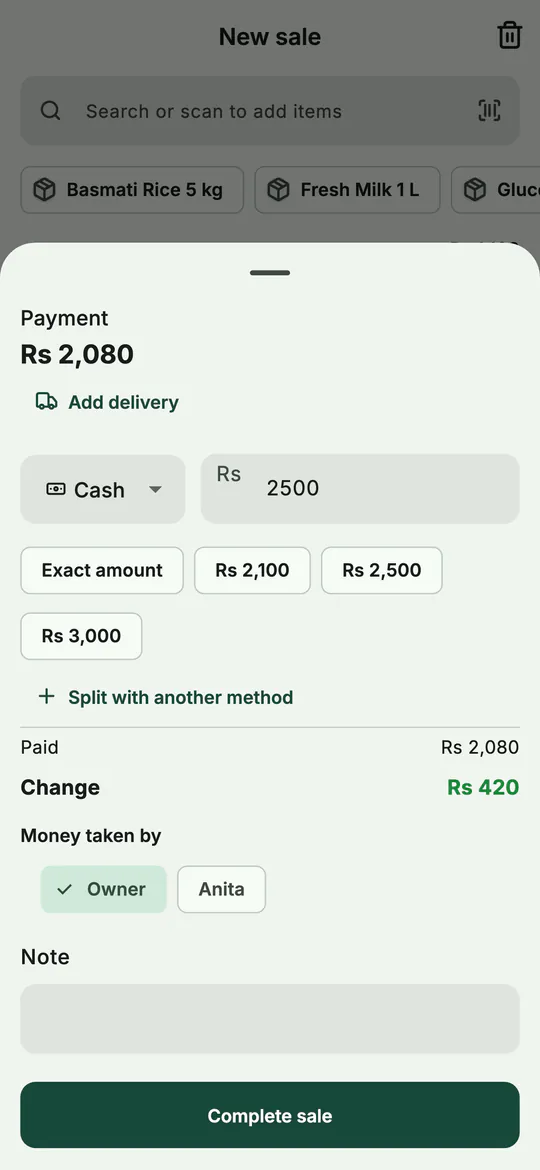 Cash: tap the note the customer gave, and BSMM works out the change.
If your shop has partners, a Money taken by row asks who took the money; partners explains it. A shop with one person never sees it.
Before you tap Complete sale, the same sheet also takes other ways of paying, and delivery.
Paying by wallet, card or several ways
- To take the whole bill by another method, tap Cash and choose Fonepay, eSewa, Khalti, Bank, Card or Other.
- To split it, change the cash amount to what they paid in cash, then tap Split with another method. A second line appears with the rest; choose its method.
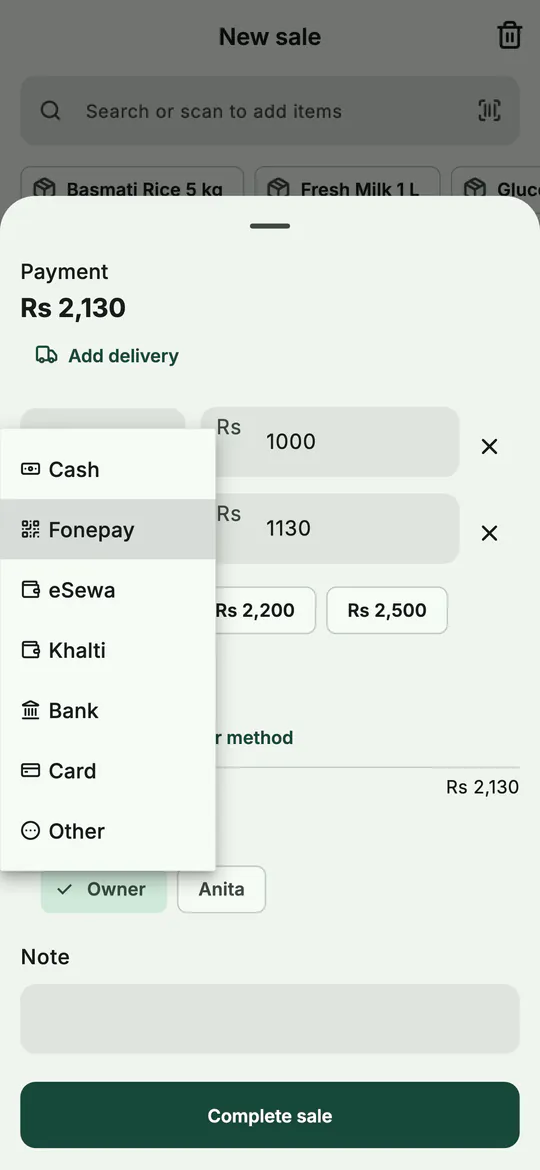 Split a bill: part cash, the rest by wallet, bank or card.
Only cash can give change. If a wallet payment comes to more than the bill, BSMM says so and won't save it until you fix the amount.
Delivery
If you deliver the order, tap Add delivery. Delivery charge is added to the customer's bill; Courier cost is what you pay the courier, and it's saved as an expense. Your reports then show what delivery earned you.
6. Give the receipt
The sale is saved straight away, with its number, and the screen shows the change to give back.
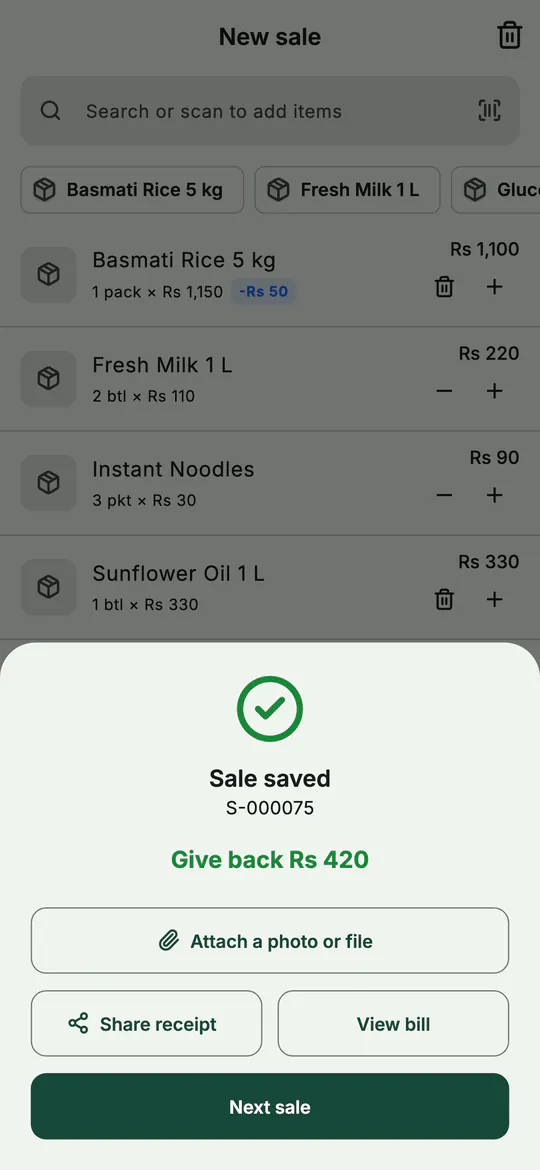 Saved: the change to give back and what to do next.
From here you can:
- Attach a photo or file: a payment screenshot from a wallet, for example.
- Share receipt: BSMM shows the receipt, then Share as image or Share as text sends it by WhatsApp, Viber, SMS or any app on the phone.
- View bill, or tap Next sale to start again.
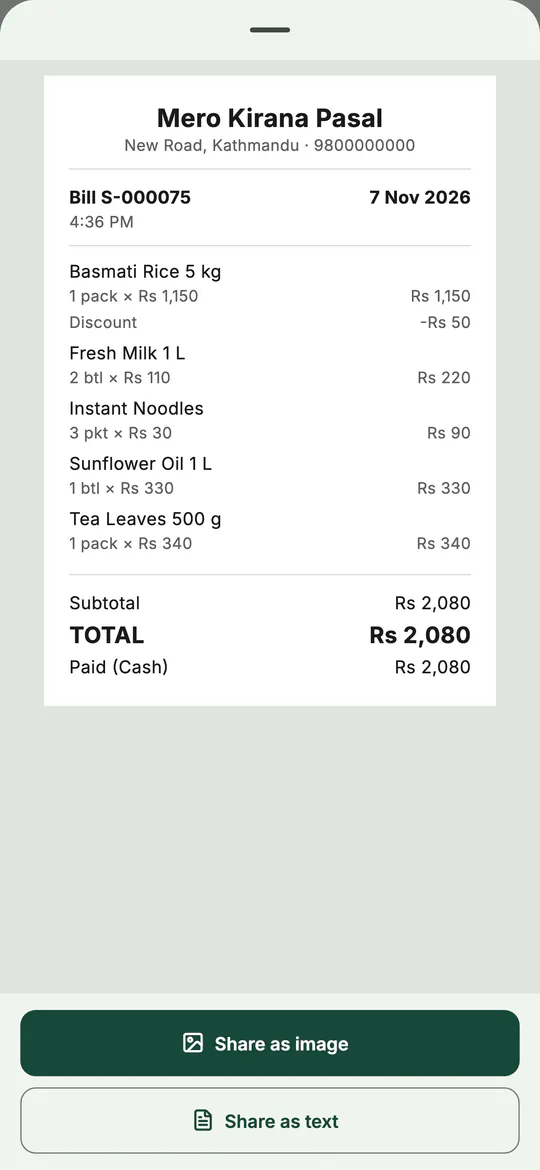 The receipt your customer receives, as a picture or as text.
The receipt carries your shop's name, address and phone from Shop details, and the footer line you set there, such as a thank-you.
7. Find a bill later
The Sales tab lists every bill, newest first, with the total and any amount still due.
- Choose the days: Today, Yesterday, This week, This month and more.
- Filter by On credit, Voided or Returns.
- Search by bill number or customer.
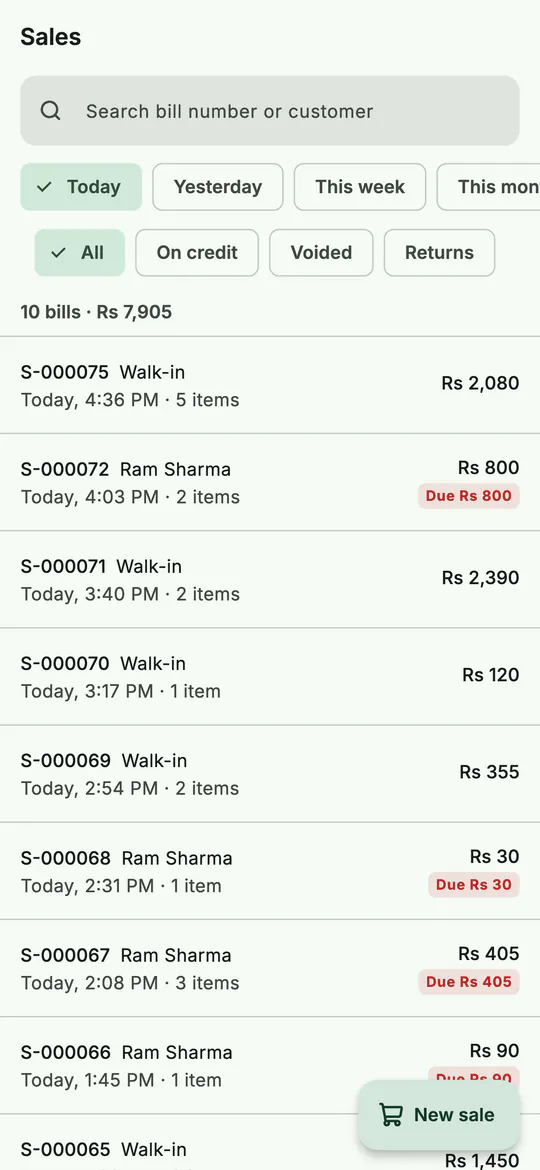 The Sales tab: every bill, by day, with what's still due.
Tap a bill to open it. The bill page shows the items as sold, the total, what was paid and how, any credit left, and the bill's Cost and Profit. Its buttons are Share receipt, Return items, Collect the due and Void sale.
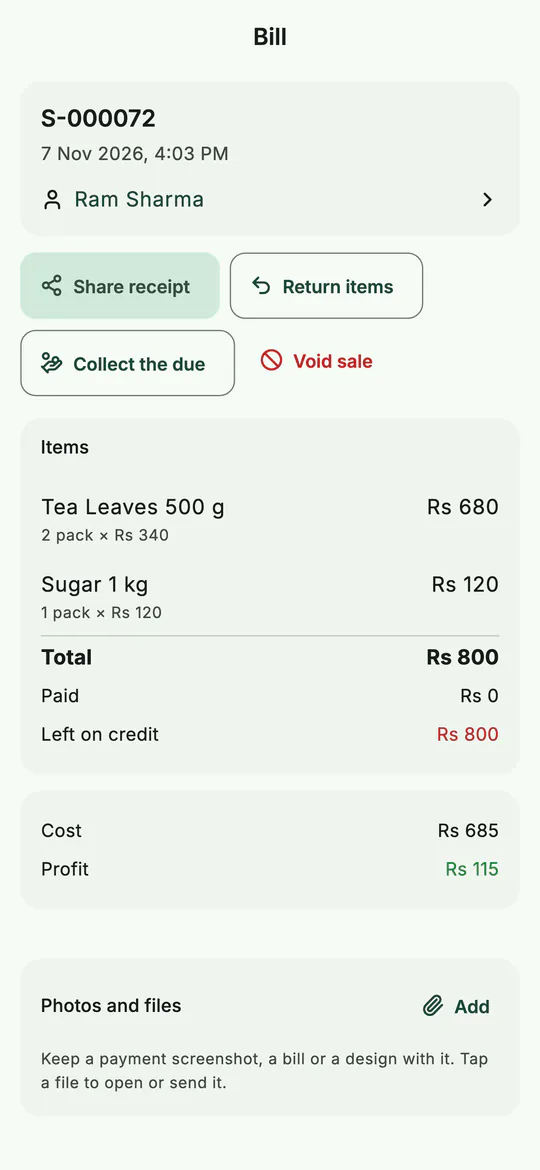 One bill: items, payments, credit, and the profit it made.
8. Sales returns and cancelled bills
A customer brings something back:
- Open the bill and tap Return items.
- Type how many of each item came back. BSMM won't let you return more than was sold.
- Leave Put back on the shelf on if it can be sold again; turn it off if it's damaged or expired.
- Choose the Refund: Cash, To account (for a customer's khata) or No refund, then tap Save return.
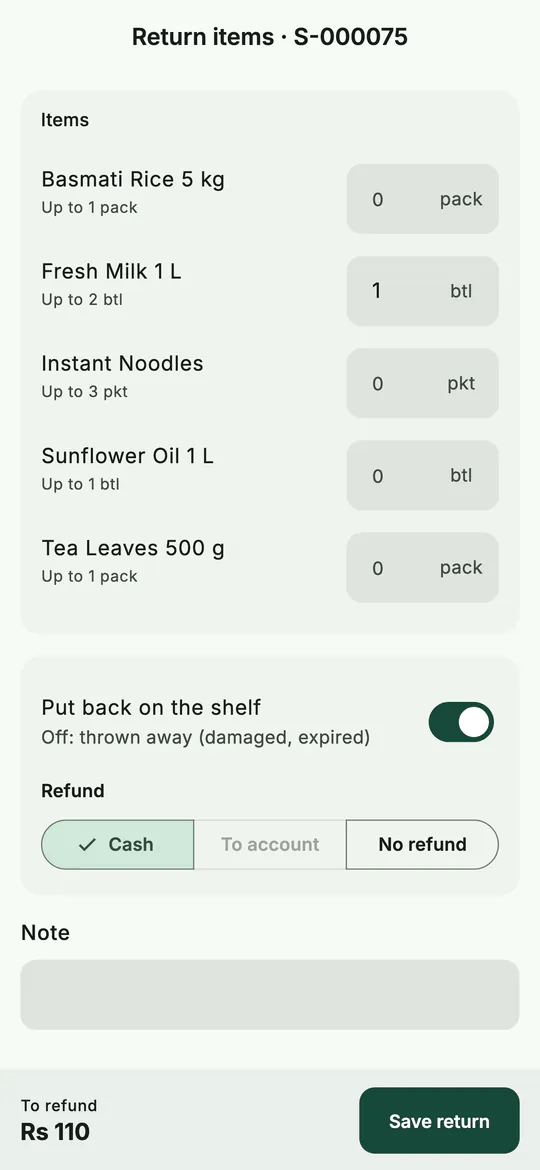 A return: what came back, whether it goes on the shelf, and how to refund.
The refund is the item's share of what the customer actually paid, discounts included, so the money adds up exactly.
A bill made by mistake: open it and tap Void sale. The stock goes back, each payment is refunded the way it came, and any credit is cancelled. The bill stays in the list marked voided, so nothing disappears. A bill that already has a return can't be voided: return the rest instead.
Tips
- Pin your ten best sellers. One tap per item is the fastest counter there is.
- Change the price on the line, not in the product, when one customer gets a special price. BSMM remembers the usual price and still counts the profit right.
- Share receipts as images for customers who keep their bills on their phone. It looks the same on every phone.
- Check End of day at closing to compare the cash in the drawer with what BSMM expects. See reports and day-end.
Common mistakes
- Leaving the rest on credit without a customer. A walk-in bill must be paid in full. Choose the customer first.
- Typing the wallet amount higher than the bill. Only cash gives change; fix the amount and save again.
- Looking for a delete button. Bills are never deleted. Void the bill or return the items, and the stock and money go back exactly.
- Backing out with items on the bill. BSMM asks Leave this bill? first, so you don't lose them by accident.
What next
Many neighbourhood shops sell on credit to their regulars. Learn how BSMM keeps that book in the khata and udharo tutorial.
For choosing billing software in general, see billing software for a shop and a POS app for a small business. Everything the counter does is on the features page.
Questions
Can I print the bill? BSMM doesn't print bills itself. It shares the receipt as an image or as text, so the customer gets it on their phone, and you keep every bill in the app.
Can a BSMM bill be my VAT or PAN invoice? BSMM isn't an approved tax billing system. If your business must issue tax invoices, check your country's rules, and ask your accountant what your bills need.
Does billing work without the internet? Yes. Bills are saved on the phone, and they sync to your other phones when the connection comes back.