Selling takes stock off the shelf; buying puts it back. In BSMM, the purchase entry for a delivery is called Stock in. It adds the goods to your stock, updates what each item costs you, and, if you didn't pay it all, keeps a running account of what you owe that supplier. This tutorial covers adding your suppliers, recording a delivery, paying them later, and checking every purchase.
1. Add your suppliers
- Go to More › Suppliers and tap Add supplier.
- Type the Name, and the Phone, Address and Notes if they help ("Delivers on Sundays").
- If you already owe them from before, put it in You already owe them.
- Tap Save.
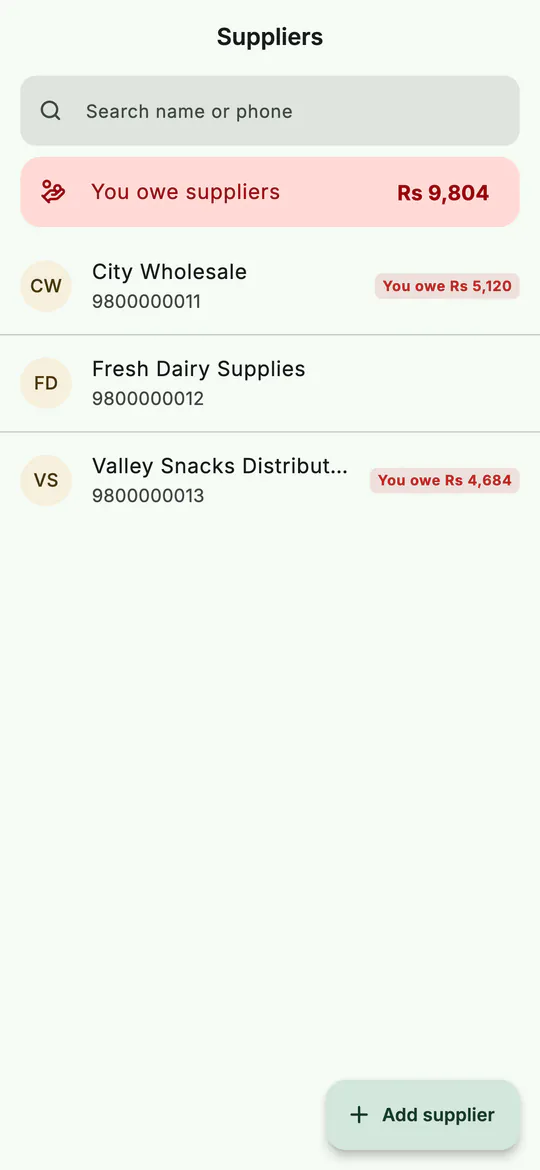 Your suppliers, and what you owe each of them.
You can also add a supplier in the middle of a stock in, from the supplier picker, without leaving the screen.
2. Purchase entry: record a delivery with Stock in
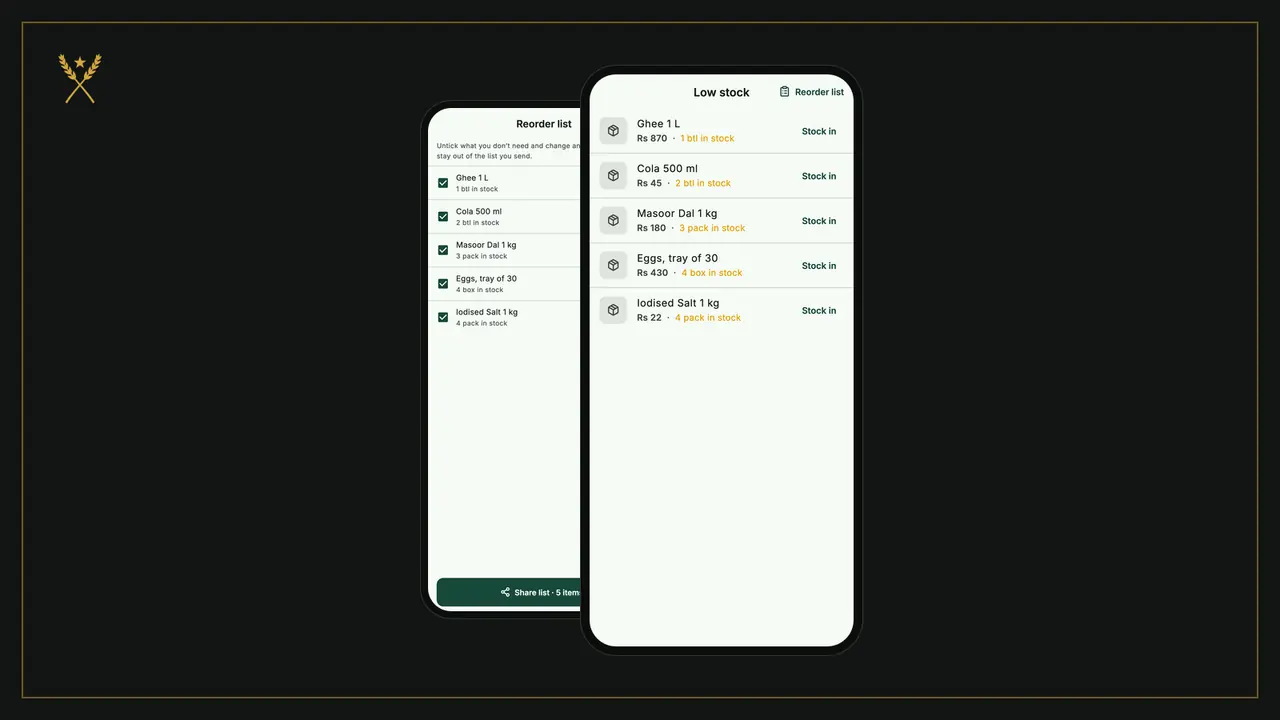
When goods arrive, open Stock in. It's on Home, under More › Stock in, on a product's page, beside each item on the low-stock list, and on a supplier's page as Stock in from them.
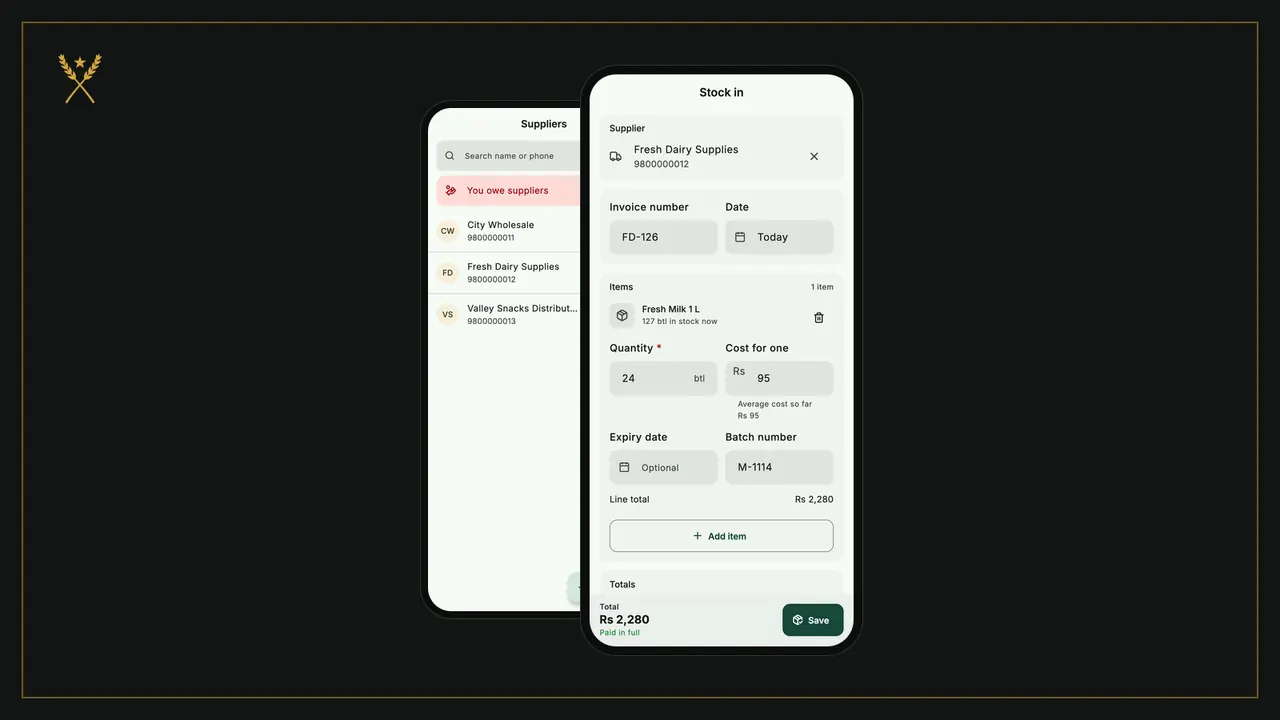
- Under Supplier, tap Choose a supplier and pick them. (If you pay it all now, a supplier is optional.)
- Type the Invoice number from their bill. The Date is today; change it if the goods came earlier.
- Under Items, tap Add item, then search for the product or scan its barcode.
- For each item, fill in the Quantity and the Cost for one. BSMM shows the average cost so far underneath, so you can spot a price rise.
- For goods with a best-before date, add the Expiry date and the Batch number. They then show under Expiring soon in the 30 days before that date.
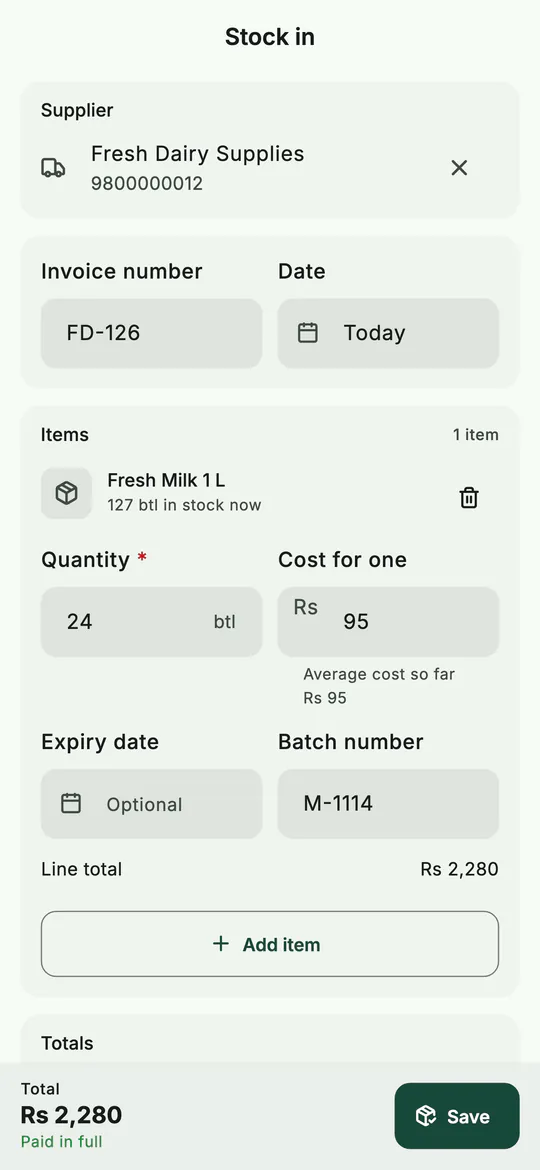 Stock in: the supplier, their invoice number, and each item with its cost.
- Scroll down to Totals. If the supplier gave a discount on the whole bill, enter it in Discount on the bill. BSMM spreads it over the items, so each one's cost is what you really paid.
- Under Paid now, choose the method and the amount you paid today. Paid part? Type that part, and the rest shows as owed to the supplier. Paid nothing? Tap Nothing paid now, and all of it is owed. Pay with another method splits it. If your shop has partners, choose who paid under Paid by.
- Tap Save.
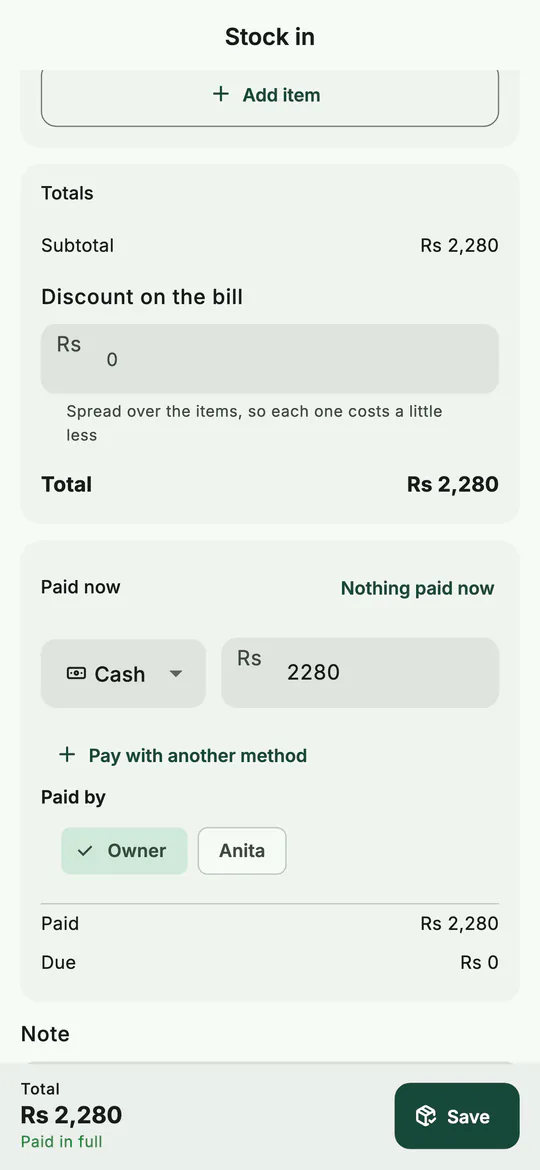 What you paid now, and what's left owing, before you save.
The stock goes up at once, and each item's average cost is updated from what you paid. That's what keeps your profit figures right when prices change.
3. See every purchase
More › Purchases lists everything you've bought, newest first, with the total and any amount still due. Choose the days at the top, just as on the Sales tab.
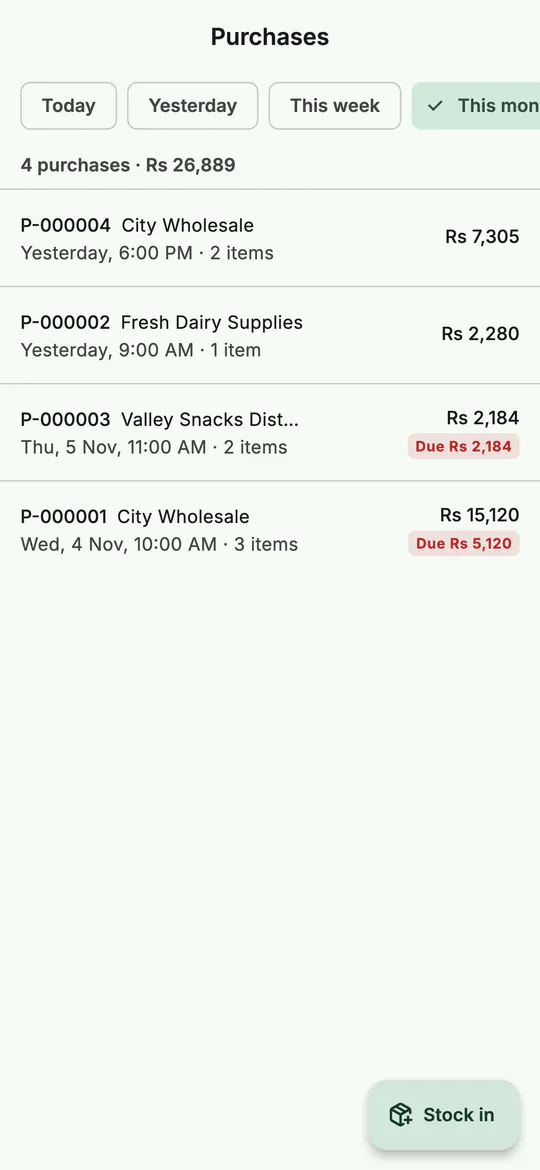 Every purchase, with what's still owed on it.
Tap a purchase to see its items, the subtotal, the discount spread over the items, the total, what was paid and what's due.
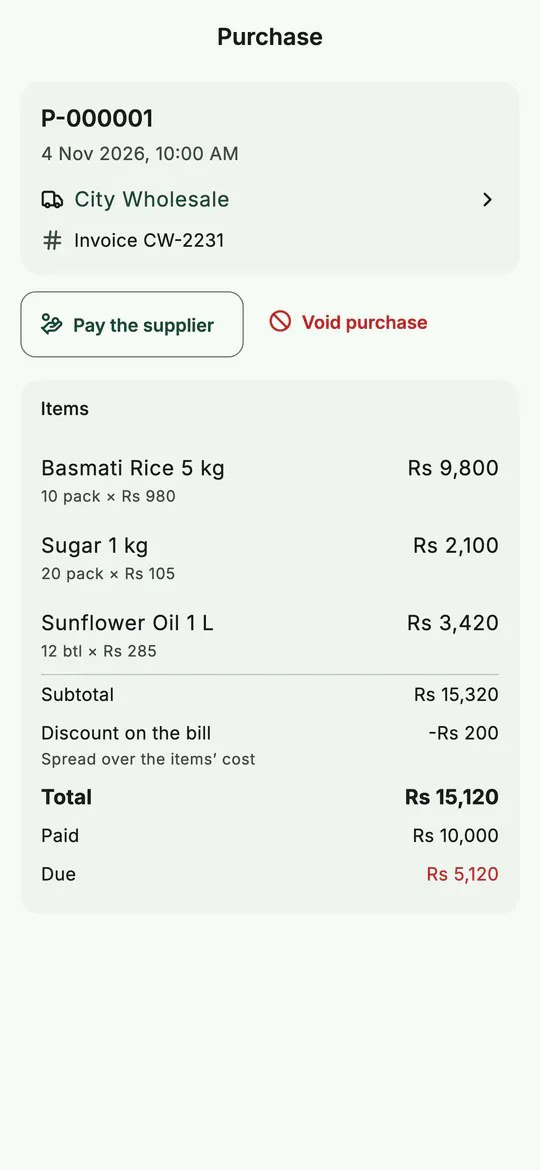 One purchase: items, discount, paid and due.
Entered a delivery by mistake? Tap Void purchase. Its stock comes back out, what you paid is counted back, and anything owed is cancelled. The purchase stays in the list, marked voided.
4. Pay a supplier later
Each supplier has a page. Open it from More › Suppliers, or tap the supplier's name on a purchase. It shows You owe, their contact details, Purchases (everything you bought from them), Stock in from them, and their Account, line by line: each purchase on credit, each payment and each correction.
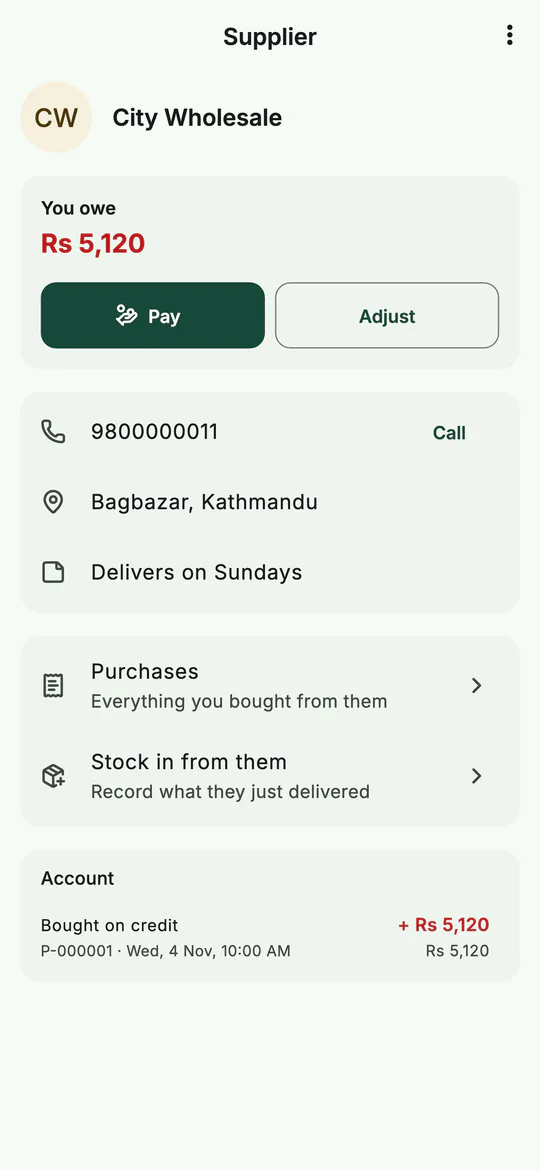 One supplier: what you owe, their purchases and their account.
To pay them:
- On the supplier's page, tap Pay. (On a purchase, Pay the supplier does the same.)
- The Amount starts at everything you owe, shown under it too. Change it if you're paying part.
- Under Paid with, choose how you paid. Add a Note if you like, and tap Save payment.
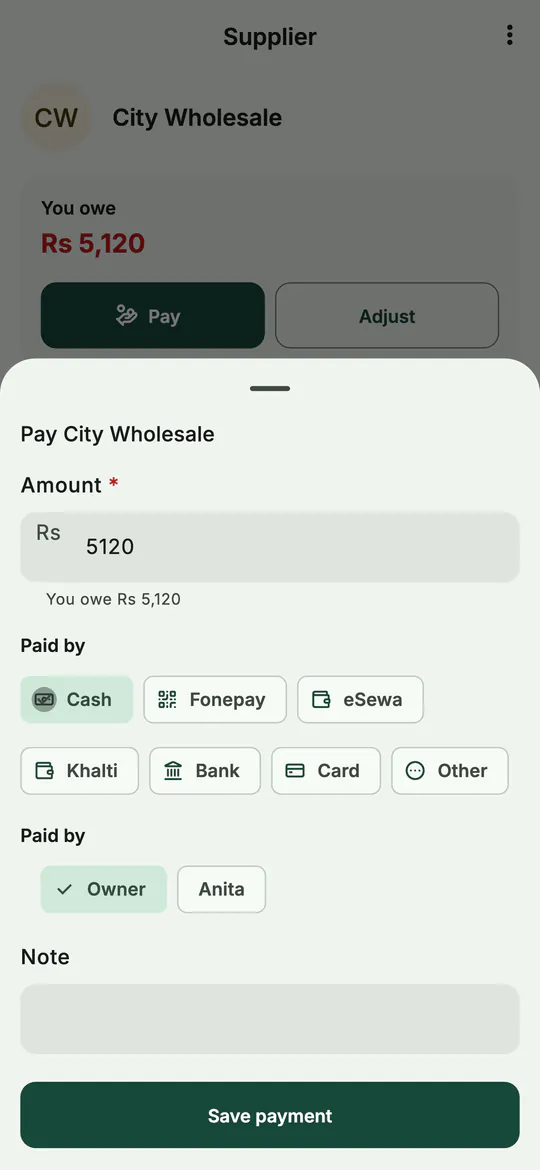 Pay a supplier in full or in part, by any method.
Adjust is for corrections, or a discount they give you afterwards: choose You owe less or You owe more, the amount and a reason.
Tips
- Enter the stock in when the goods arrive, not at the end of the week. The counter then sees the new stock straight away.
- Always fill in the cost for one. It's what BSMM uses to work out your profit on every later sale.
- Copy the supplier's invoice number. It's how you match their bill when they ask for payment.
- Add expiry dates on short-life goods. Milk, bread and medicines then show in Expiring soon before it's too late.
Common mistakes
- Using Adjust stock for a delivery. Use Stock in: an adjustment doesn't record the supplier, the invoice or what you owe.
- Leaving an amount owed without choosing the supplier. BSMM needs to know whom you owe. Choose them first.
- Paying more than the purchase in the stock-in screen. BSMM refuses it. Record the extra as a payment on the supplier's page instead.
What next
With stock coming in and going out, the next job is keeping an eye on it: low stock, the reorder list and stock taking.
For paper and spreadsheet ways to keep a stock book, see stock register format. Purchases, suppliers and the rest of BSMM's stock tools are on the features page.
Questions
What if the supplier's price changes? Just enter the new cost for one. BSMM blends it with the cost of what's already on the shelf, so your average cost and your profit follow the real prices.
Can I record a delivery without a supplier? Yes, if you pay for it all at once, for example goods bought for cash at a market. A supplier is needed only when you owe something.
Do purchases count as expenses in the reports? No. Stock you buy is counted as stock, and its cost comes off your profit when it's sold. Rent, electricity and salaries go in Expenses.