Everything you sell in BSMM starts as a product: its name, its price, what it cost you and how many are on the shelf. Once a product is in, the counter can sell it, every bill takes it out of stock, and the app warns you before it runs out. This inventory app tutorial shows how to add products one by one, how to set up a product that comes in sizes or flavours, and how to bring in a whole list from a spreadsheet.
Where your products live
Tap Products in the bar at the bottom. The list shows each product with its category, price and how much is in stock. Above it:
- Search name, brand, SKU or barcode finds a product by any of those, or by its Nepali name. The scan button in the search box opens the camera to find one by its barcode.
- All, Low stock, Out of stock, Pinned and Archived filter the list.
- The category chips show one category at a time.
- The three buttons at the top open Low stock, Categories and Import products.
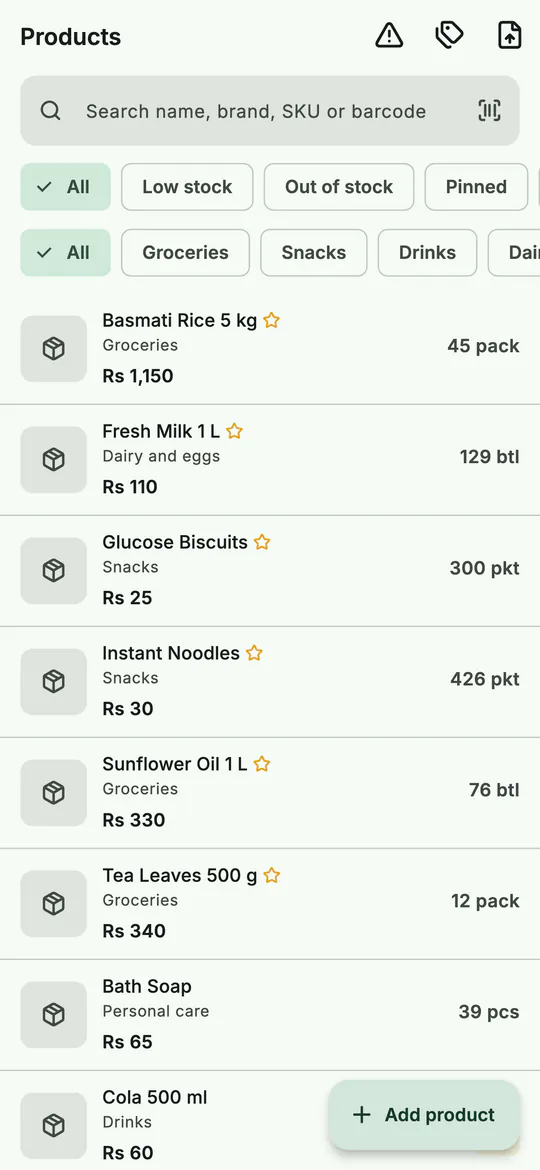 The Products tab: search, filter and see what's on the shelf.
1. How to add a product
- On Products, tap Add product. (Home's Add product button opens the same form.)
- Tap Add photo to take a picture or choose one, if you like. A photo helps staff find the right item, but it's optional.
- Type the Name the way you'd say it at the counter, size included, such as "Coconut Oil 200 ml". Add a Name in Nepali if you search in Nepali too.
- Choose a Category and a Unit. The unit is how you count it: pieces, packs, bottles, kilograms.
- Add a Brand and a Description if they help.
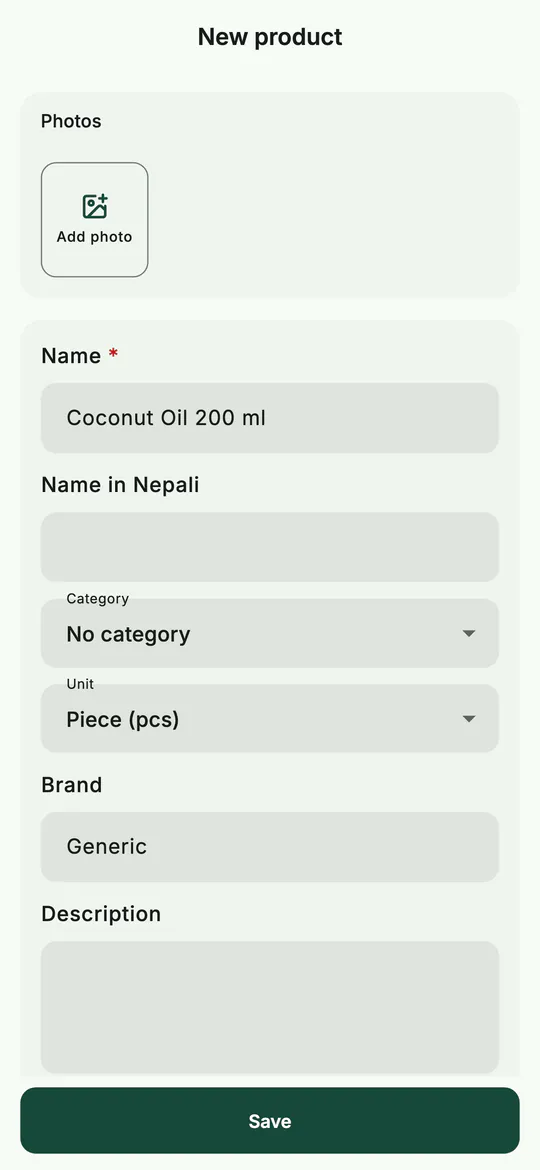 The top of the form: photo, name, category, unit and brand.
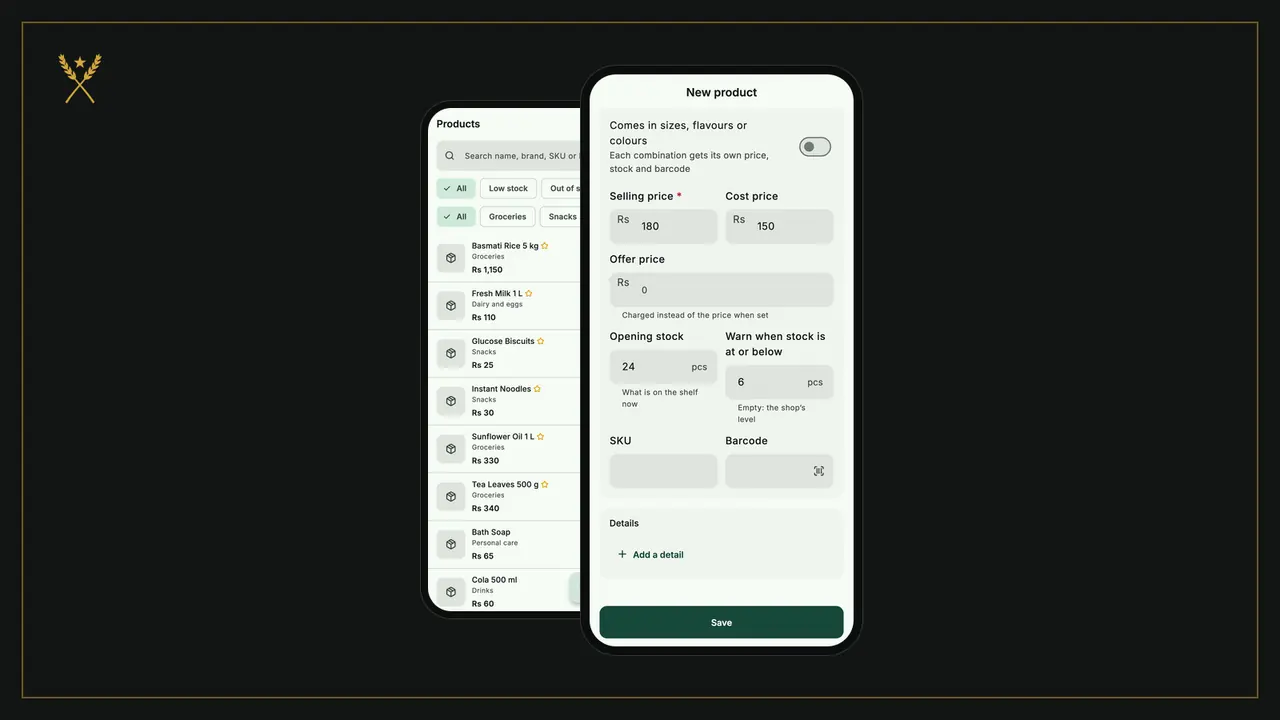
- Scroll down to Price and stock and fill in:
- Selling price: what you charge.
- Cost price: what one costs you. BSMM uses it to work out your profit on every bill.
- Offer price: leave it empty, unless you want to charge a lower price for a while. It's charged instead of the selling price while it's set.
- Opening stock: what's on the shelf right now.
- Warn when stock is at or below: the level at which BSMM lists it as low stock. Leave it empty to use the shop's level.
- SKU and Barcode: tap the scan button in Barcode and point the camera at the packet's barcode.
- Tap Save.
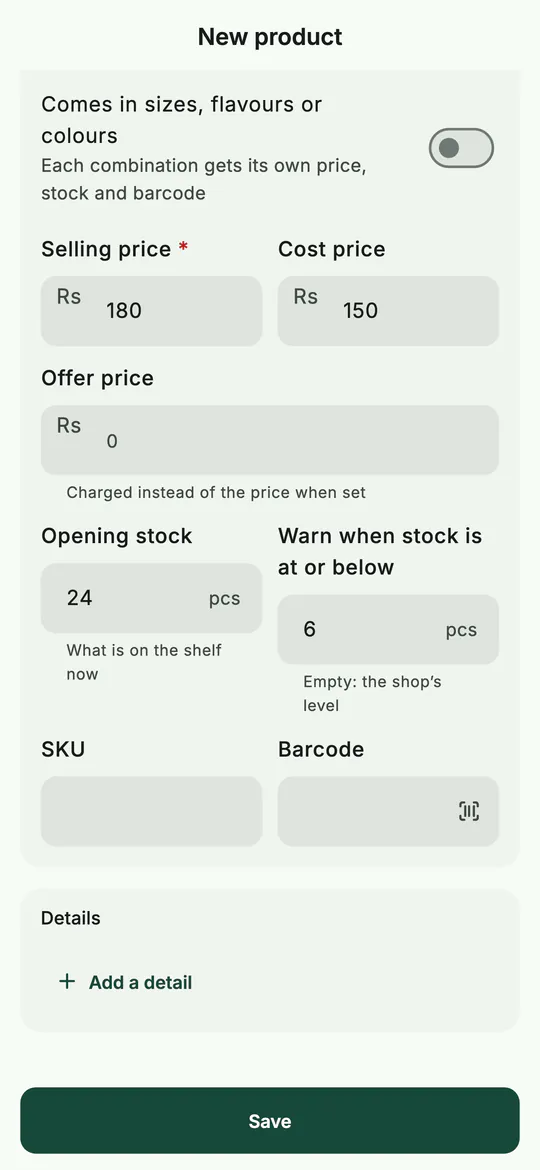 Price and stock: selling price, cost, what's on the shelf now and when to warn.
The product is ready to sell straight away. Under Details you can also add facts such as "Origin: Nepal" with Add a detail.
2. A product in sizes, flavours or colours
Some products come in several versions: oil in 500 ml and 1 L, biscuits in three flavours, a shirt in four sizes. In BSMM that's one product with variants, and each variant has its own price, stock and barcode.
- In the product form, turn on Comes in sizes, flavours or colours.
- Under Variant types, type a Type, such as "Size".
- Under Values, type each value and tap Add: "500 ml", then "1 L".
- Need a second type, like flavour? Tap Add a variant type. BSMM makes one variant for every combination.
- Under Variants, open each one and fill in its selling price, cost, opening stock, warning level and barcode. If they share a value, fill one in and tap Same for all variants to copy it.
- Tap Save.
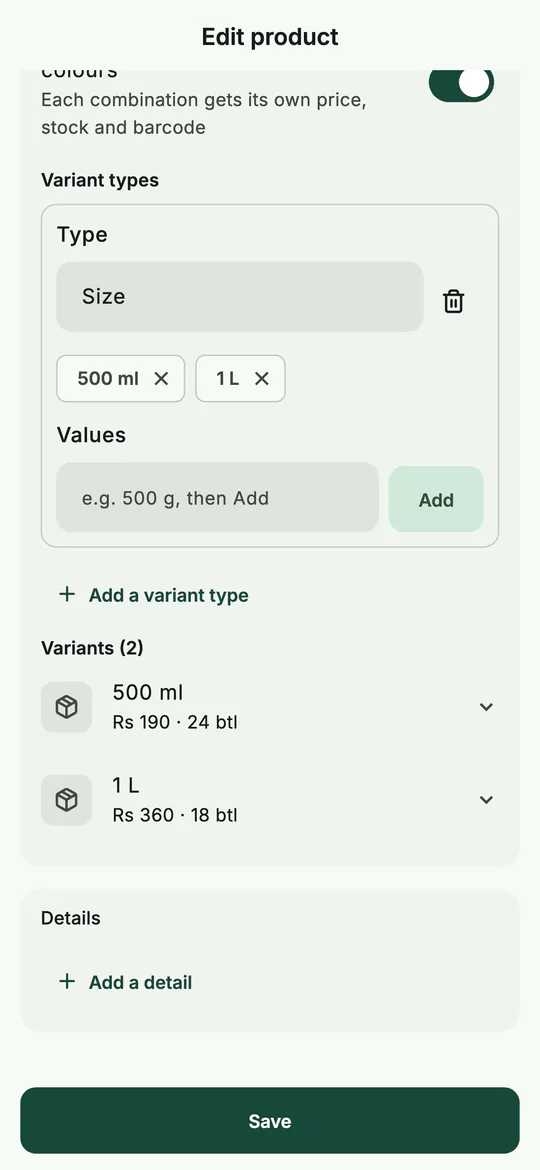 One product, two sizes: each gets its own price, stock and barcode.
At the counter, you pick the size you're selling, or simply scan its barcode.
3. Check a product's page
Tap a product in the list to open its page. You'll see:
- its photos and, for a product with variants, a chip for each one;
- the price, In stock, Average cost, Margin, Stock value and Warn at;
- its SKU and Barcode;
- Stock in, Adjust stock and Stock history buttons.
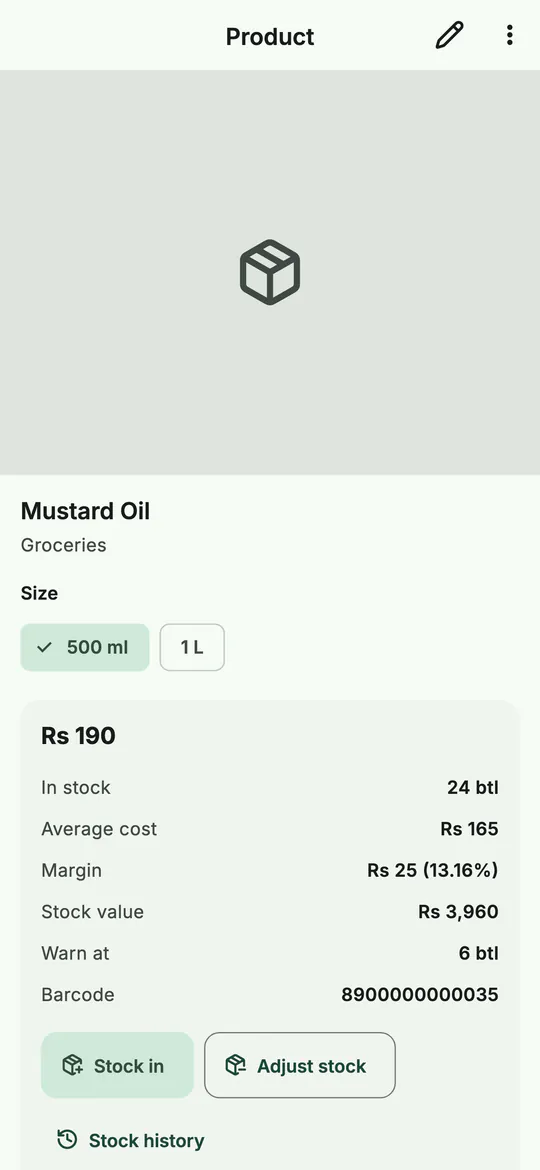 A product's page: price, stock, cost and margin for the size you choose.
The pencil at the top opens the form again. The menu next to it has Pin to the sale screen, Archive and Delete.
4. Change the stock the right way
After you save a product, its stock changes only three ways: a sale, Stock in (goods arriving) or Adjust stock (damage, expiry, a recount). That's on purpose. Each change is kept in the product's Stock history, with the balance after it, so the number on the shelf can always be explained.
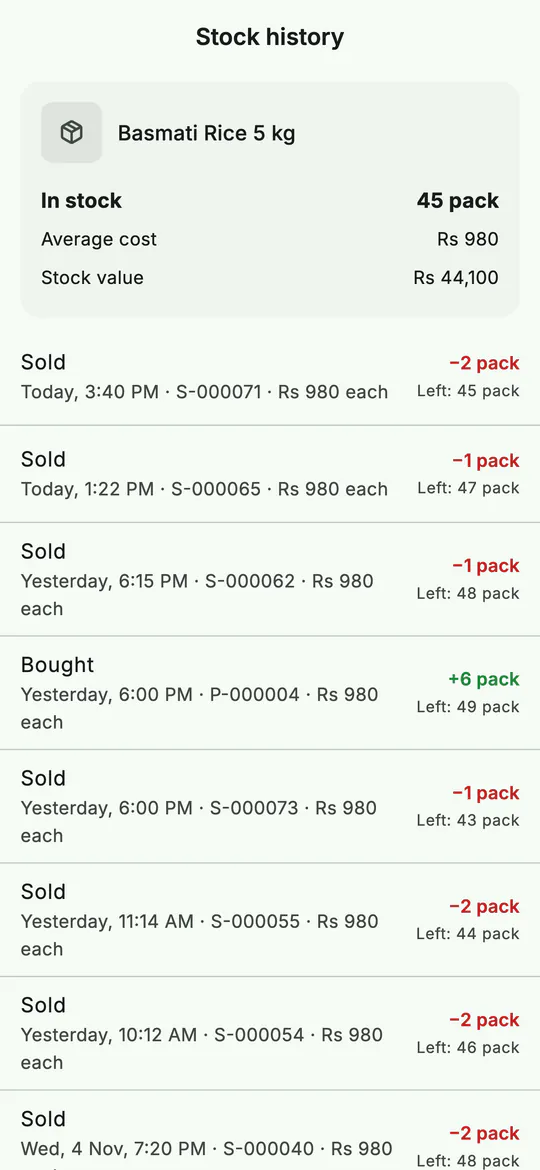 Stock history: every sale, purchase and adjustment, with what was left after it.
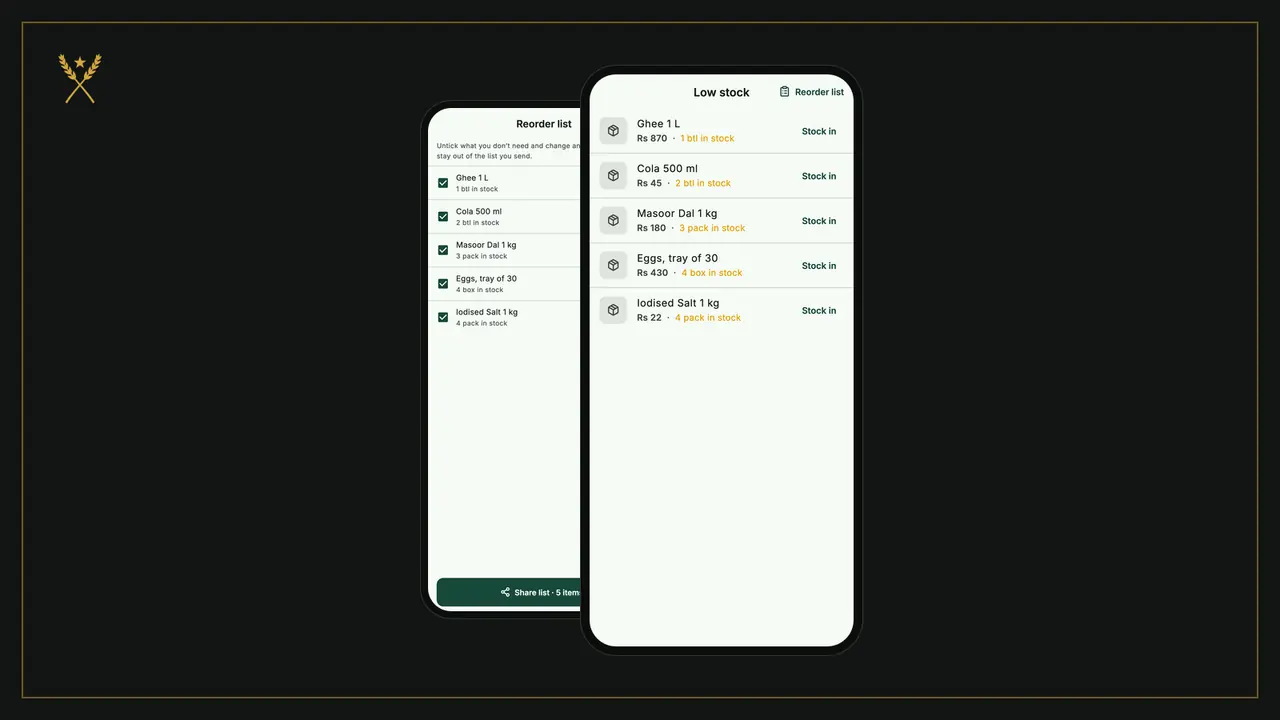
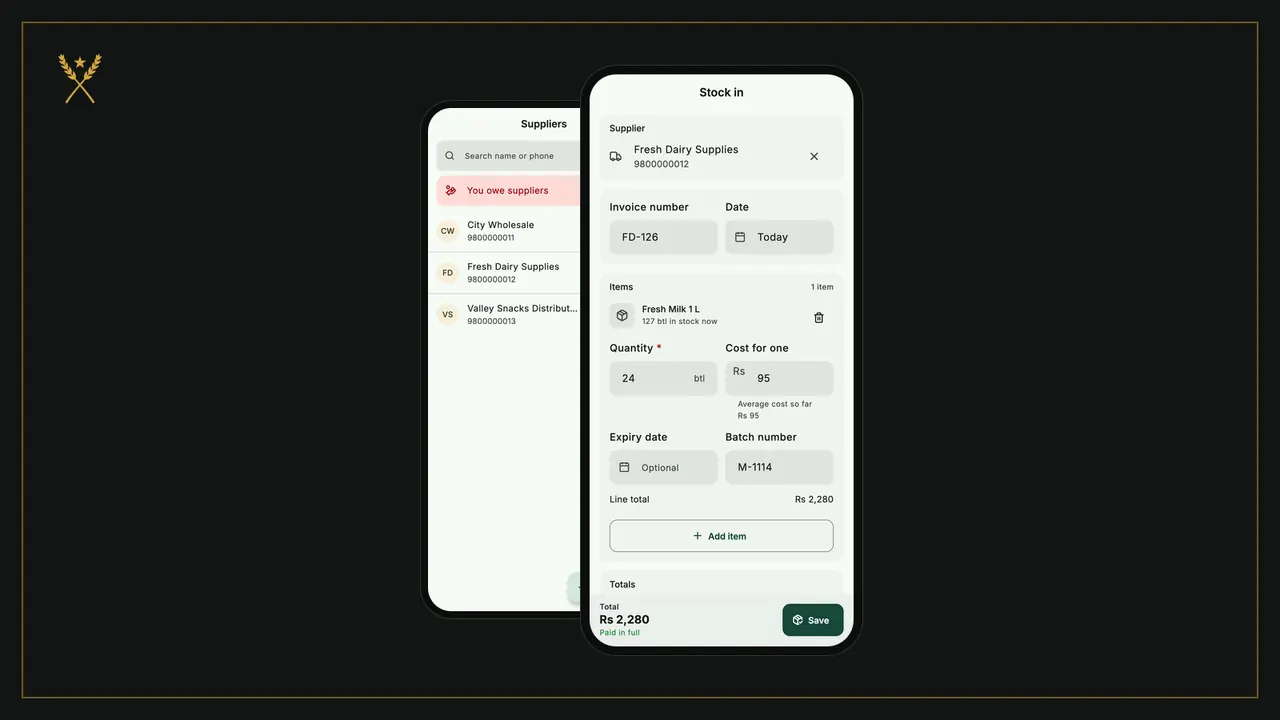
How to record a delivery and a recount is in stock in from suppliers and low stock, reorder and stock taking.
5. Import products from Excel or a CSV file
If your products are already in Excel or Google Sheets, import them instead of typing each one.
- On Products, tap the import button at the top. Import products opens.
- Tap Get a sample file to see the layout. The file needs a name and a price column. It can also have cost, stock, unit, category, barcode, sku, brand, low stock and nepali name, in any order.
- Save your sheet as a CSV file, then tap Choose CSV file.
- BSMM shows everything before anything is added. Rows with a problem are listed first, with the reason, and left out. A name already in your shop is skipped, so you can fix the file and import it again without making doubles.
- Tap the import button at the bottom. It says how many products are ready, such as Import 1 product, and adds them.
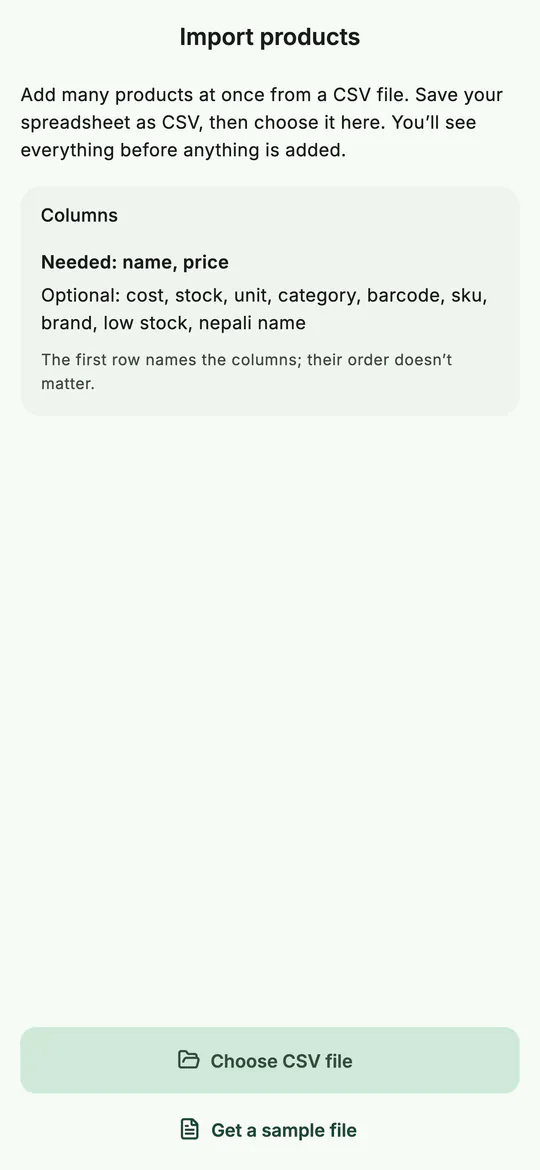 Import products: check the columns, then choose your CSV file.
Each row becomes one product without variants. A product with sizes or flavours is added by hand, as in step 2.
6. Keep the list tidy with categories and pins
- Categories: tap the tag button on Products, or go to More › Categories. Add, rename or delete them. Deleting a category keeps its products, without a category.
- Pinned products: the products you sell most can be pinned to the sale screen. Turn on Pin to the sale screen in the form, or use the menu on the product page. They show as buttons at the top of New sale.
- Archive instead of delete: an archived product is hidden from selling but keeps its history. Sell again brings it back.
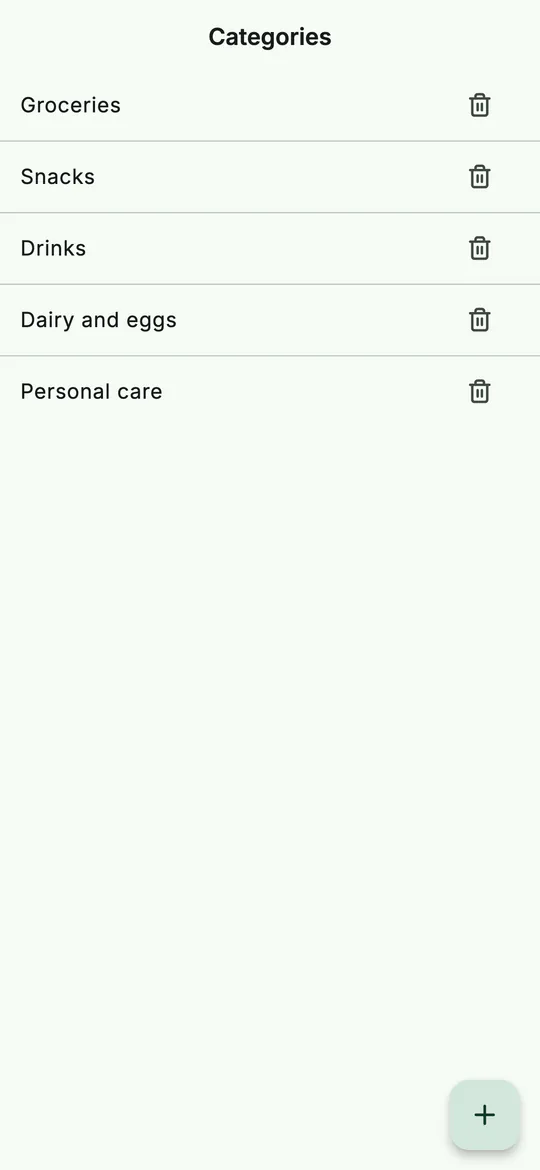 Categories keep a long product list easy to browse.
Tips
- Enter the cost price. Without it, BSMM can't show your margin or your real profit. If you got a cost wrong, correct it in the form: the cost price field sets the average cost.
- Put the size in the name for products without variants ("Sugar 1 kg"), so the right one is picked at the counter.
- Scan barcodes as you add products. It's quicker than typing, and from then on a scan at the counter adds the item to the bill. More on this in a free inventory app with a barcode scanner.
- Set warning levels on fast sellers. That's what fills the low-stock list and the reorder list.
Common mistakes
- Using the form to change stock. Opening stock is only for a new product. Later, use Stock in or Adjust stock, or the history won't add up.
- The same barcode on two products. BSMM refuses it and names the product that already has it.
- Separate products for each size. It works, but variants keep one page, one history and one place to change the price.
What next
Your shelves are in the app. Now make your first bill: add items, take payment and share the receipt.
For keeping stock right over time, see inventory management for a small shop and how to set a reorder level. Everything BSMM does for your stock is listed on the features page.
Questions
Can I add products without a barcode? Yes. Loose and local goods are found by typing a few letters of the name, at the counter and in the list. A barcode is only a shortcut.
Can I sell loose items like 2.5 kg of rice? Yes, if the product's unit allows it. In More › Units, a unit marked Sold loose takes quantities like 2.5 kg; one set to whole units only doesn't.
What happens to old bills if I delete a product? They stay. The product disappears from the shop, but its sales and stock history stay in the reports. To stop selling something for a while, archive it instead.