An empty shelf loses sales, and a full one of the wrong thing ties up cash. BSMM watches your stock as you sell: it alerts you to low stock, writes the reorder list for your supplier, lists goods that are about to expire, and lets you correct the count with a stock take when the shelf and the app disagree. This tutorial covers all four.
1. Set when an item counts as low
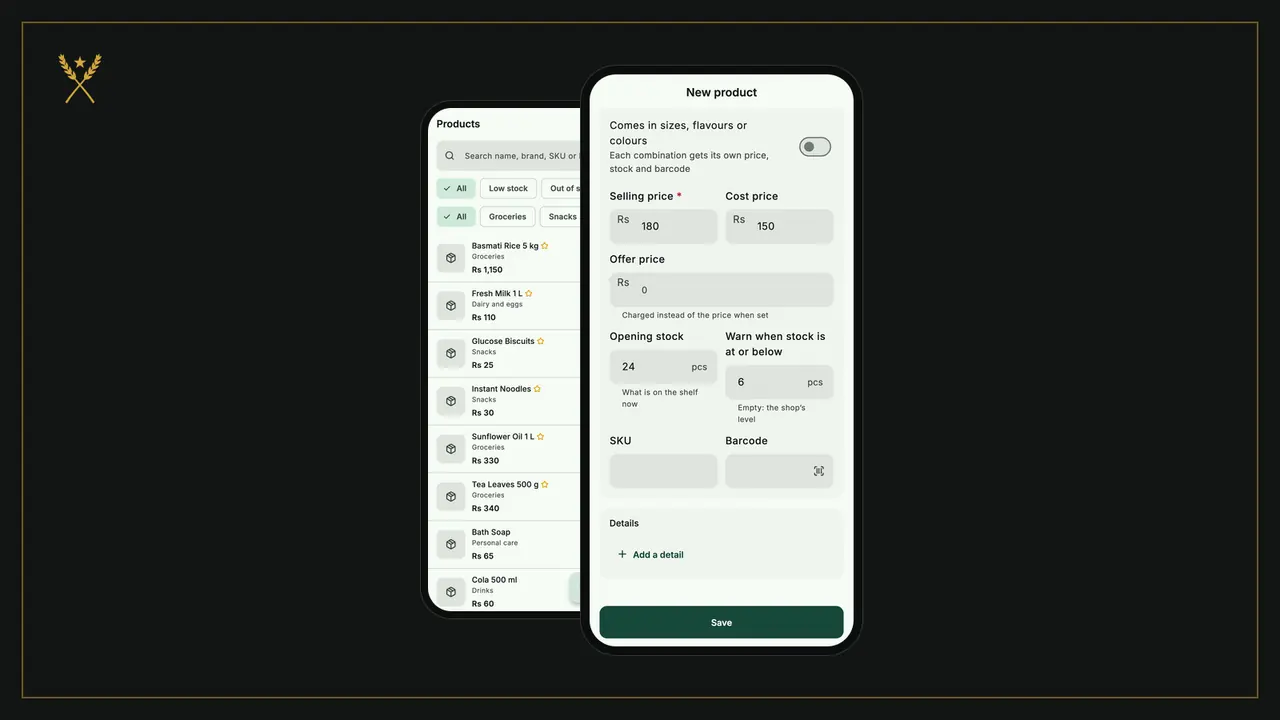
Each product can have its own level, in Warn when stock is at or below in the product form. Set it to what you sell between two deliveries, plus a little spare.
Products without their own level use the shop's: go to More › Shop details, and under Low-stock warning set Warn when stock is at or below. It counts in each product's own unit, so 5 means 5 pieces, 5 packs or 5 kg.
Not sure what level to choose? The reorder level formula explains it with a shop example.
2. Low stock alerts: see what's running low
You'll find low stock in three places:
- Home, under Low stock, with the first few items and a Stock in button beside each. See all opens the full list.
- More › Low stock, or the warning button at the top of Products.
- A notification, when a sale on your phone leaves a product at or below its level. The first time, BSMM asks to allow notifications; turn it off any time in More › Notifications.
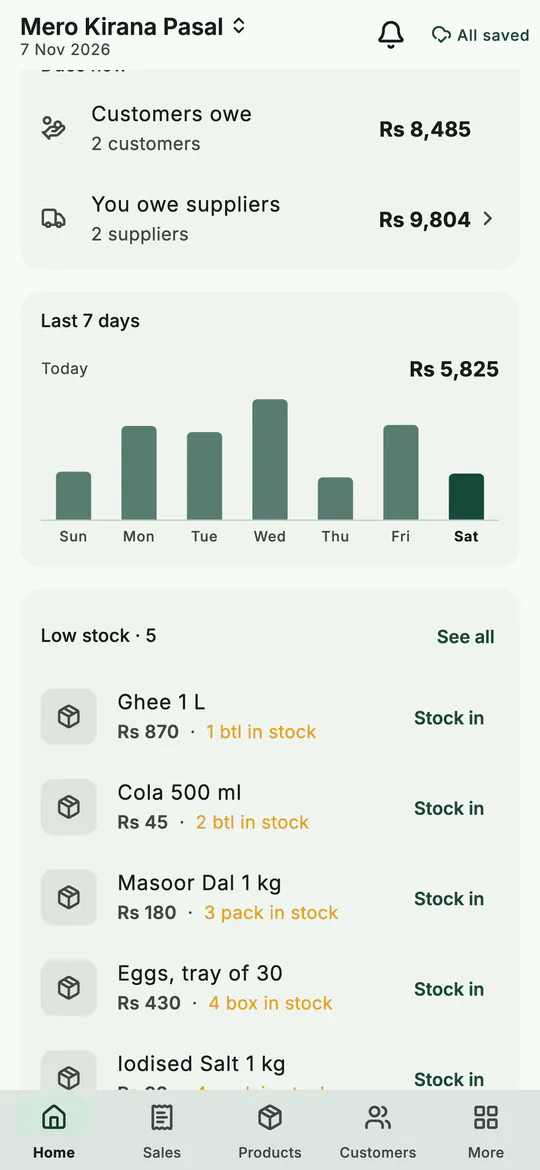 Home shows what's running low, with a Stock in button for each.
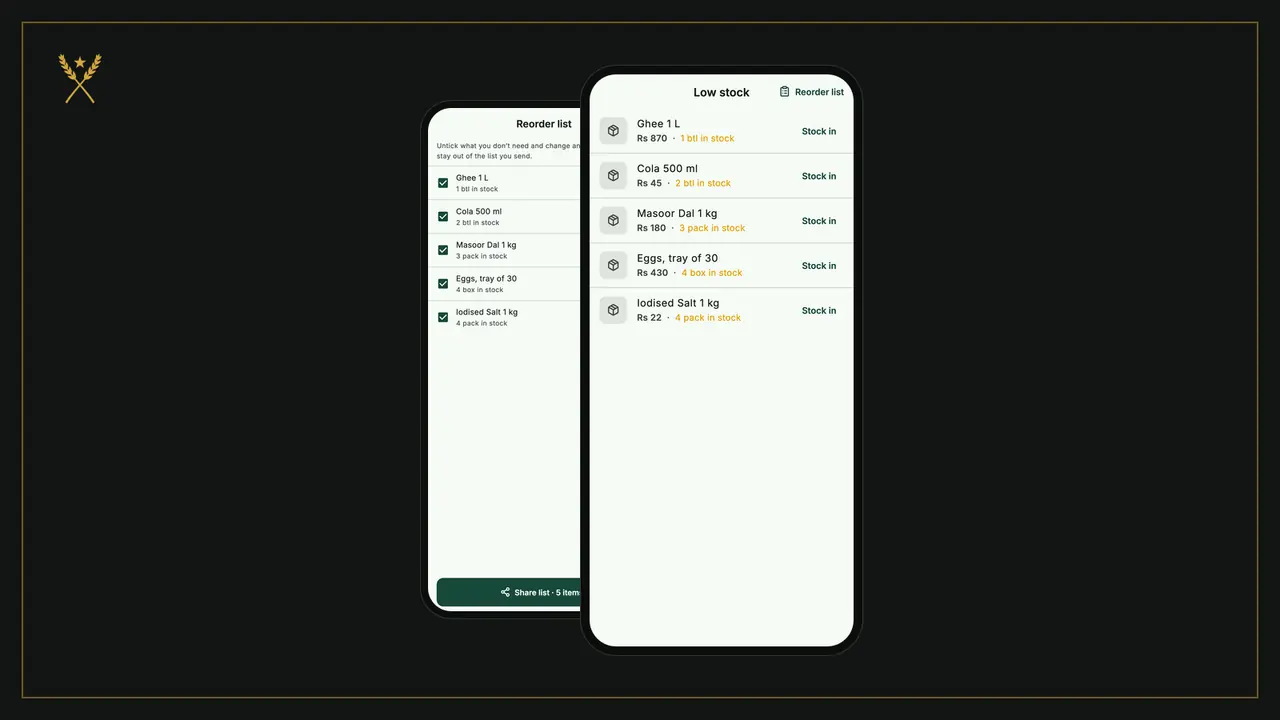
The Low stock screen lists every product at or below its level, with its price and what's left.
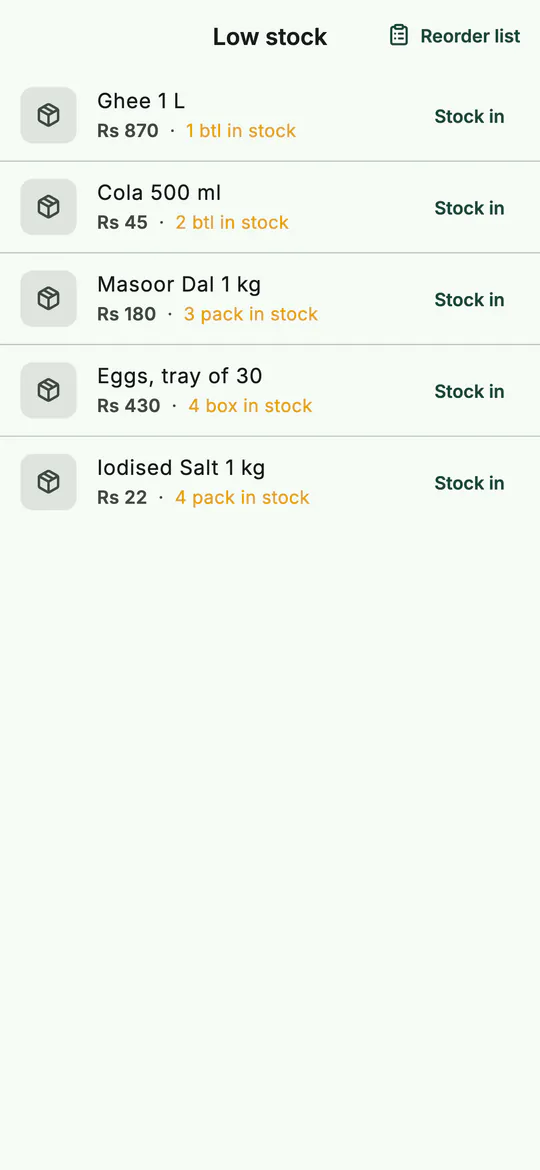 Everything at or below its warning level.
3. Send a reorder list to your supplier
- On Low stock, tap Reorder list at the top.
- Every low item is ticked, with a suggested quantity: enough to fill up to twice its warning level.
- Untick what you don't need, and change any quantity.
- Tap Share list and choose WhatsApp, Viber, SMS or any other app.
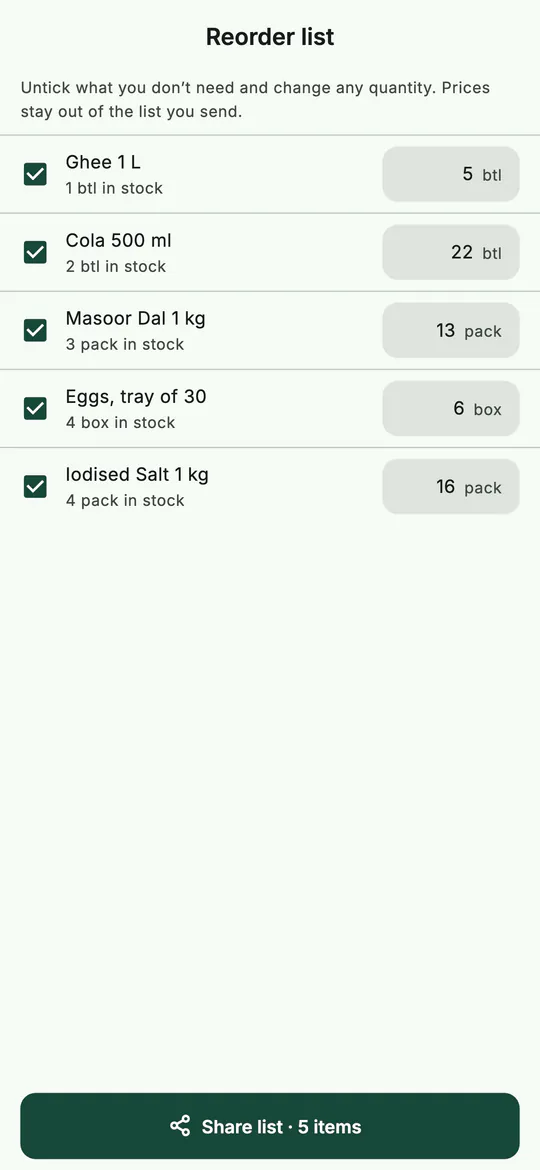 The reorder list: untick, change a quantity, and share it.
The list your supplier receives has the date, the items and quantities, your shop's phone number and a polite line asking them to confirm what they can supply. Your prices and stock levels stay out of it. When the goods arrive, record them with Stock in.
4. Take out damaged, expired or lost stock
Stock leaves the shelf without a sale more often than we'd like: a dropped tray of eggs, a packet past its date, something used in the shop. Record it, so the count stays true and the loss shows in your reports.
- Go to More › Adjust stock, or tap Adjust stock on a product's page.
- Under Why is the stock changing?, choose Damaged, Expired, Lost or stolen, Used in the shop, Given away or Other.
- Tap Add item for each product. For each one, choose Remove or Add, and type the quantity.
- Add a Note saying what happened, then tap Save.
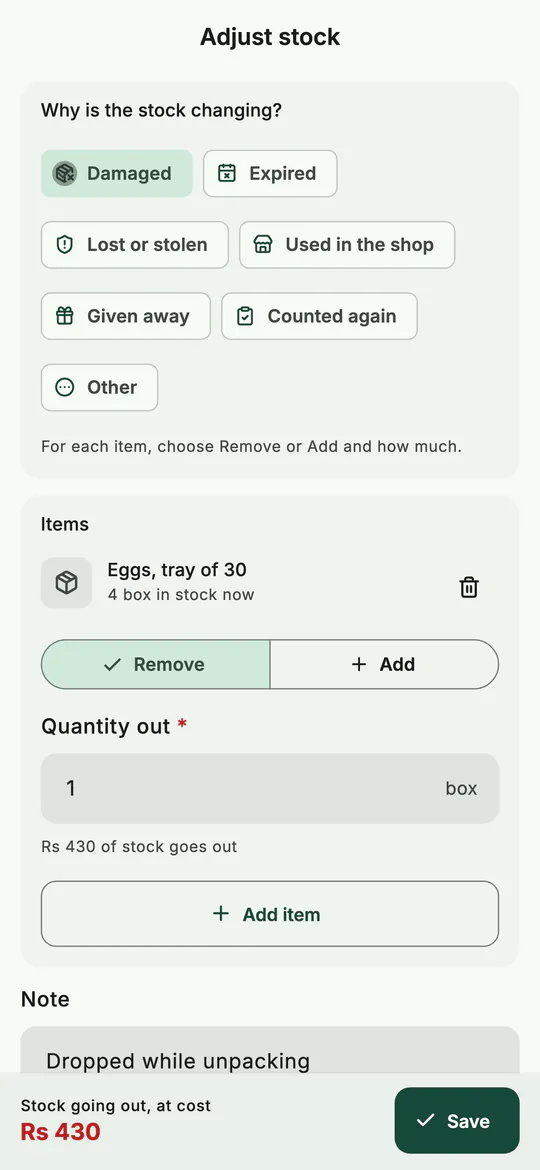 One tray of eggs damaged: out of stock, at what it cost you.
BSMM shows what the change is worth at cost before you save. Stock taken out keeps the item's average cost; stock added can carry a cost, or comes in at the average if you leave it empty.
5. How to do a stock take in BSMM
However careful you are, the shelf and the app drift apart. A stock take puts them back in line.
- Go to More › Adjust stock and choose Counted again.
- Tap Add item and pick a product: search for it, or scan its barcode.
- Count what's on the shelf and type it in Counted. BSMM shows the Change from what it expected, in red if some is missing.
- Add the next item, and the next. One adjustment can hold many items.
- Tap Save.
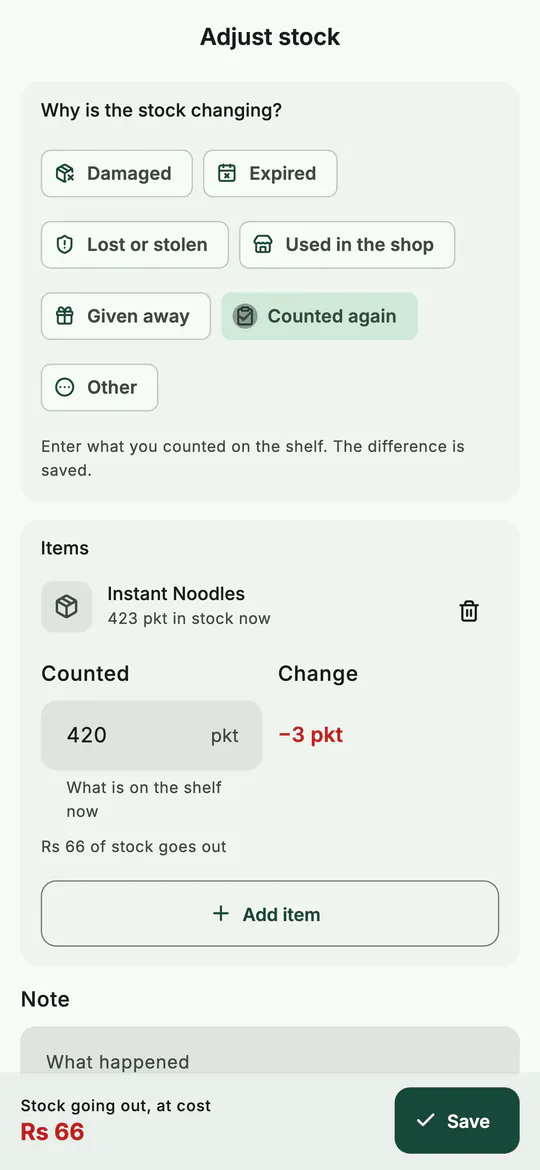 Counted again: type what's on the shelf, and BSMM records the difference.
Only the difference is recorded, with its reason, so each product's stock history still explains every number. For how to plan a full count, see stock taking for a small shop.
6. Catch stock before it expires
When you record a delivery with an Expiry date (see stock in), BSMM keeps an eye on it. Lines that expire within the next 30 days, or already have, show in More › Expiring soon and on Home, as long as the item is still in stock.
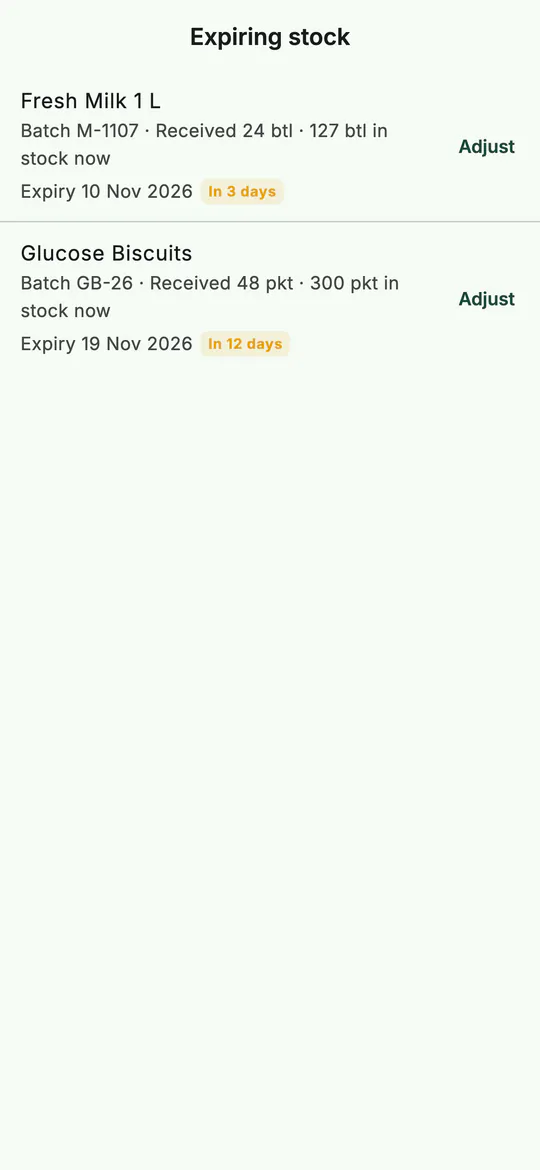 Expiring soon: sell it first, or take it out with Adjust.
Put those items at the front of the shelf, or offer them at a lower price at the counter. If something does expire, tap Adjust beside it and take it out as Expired. BSMM doesn't count stock per batch: the list is a reminder of what's coming up.
Tips
- Set warning levels on your best sellers first. Those are the shelves that can't be empty.
- Share the reorder list on the same day each week, before your supplier's delivery day.
- Count a few items at a time. One shelf a day is easier than a whole-shop count once a year, and catches mistakes sooner.
- Use Used in the shop for tea, soap or bags you take for the shop itself, so they don't look like theft.
Common mistakes
- Fixing a wrong count with Stock in. Stock in is for goods from a supplier. A recount is Counted again.
- Leaving out the reason. Damaged, expired and lost tell different stories; the right reason shows you where the money goes.
- Expecting expiry reminders without expiry dates. BSMM only knows what you entered at stock in.
What next
Every sale, purchase and adjustment now feeds your figures. See them in reports, end of day and expenses.
For the thinking behind it, read dead stock and FIFO and FEFO for a small shop. All of BSMM's stock tools are on the features page.
Questions
Does BSMM stop a sale when stock is zero? No. The counter warns you ("Only 2 left") but always sells, because the shelf is right and the count can be wrong. Fix the count afterwards with Counted again.
Where does lost or damaged stock show in the reports? As Stock lost, at cost, which comes off your net profit. Stock found in a recount comes back as Stock found.
How often should I do a stock take? Most small shops do best with a few items every week and a full count once a year. Each count in BSMM can hold as few items as you like, so a shelf at a time works well. Stock taking for a small shop has a schedule.