BSMM is a free app for running a small shop from your phone: the bills, the stock and the khata in one place. This first tutorial on how to use BSMM takes you from installing the app to your shop's home screen. It takes a few minutes, and you need the internet only for this part: once your shop is open, BSMM keeps working offline.
In the app, your business is called a shop. One account can own several shops, and each shop has its own products, bills and customers.
What you need
- An Android phone or an iPhone, with BSMM installed from Google Play or the App Store.
- An email address you can open on any device. BSMM sends a short code to it once, to confirm the account.
- Your shop's name. Its phone number and address are optional, but they appear on every receipt you share, so it's worth adding them now.
1. Register your account and your shop
- Open BSMM. The first screen is Welcome back, the login screen.
- At the bottom, tap Register your shop.
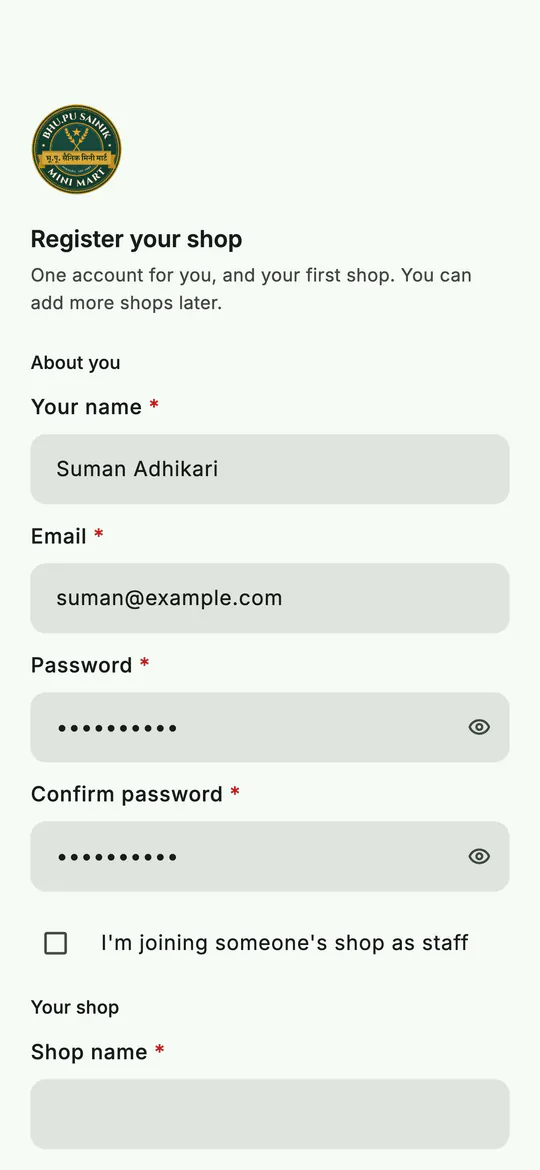 The top of the form is about you: your name, email and password.
- Under About you, type Your name, your Email and a Password. The password needs at least 8 characters, with a letter and a number. Type it again in Confirm password.
- Leave I'm joining someone's shop as staff unticked. Tick it only if another shop has invited you to work there (see staff and several phones).
- Scroll down to Your shop and fill in Shop name, Shop phone and Shop address.
- Tick I agree to the Terms and the Privacy Policy, then tap Register.
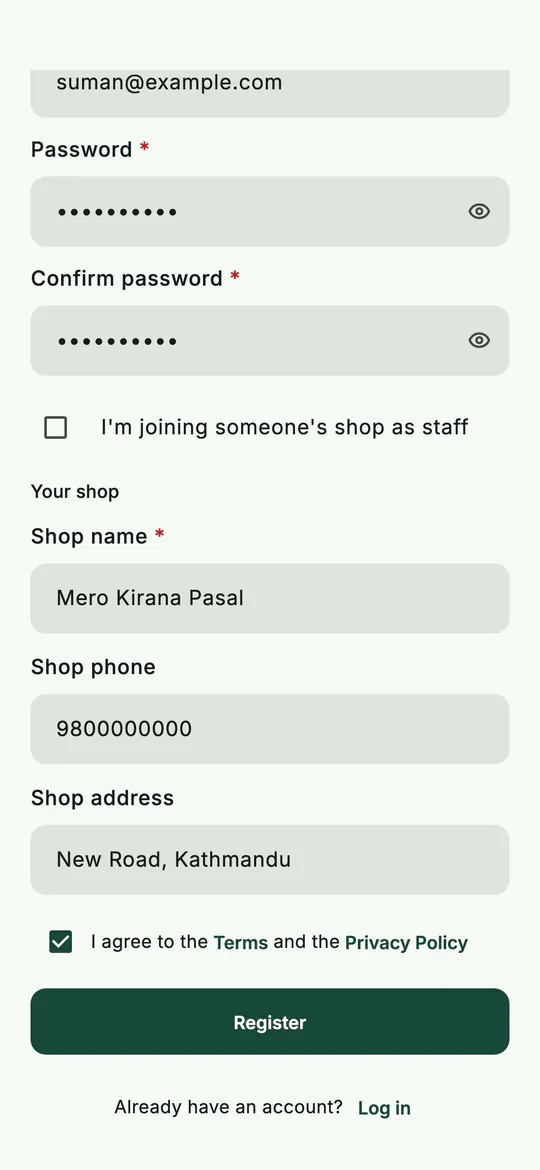 Your first shop is part of the same form.
2. Confirm your email
BSMM doesn't send a link to click. It sends a code, which you type into the app, so it works whichever device you read your email on.
- The app opens Check your email, with the address the code went to.
- Open that email, copy the code and type it into Code.
- Tap Confirm.
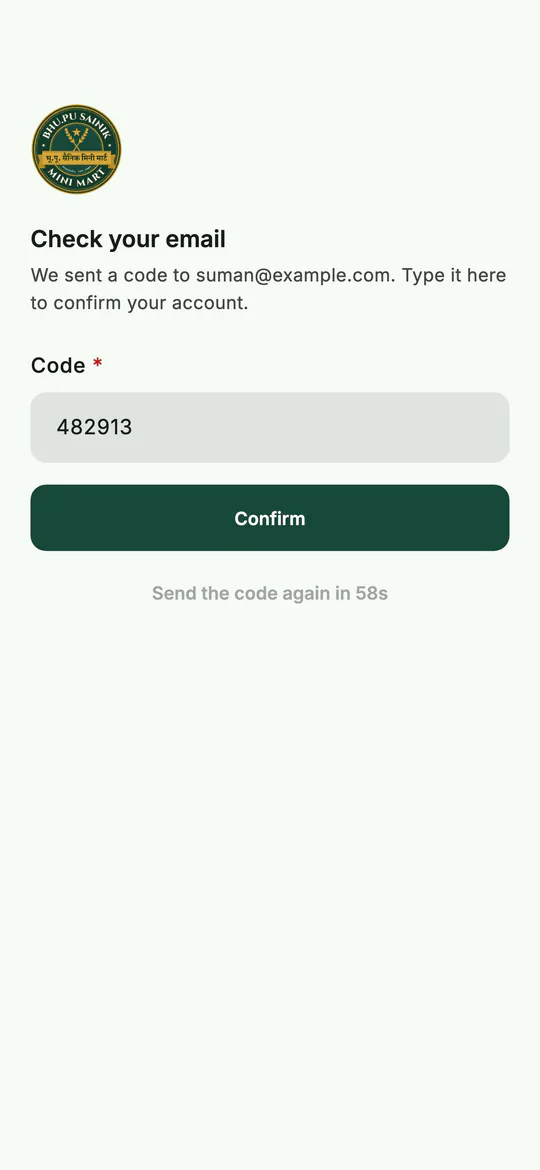 Type the code from the email, then Confirm.
If nothing arrives within a minute, look in your spam folder, then tap Send the code again. Your shop is registered as soon as the email is confirmed, and the app opens it.
3. Or sign in with Google or Apple
You can skip the password altogether:
- On Welcome back, tap Continue with Google or Continue with Apple.
- Choose your account in the window your phone shows.
- A new account lands on Join a shop or register one. Under Or register your own shop, type the Shop name, Shop phone and Shop address, then tap Register.
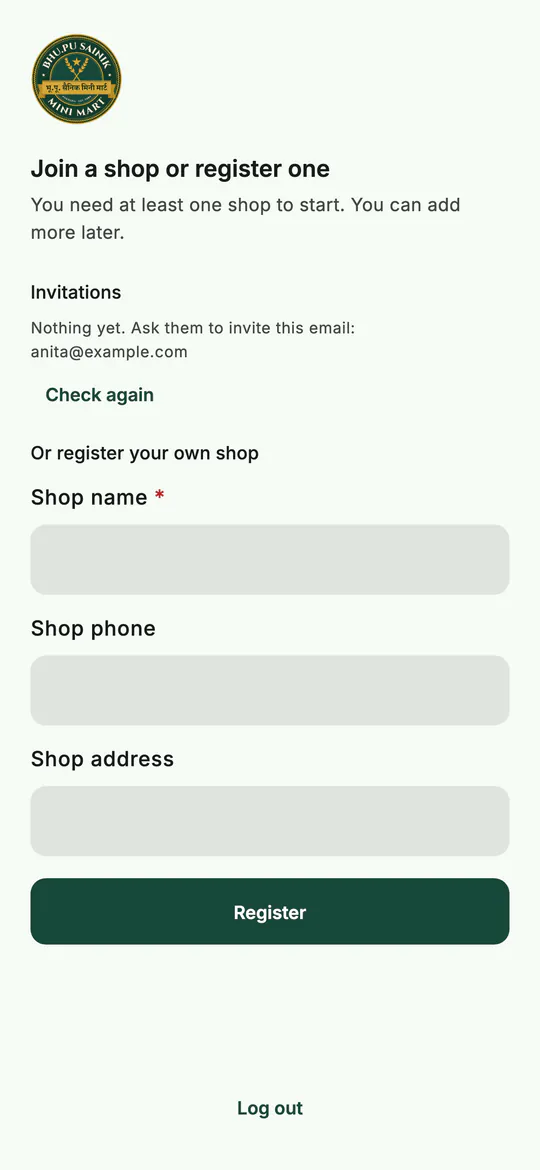 Signed in with Google or Apple, and no shop yet: register one here.
The Invitations section on the same screen is for staff. If someone has invited your email to their shop, the invitation shows there instead.
4. Log in next time
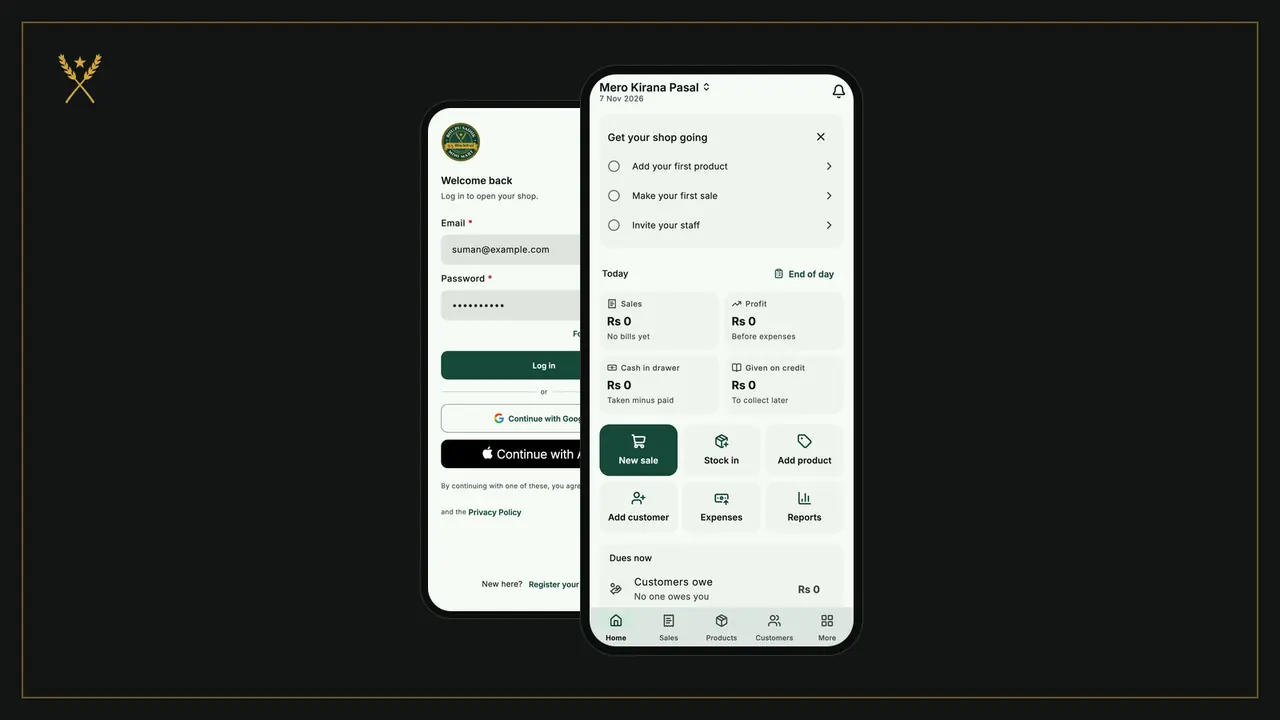
- On Welcome back, type your Email and Password, then tap Log in, or use the Google or Apple button you signed up with.
- Forgot the password? Tap Forgot password?, type your email and tap Send code. Type the code and a New password on Set a new password, then tap Save password.
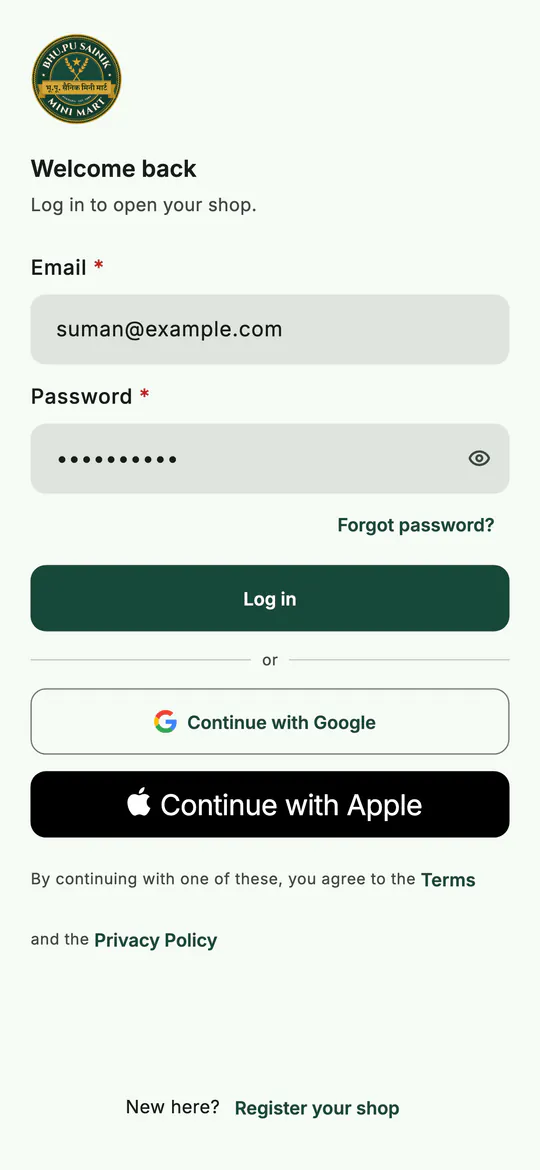 Log in with your email and password, or with Google or Apple.
Logging in needs the internet. After that, the app opens your shop straight from the phone, even with no connection.
5. A first look at your shop
A new shop opens on Home, with a short guide at the top called Get your shop going:
- Add your first product
- Make your first sale
- Invite your staff
Each line takes you to the right screen, and is ticked once you've done it. Tap the cross to close the guide whenever you like.
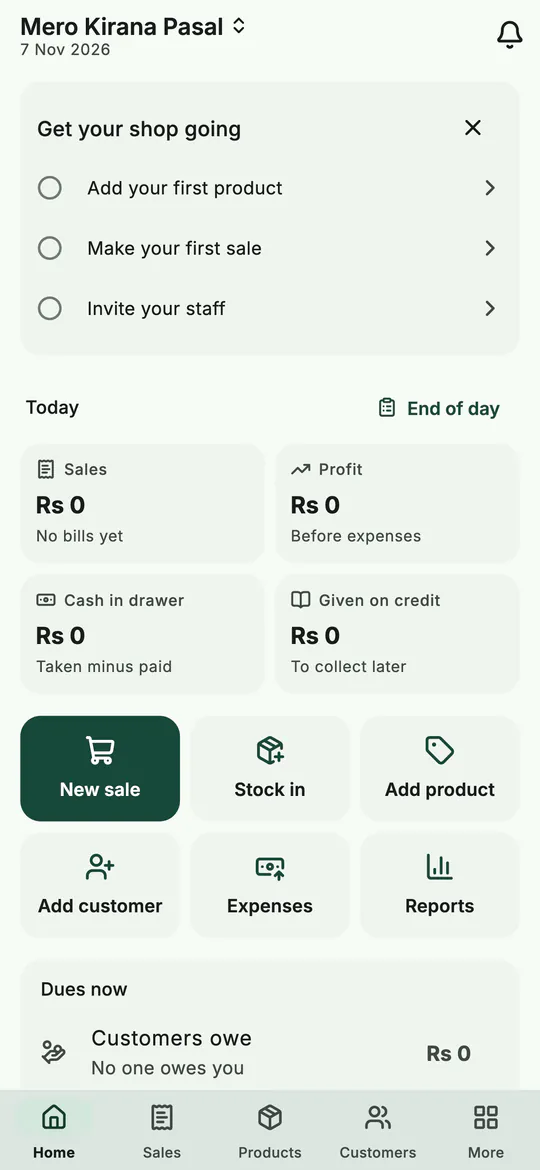 A brand new shop: the setup guide and empty figures for today.
Below the guide you'll find:
- Today: sales, profit, cash in the drawer and credit given, with End of day beside the heading.
- Six shortcut buttons: New sale, Stock in, Add product, Add customer, Expenses and Reports.
- Dues now: what customers owe you and what you owe suppliers.
The bar at the bottom has five tabs: Home, Sales, Products, Customers and More. Everything that isn't a tab lives under More: stock in, purchases, suppliers, low stock, expenses, reports, staff, shop details, backup, app lock and your account.
6. What Home looks like once you're selling
After a few days of bills, Home becomes your shop's day at a glance: today's sales and profit, the cash that should be in the drawer, what went on credit, the last seven days as bars, and the products running low, each with a Stock in button.
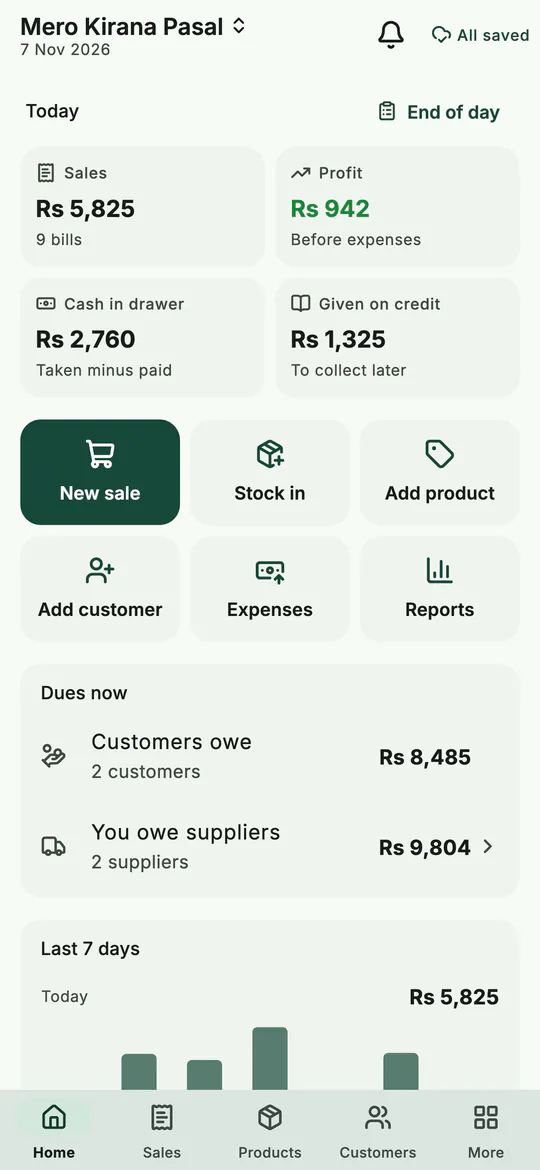 The same Home after a week: the figures fill in as you sell.
The shop's name at the top is also a switch. Tap it to move to another shop, once you have more than one.
At the top right, a small chip shows whether your work has reached the server. All saved means everything on this phone is synced; tap it to see when it last synced. How syncing works is in staff, several phones and offline sync.
Tips
- Fill in the shop's phone and address now. They appear on every receipt. If you skip them, Home shows Add your shop's details for receipts until you do.
- Use an email you'll keep. It's how you log in on a new phone, and how you get back in if you forget the password.
- One account per person. Don't share a login with staff. Each person registers their own account and you invite them; everyone then sees the same shop on their own phone.
Common mistakes
- Ticking "I'm joining someone's shop as staff" by accident. That form registers only you, with no shop. If it happens, you'll land on Join a shop or register one: register your shop there.
- Waiting for a link in the email. There isn't one. Type the code into the app.
- Registering a second account to open a second shop. You don't need to. Go to More › Your shops › Register a shop, and switch between them from Home.
What next
Your shop is open and empty. The next step is to fill the shelves: add your products, with their prices, sizes, barcodes and the stock you have now.
For everything the app does on one page, see BSMM's features. For the bigger picture of what a shop app should do, see inventory and billing apps for small shops compared.
Questions
Is BSMM really free? Yes. BSMM is free, with no paid plan and no ads. Every feature in these tutorials is in the free app.
Do I need the internet to use BSMM? Only to register and to log in. After that you can sell, add stock and keep the khata offline, and the app sends your changes when the connection comes back.
Can one account run more than one shop? Yes. Register another shop from More › Your shops, and tap the shop's name on Home to switch. Each shop keeps its own products, bills and customers.