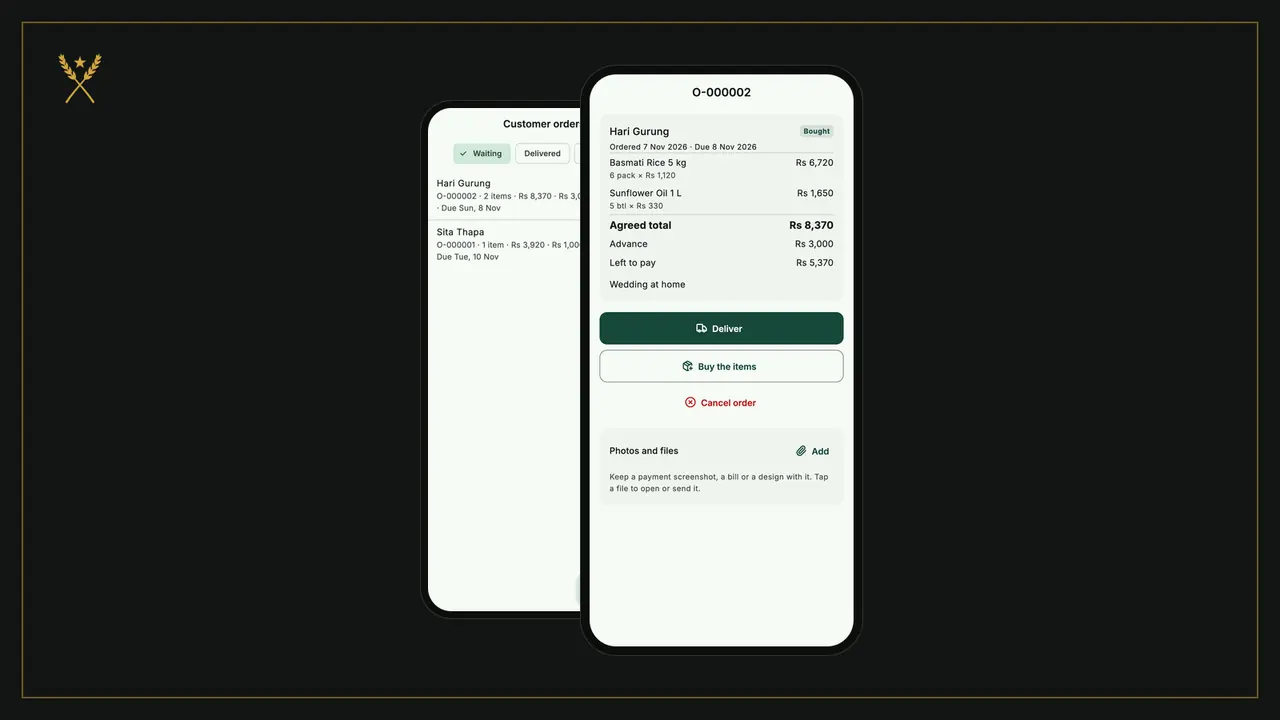
"Can you get me three bottles of ghee by Saturday?" A customer order is something a customer asks for that you don't have on the shelf yet. BSMM keeps it from the moment they ask until they take it home: the agreed price, the date you promised, the advance payment, buying the goods in, and the final bill with the advance already counted. This tutorial follows one order from start to finish.
1. Where orders live
Go to More › Customer orders. Orders are grouped as Waiting, Delivered and Cancelled. Each one shows the customer, the order number, how many items, the agreed total, the advance paid and the date it's due, with a label: To buy if you still need to get the goods, Bought once they're in.
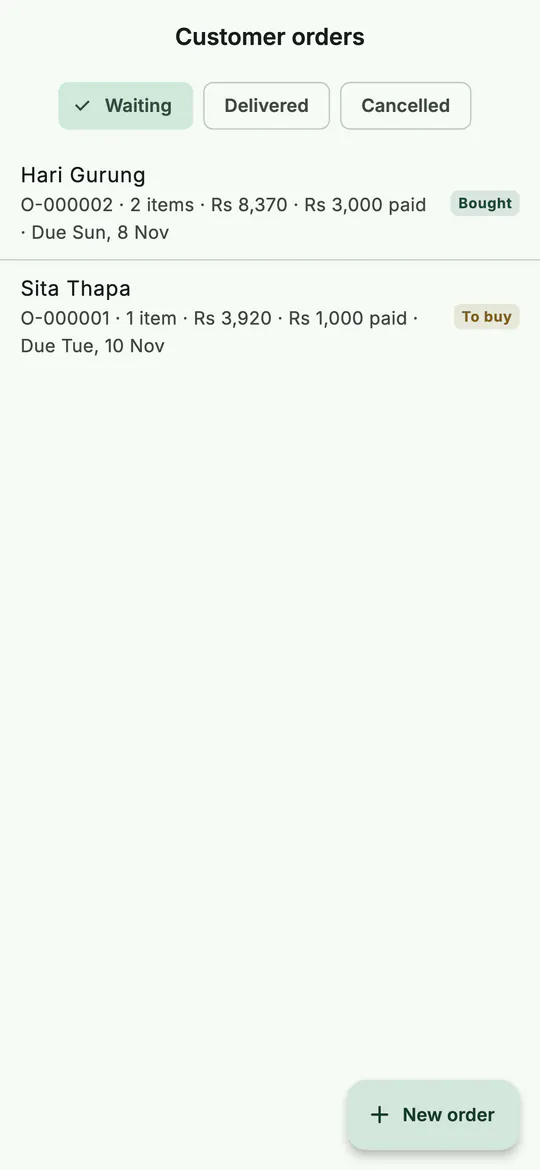 Waiting orders: what's still to buy, and what's ready to deliver.
2. Take the order
- On Customer orders, tap New order. The counter opens, titled New order.
- Add the items as you would on a bill: tap a pinned product, search, or scan. It's fine to order more than you have; BSMM notes how many are left.
- If you agreed a special price, tap the line and change the Price for one.
- Tap Walk-in · choose customer and pick the customer. An order always needs one.
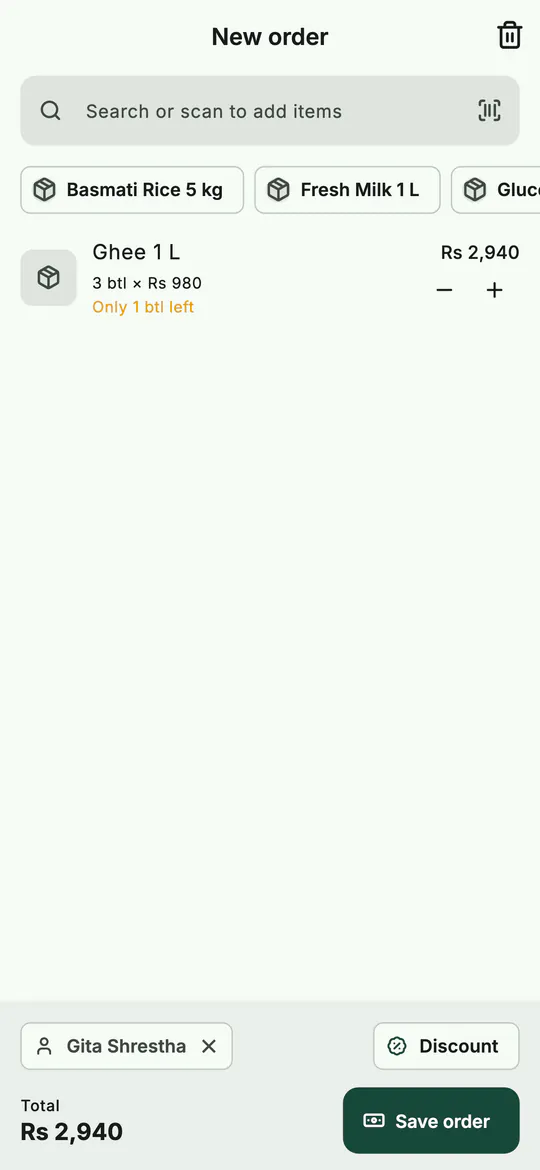 An order is made like a bill, for a chosen customer.
- Tap Save order. A sheet opens with the total and the customer's name.
- Type the Advance they're paying now, and choose how they paid under Taken with. The advance counts towards the final bill. If your shop has partners, pick who took it under Money taken by.
- Tap Promise a date and choose when it'll be ready. Add a Note if there's anything to remember.
- Tap Save order.
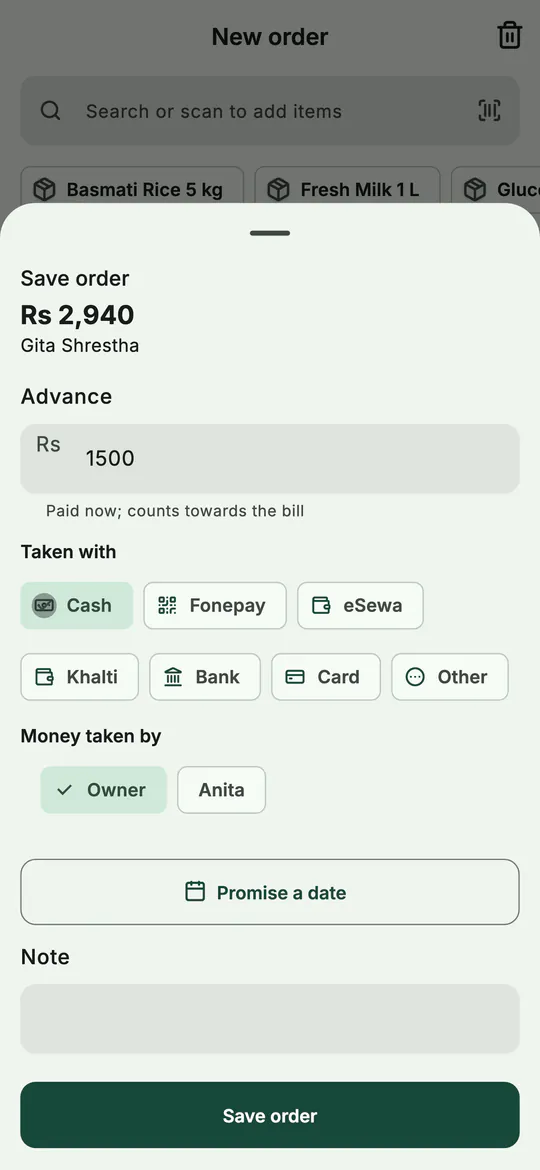 The advance, how it was paid, and the date you promised.
The order gets its own number, starting O-, and opens on its page.
3. The order's page
Tap any order to see it:
- the customer, the status, and when it was ordered and is due;
- the items at the agreed prices;
- Agreed total, Advance and Left to pay;
- Deliver, Buy the items and Cancel order;
- Photos and files, for a design, a sample photo or a screenshot of the payment.
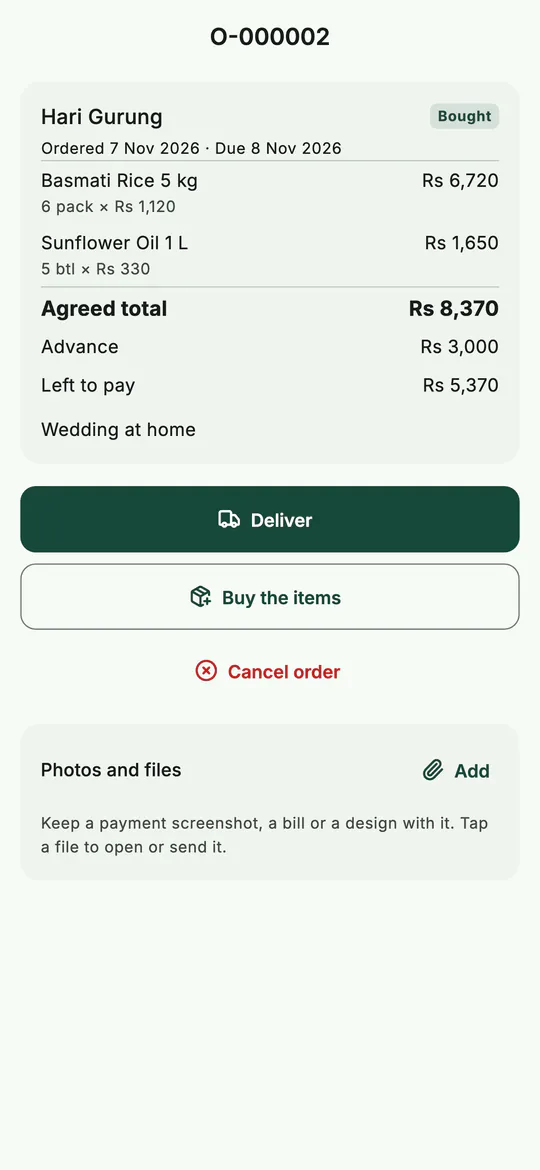 An order: what was agreed, what's paid and what's left.
4. Buy the goods in
When you go to your supplier, open the order and tap Buy the items. Stock in opens with the order's items already filled in. Add the supplier, the costs and what you paid, as in stock in from suppliers, and save. The order is now marked Bought, and the goods are in stock for it.
5. Deliver the order
When the customer comes to collect:
- Open the order and tap Deliver. The counter opens with the order's items on the bill, titled Deliver order.
- Tap Charge. The payment sheet shows the Advance paid taken off, so you only collect what's left.
- Take the rest by any method, or leave some on their khata, and tap Complete sale.
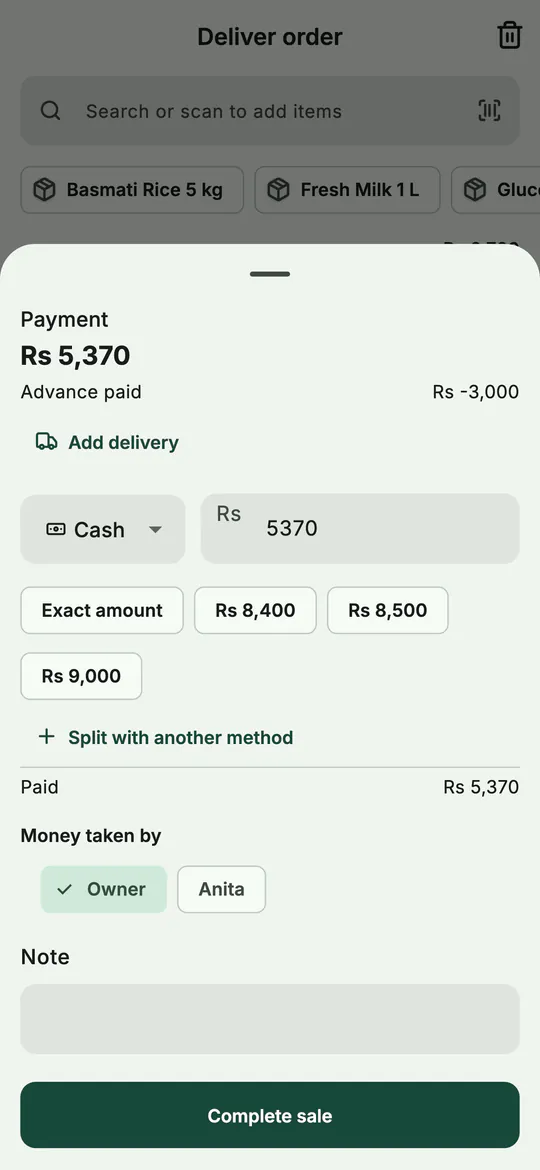 Delivering: the advance is already counted, so you collect the rest.
The order moves to Delivered, with View the bill on its page. The bill shows the advance on its own line, so the receipt makes sense to the customer.
6. If the order is cancelled
Open the order and tap Cancel order. If the customer paid an advance, choose how to give it back: In cash, or On their account, where it counts towards their khata. Or tap Keep the order to change your mind. A cancelled order stays in the Cancelled list.
Tips
- Always take an advance for special orders. It's the customer's commitment, and BSMM keeps it safe on the order.
- Promise a date you can keep, then turn on Due reminders in More › Notifications: BSMM reminds you in the morning when orders are due.
- Attach the details. A photo of the exact item or the customer's design saves a second trip.
- Change the price on the order, not the product, when you agree a special price for this customer.
Common mistakes
- Selling an ordered item to someone else. The counter doesn't hold stock back for an order, so keep the goods aside on the shelf.
- Making a new bill instead of delivering. Use Deliver on the order, so the advance is counted and the order is marked done.
- Taking the advance as a separate sale. Enter it in the order's Advance; a separate sale would count it twice.
What next
Orders and advances involve money taken by different people. If more than one person handles the shop's money, see partners and organizations.
Taking orders for what you don't stock is one of the ways to grow in how to run a kirana store. Orders sit with the khata on the features page.
Questions
Can I take an order without an advance? Yes. Leave the advance empty. The customer pays the whole amount when you deliver.
Can I keep a photo of what the customer wants? Yes. On the order's page, under Photos and files, tap Add to take a photo or attach a file, such as their design or a picture of the exact item.
What if a delivered order's bill was a mistake? Void the bill. The order goes back to waiting, as it was before delivery, and the stock and payments go back too.