Sales tell you how busy the shop was. Profit tells you whether it was worth it. Because BSMM records the cost of every item you sell, it can show your real profit for any day, week or month, with nothing to add up by hand. This tutorial covers the three places to look: Reports for any period, End of day, your daily sales report at closing time, and Expenses, which turn gross profit into net profit.
1. Open your reports
Tap Reports on Home, or go to More › Reports. Tapping today's figures on Home opens it too.
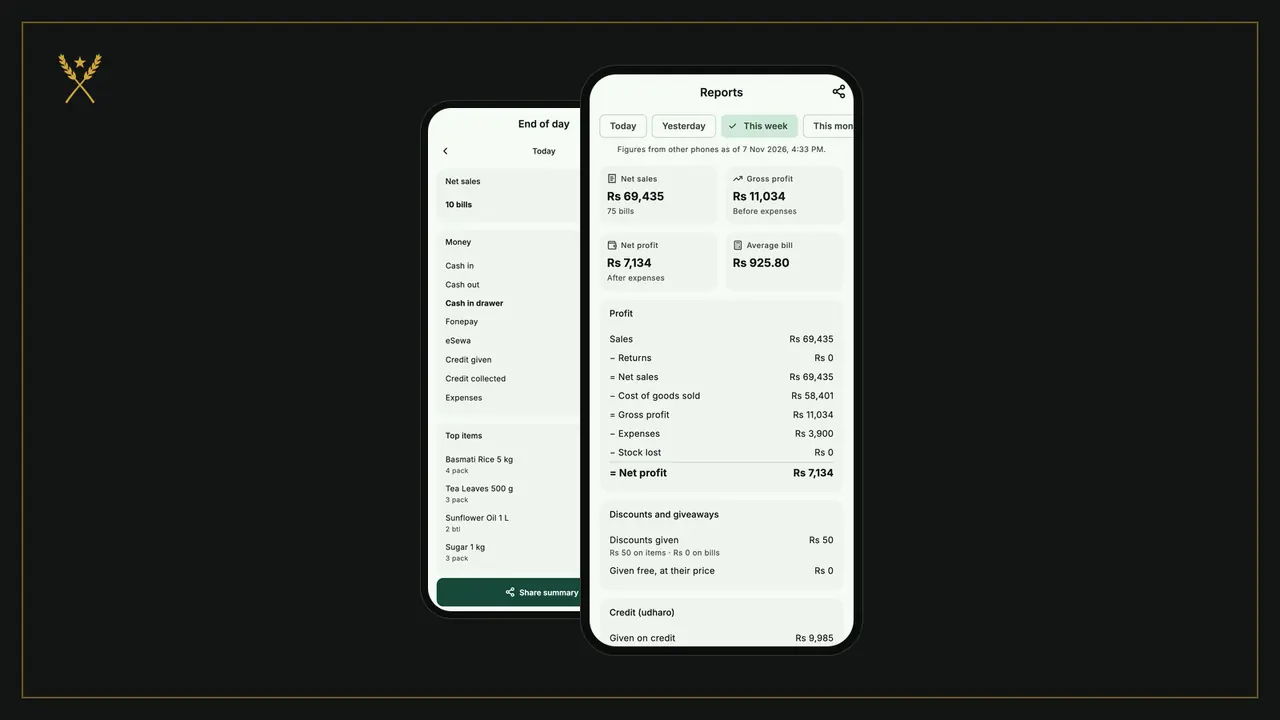
Choose the period at the top: Today, Yesterday, This week, This month, Last month, All time, or Pick dates for any range.
The four figures at the top answer the big questions:
- Net sales: what the bills came to after discounts and returns, and how many bills.
- Gross profit: net sales less what the goods cost you, before expenses.
- Net profit: after expenses and lost stock.
- Average bill: how much a customer spends at a time.
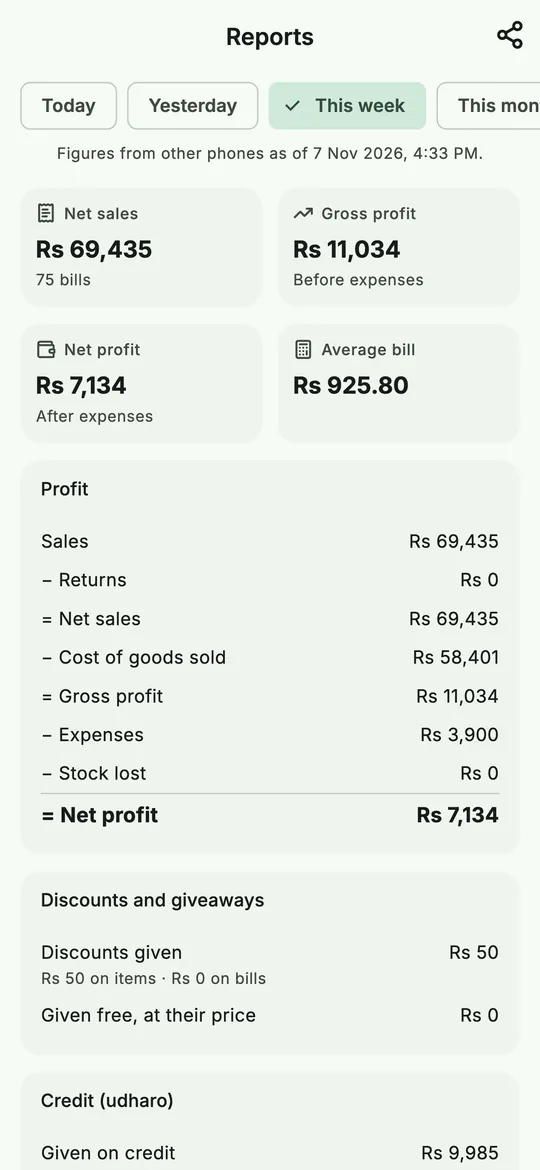 This week at a glance: sales, gross profit, net profit and the average bill.
2. Read the profit, line by line
Under Profit, BSMM shows how it got there:
- Sales, less Returns, gives Net sales.
- Less the Cost of goods sold gives Gross profit.
- Less Expenses and Stock lost gives Net profit.
Each line uses the cost of the goods at the time they were sold, so a price change at your supplier doesn't upset last week's figures. How each figure is worked out, with an example, is in how to calculate your shop's real profit.
Further down you'll find:
- Discounts and giveaways: discounts on items and on whole bills, and what you gave free, at its price and at what it cost you.
- Credit (udharo): what you gave on credit in the period, and what you collected.
- Money in and out: for each way of paying, what came in and what went out, from sales, refunds, purchases, supplier payments and expenses.
- Stock bought: how many purchases you made in the period, and what they came to.
- Delivery, if you charge for it: what customers paid for delivery, what the couriers cost, and what was left.
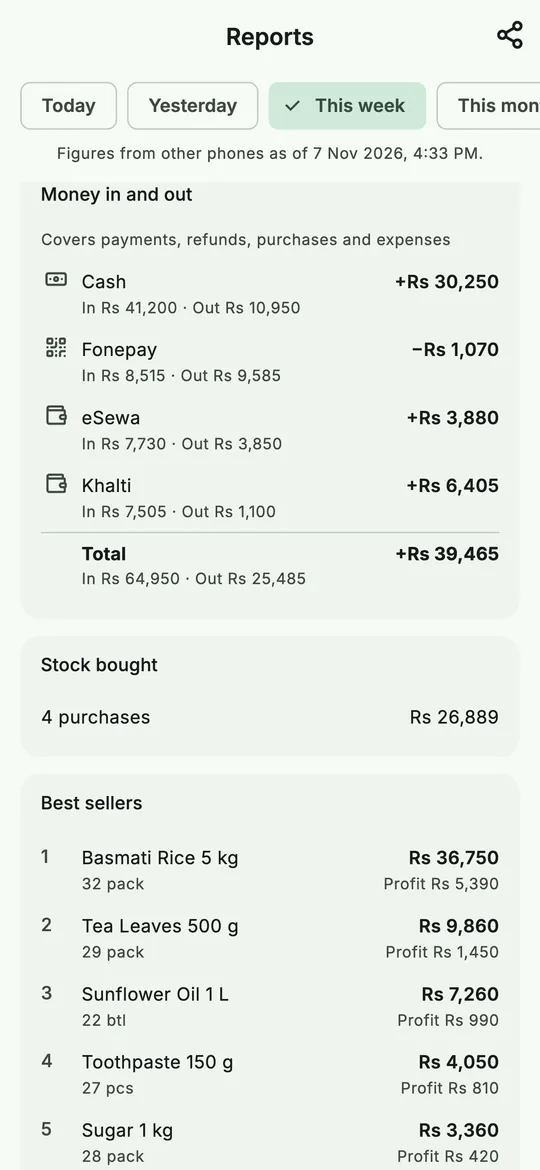 Money in and out, for cash and each wallet.
3. Find your best sellers
Best sellers lists the ten items that earned the most in the period, with how many sold and the profit each one made. By day shows each day's sales, bills and profit.
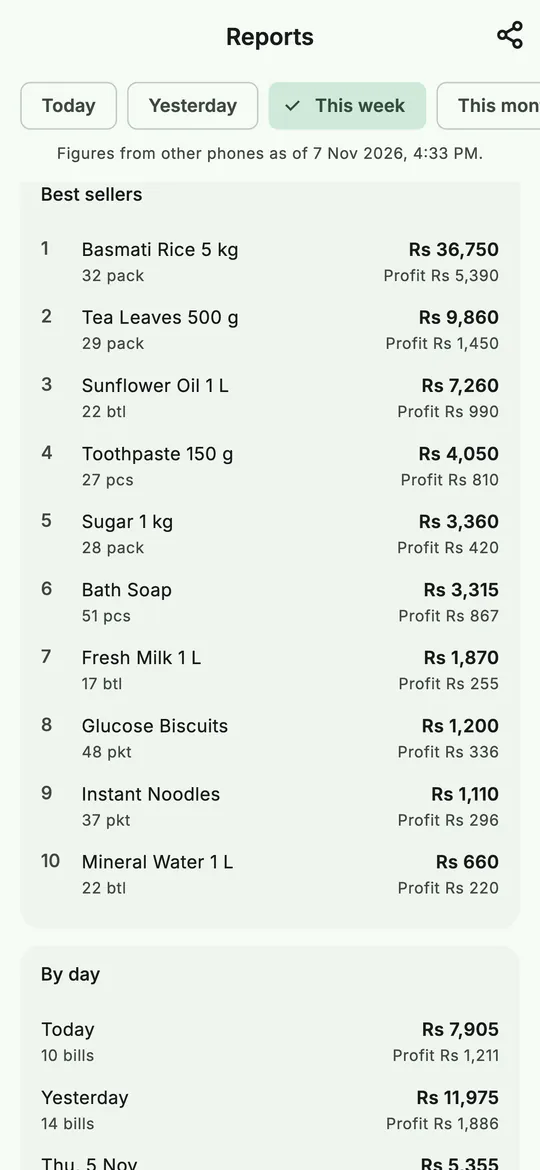 Best sellers: what earns the most, not just what sells the most.
The items at the top deserve the best shelf space and should never run out. For a way to sort your whole range by value, see ABC analysis.
4. Check the stock and the dues
The last two sections are always about now, whatever period you chose:
- Stock on the shelf: its Cost value at average cost, its Selling value at today's prices, and the Expected profit when all of it sells. Out of stock and Low stock open the lists.
- Dues now: what Customers owe you and what You owe suppliers.
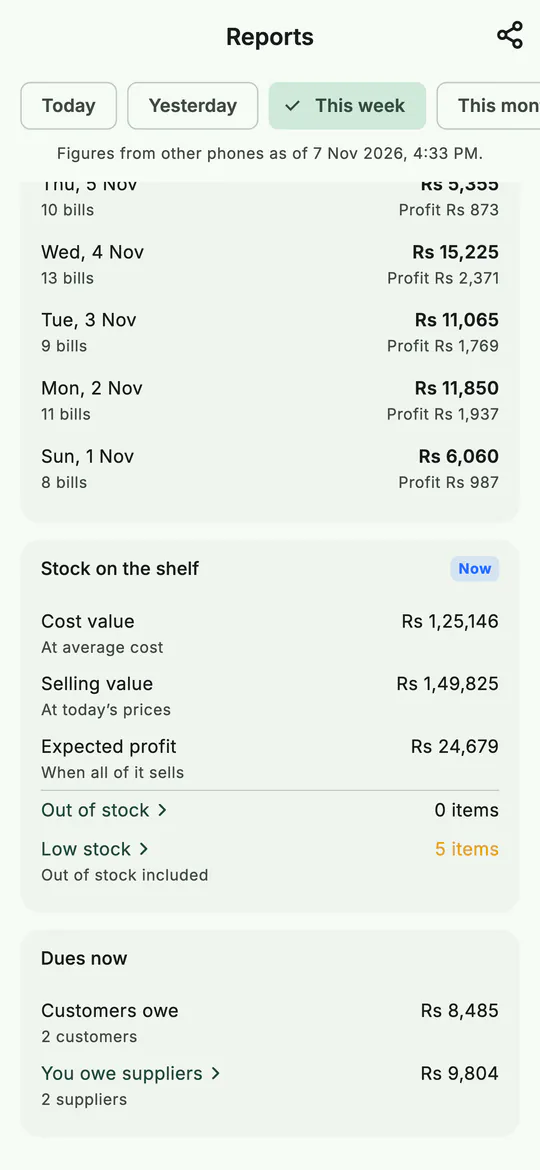 What's on the shelf, what it's worth, and who owes whom.
To send the report to a partner or your accountant, tap the share button at the top. BSMM sends the summary as text.
5. Daily sales report: close the day with End of day
At closing time, tap End of day beside Today on Home. It shows one day's money:
- Net sales and the number of bills;
- Cash in, Cash out and Cash in drawer: what should be in the drawer now;
- what came in by each wallet or bank;
- Credit given and Credit collected, and the day's Expenses;
- Top items: the day's five best sellers.
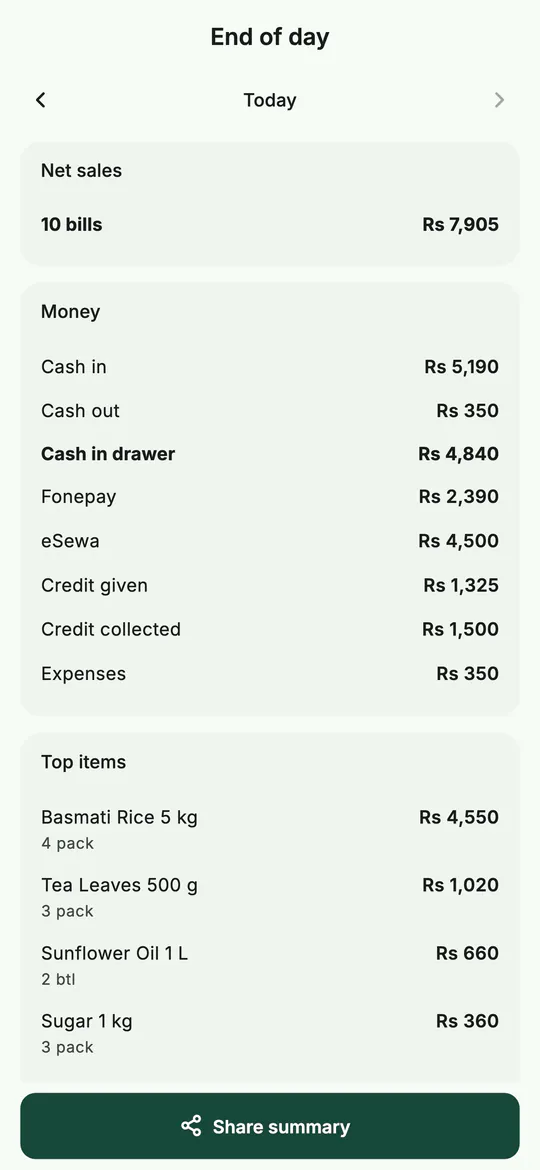 End of day: what should be in the drawer, and how the rest came in.
Count the drawer and compare it with Cash in drawer. Use the arrows at the top to look at earlier days, and Share summary to send it as text. Profit is left out of this summary on purpose, because it often goes to someone outside the business; the full figures stay in Reports.
Want a nudge? In More › Notifications, turn on Daily summary and set your Closing time.
6. Record your expenses
Rent, electricity, salaries and the like aren't stock, but they come out of your profit. Record them as you pay them.
- Go to More › Expenses, or tap Expenses on Home.
- Tap Add expense.
- Choose the category: Rent, Electricity, Water, Internet, Salaries, Transport, Delivery, Repairs, Taxes and fees or Other.
- Type the Amount, choose how you paid under Paid with, check the Date and add a Note ("October rent").
- Tap Save.
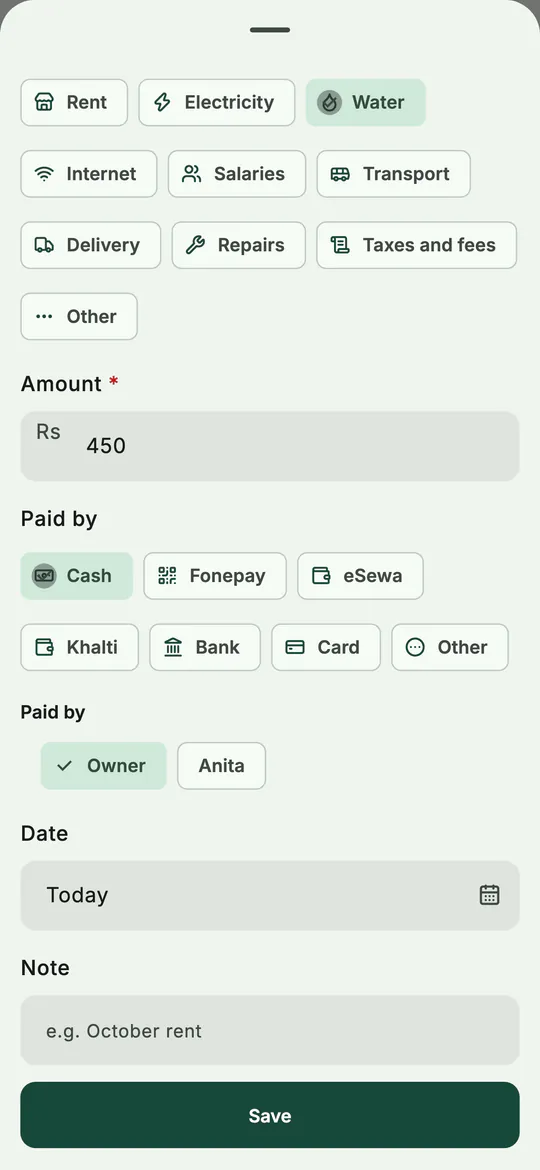 An expense: category, amount, how you paid and when.
The Expenses screen shows the total spent for the period you choose, and the entries below it. Filter by category to see, say, everything spent on transport this month.
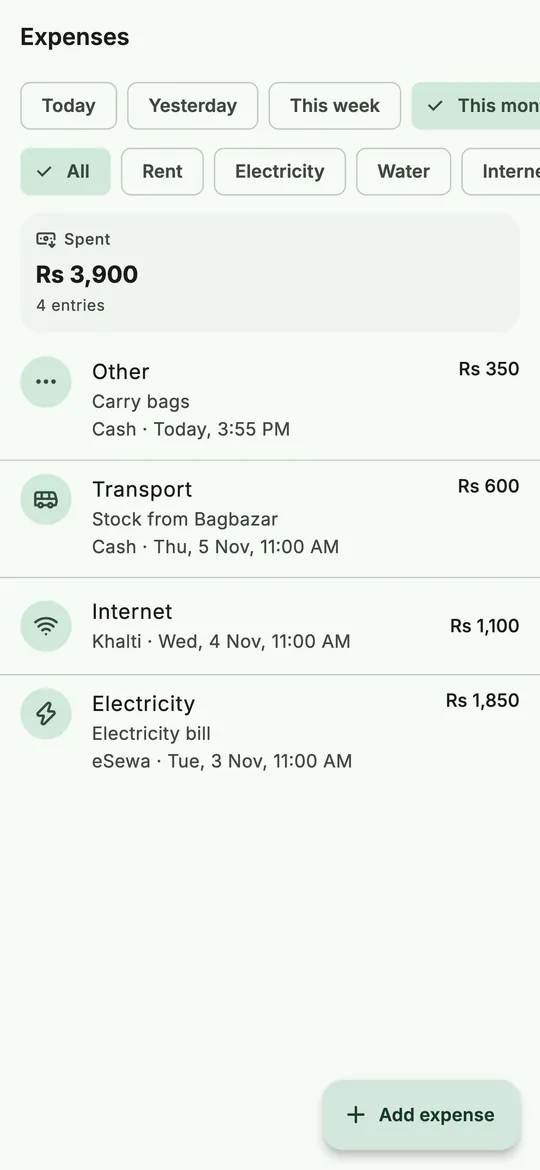 This month's expenses, with the total at the top.
Expenses are the one record you can edit: tap one to change or delete it. A deleted expense stops counting in the totals and reports.
Tips
- Look at gross profit before sales. A busy week of thin margins can earn less than a quiet week of good ones.
- Record every expense, even small ones. Without them, net profit looks better than it is.
- Close every day with End of day. A gap between the drawer and the app is easiest to explain on the same evening.
- Check best sellers before you reorder. Best sellers and low stock together show what to order more of.
Common mistakes
- Recording stock purchases as expenses. Stock goes through Stock in; its cost comes off your profit when it sells. Entering it as an expense counts it twice.
- Leaving cost prices empty. Profit can only be as right as the costs you entered.
- Judging one day alone. Compare a week with a week, or a month with a month.
What next
When more than one person works the counter, everyone can use their own phone on the same shop. See staff, several phones and offline sync.
For ideas once you can see your numbers, read how to increase profit in a small shop. What the reports cover is summed up on the features page.
Questions
Why is net profit lower than gross profit? Net profit takes off your expenses (rent, electricity, salaries) and any stock lost to damage, expiry or theft. Gross profit is before both.
Do returns lower the day they're made, or the day of the sale? The day they're made. A bill counts on the day it was sold, and a return on the day it came back.
Can I see the reports on another phone? Yes. Everyone in the shop sees the same figures on their own phone. Reports from other phones are as up to date as their last sync, and the report says when that was.